|
⚠Danger |
|
In general, the Password is used to protect the intellectual property right of the developed program. In addition to the password, the M-PLC is also designed with additional ID and PLC ID protective measures.
This section describes the protective measures such as password as well as program ID and PLC ID in order to intensify the security level in protecting the intellectual properties that are laboriously developed by the respective user.
13-1 Program ID
It helps the user prevent illegal program replication or stealing to achieve the intended protection effect. However, it cannot be used to protect the Hardcopy type of program replication.
The program ID must be identical with the PLC ID, or the PLC will not be functioning as intended.
You may open, cancel or change the program ID by clicking [Project] → [Security] → [Program ID] in the tag page. The password should be presented in capitalized English 8-digit alphanumeric characters (A–Z, 0–9). 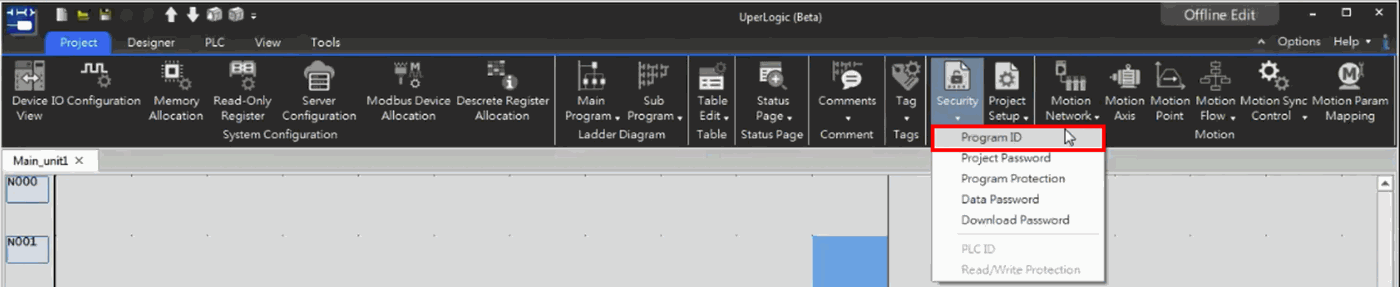
Fig. 270: Editing program ID
13-2 Project Password
It provides the “Encrypt Project File” (*.pdwx) function for users.
You may open, cancel or change the project password by clicking [Project] → [Security] → [Project Password] in the tag page. The password should be presented in capitalized English 8-digit alphanumeric characters (a–z, A–Z, 0–9).
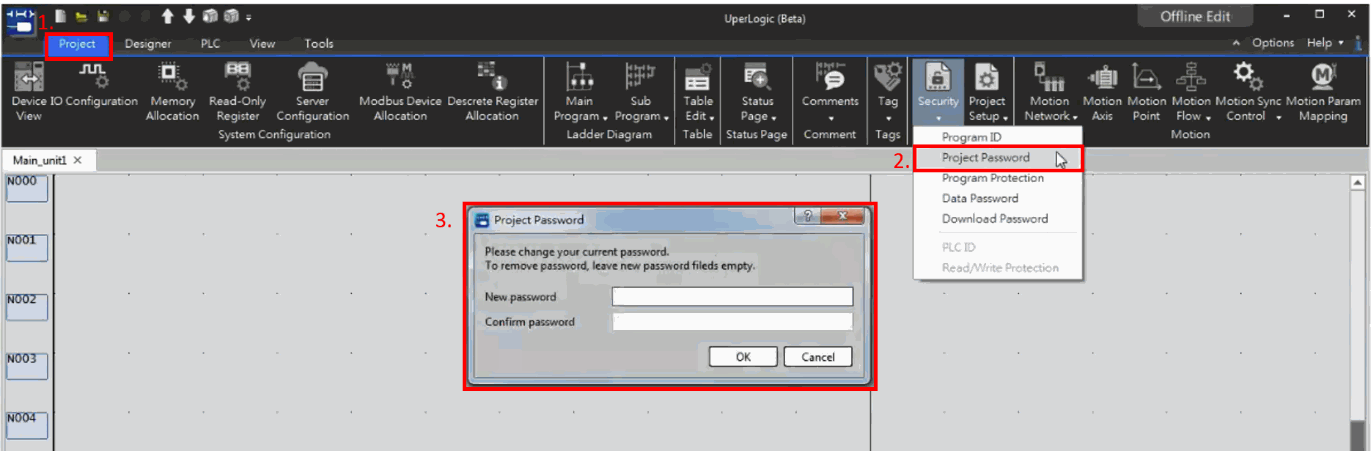
Fig. 271: Project password
13-3 Program Password
It provides the “Encrypt Program” function for users.
You may open the [Program Protection] window by clicking [Project] → [Security] → [Program Protection] in the tag page. If such window has been created with the protect password already, then you need to input the password beforehand in order to open such window.
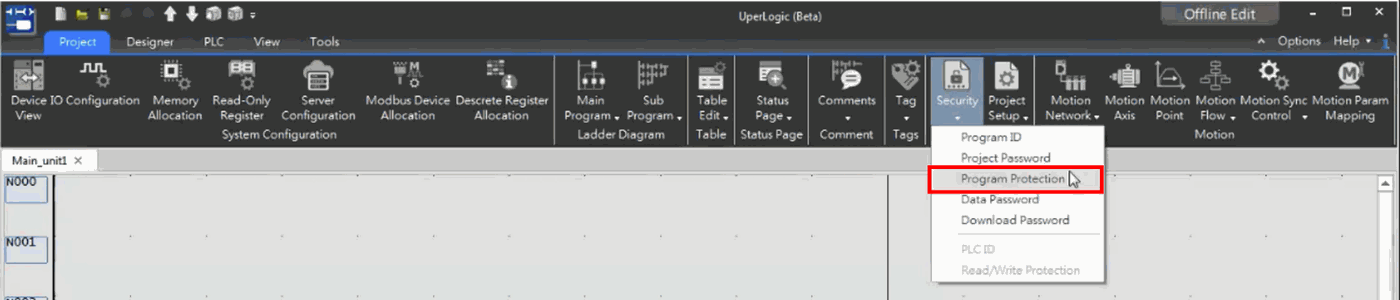
Fig. 272: Program unit password
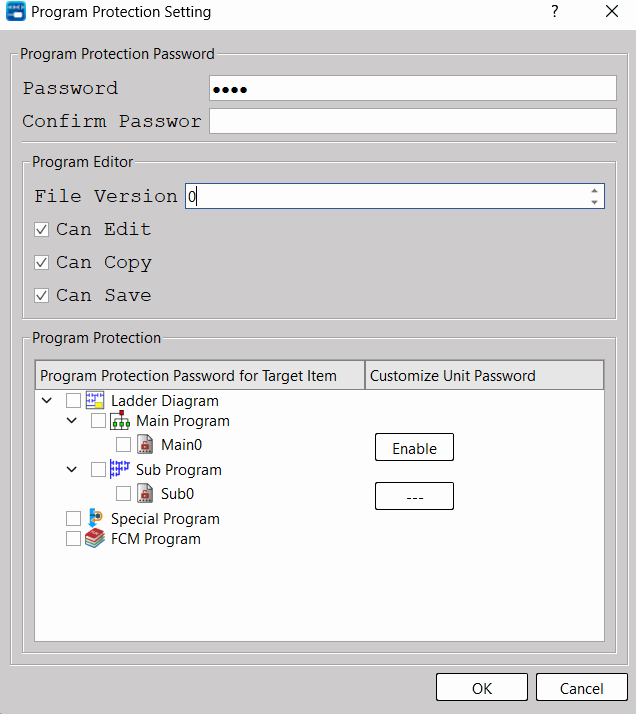
After clicking, the window will show the “Program Protection Setting” window page.
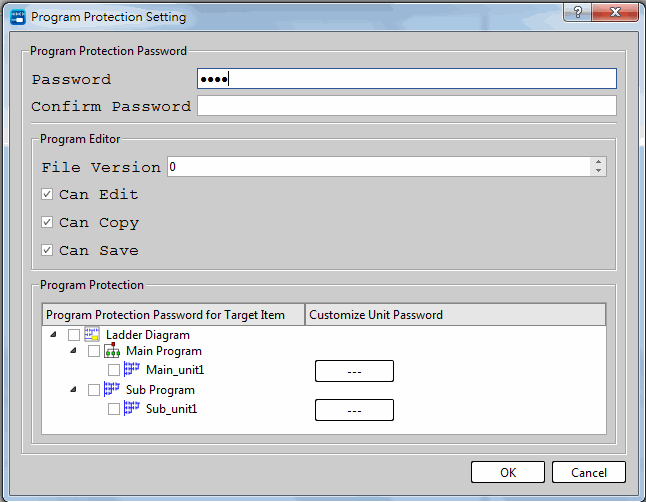
Fig. 273: Program Protection Setting
|
Type |
Function |
Description |
|
Program Protection Setting |
Password |
Setting new password or changing old password. |
|
Confirm Password |
The user needs to confirm the imported password again when creating new password or changing password. |
|
|
Program Editor |
File Version |
Saving currently edited project on the disk. |
|
Can Edit |
After being selected, it allows the user to edit the project. |
|
|
Can Copy |
After being selected, it allows the user to copy the project. |
|
|
Can Save |
After being selected, it allows the user to save the project. |
|
|
Program Protection |
Program Protection Password for Target Item |
Selecting the unit to be protected. |
|
Customize Unit Password |
The user may create extra unit password in this column. For detailed password setting method please refer to the respective paragraph. |
Click [Activate Protection], input password and then press [OK] to complete the program unit password setting.
13-4 Program Unit Password
In customer project applications, programmers want to protect some key program logic or design process, and other basic application parameters are open to end customers to modify. At this time, program unit passwords can be used for hierarchical protection. UperLogic provides users with the function of encrypting program units, which can be used to encrypt individual program organization units, including Main Program/Sub Program/Interrupt Program/Function fast program, which has achieved the effect of protecting intellectual property rights.
Click [Project Management] → [Ladder Diagram] → [Main Program] and then select the program unit to be encrypted. Next, click the right mouse button → [Password Protection] and you will be allowed to set the unit password; or you may click [Project] → [Security]→ [Program Protection] → [Customize Unit
Password in tag page and then select  of the program unit to execute the encryption setting.
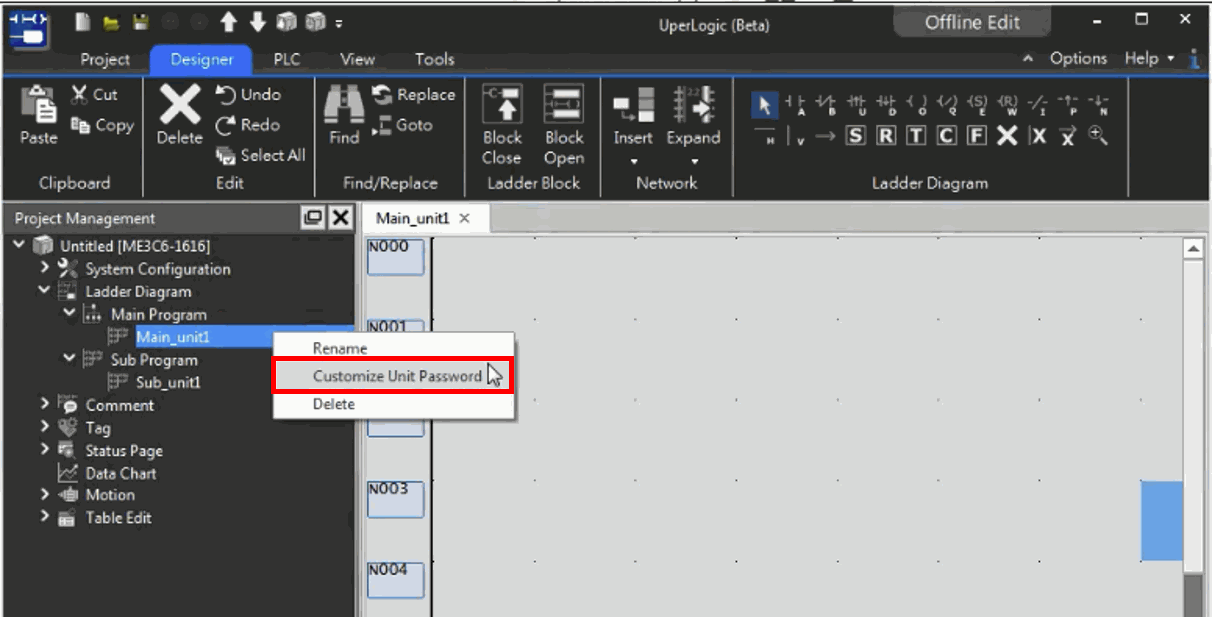
Fig. 274: Program unit password
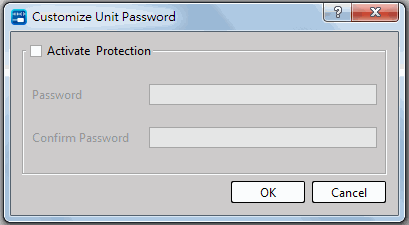
Fig. 275: Activate Customize Unit Password
After opening the window, set a password to complete the password setting. The icon of the password-protected program changes to  in the project management window. To open the program, the password must be entered to view and edit the program content.
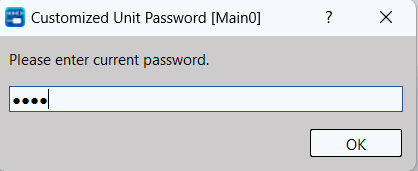
Fig. 276: Input Customize Unit Password
13-5 Data Password
Provide users data password function. For the data that is checked and set with a password, when you click on the data category, you need to enter the data password to access it.
From the tab page [Project] → [Security] → [Data Password], you can select the data to be protected, and Enable/Cancel/Change the data password. The password should be presented in capitalized English 8-digit alphanumeric characters (a–z, A–Z, 0–9).
13-6 Download Password
Provide users with the function of setting a download password to protect the project from being arbitrarily downloaded to different devices. For projects with a download password set, the correct password must be entered during the download process to continue the download process.
From the tab page [Project] → [Security] → [Download Password], and you can Enable/Cancel/Change the data password. The password should be presented in capitalized English 8-digit alphanumeric characters (a–z, A–Z, 0–9).
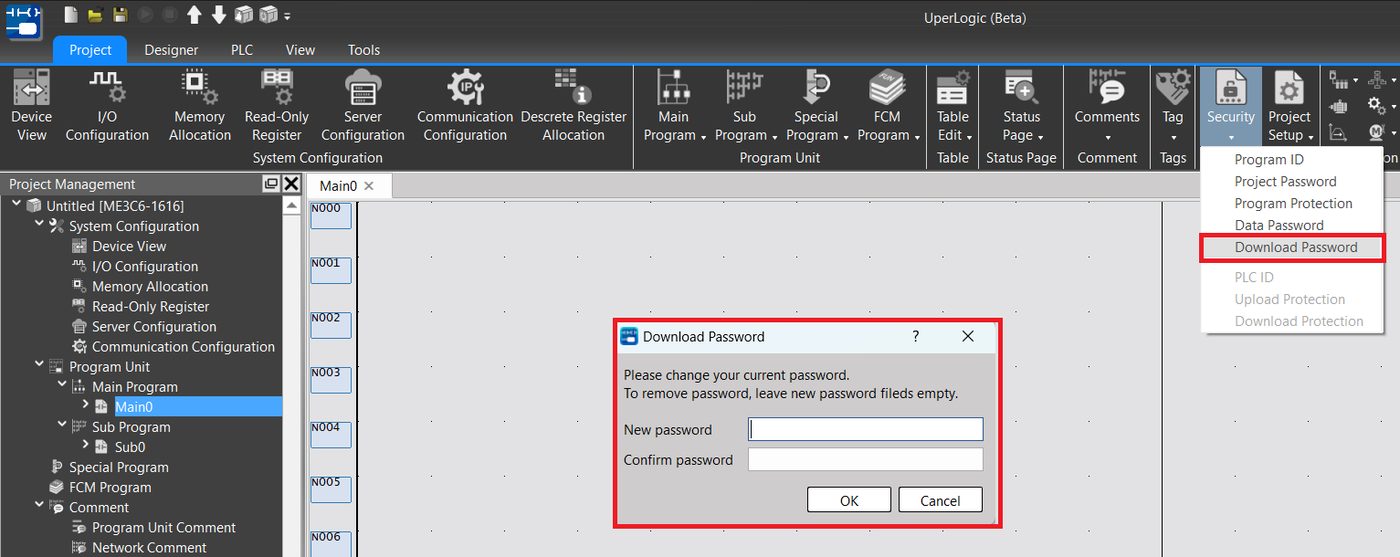
Fig. 277: Download password
13-7 Upload Protection
Provide users with the function of setting upload protection to protect PLC data from being uploaded arbitrarily. For a PLC with upload protection set, the correct password must be entered during the process to continue uploading.
From the tab page [Project] → [Security] → [Upload Protection], and you can Enable/Cancel/Change the data password. The password should be presented in capitalized English 8-digit alphanumeric characters (a–z, A–Z, 0–9).
13-8 Download Protection
Provide users with the function of setting download protection to protect PLC data from being downloaded arbitrarily. For a PLC with download protection set, the correct password must be entered during the process to continue downloading.
From the tab page [Project] → [Security] → [Download Protection], and you can Enable/Cancel/Change the data password. The password should be presented in capitalized English 8-digit alphanumeric characters (a–z, A–Z, 0–9).
Tip: press ← → to switch chapters, Ctrl+K to search