In order to allow users to receive anomaly notifications more quickly, we have developed a feature that allows users to receive messages on mobile devices. Currently, the following two scenarios are supported:
1. Push notifications are sent when an alarm occurs for an iMonitor data item.
2. Push notifications are sent when an alarm occurs on the HMI.
The following are the prerequisites for usage:
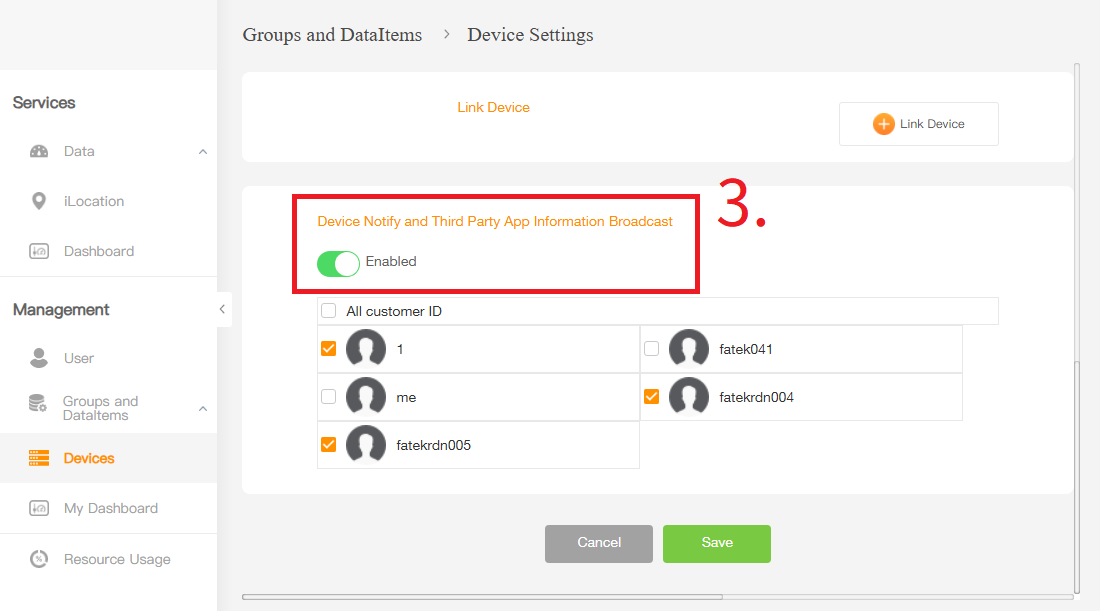
1. The device must be selected in the【Device】, and enabled【Device Notify and Third Party App Information Broadcast】. Users who wish to receive notifications should also be selected.
2. The HMI being used must be connectable to IoT, and the firmware version must be v1.6.61 or higher.
o Google Cloud supports【Device Notify】only.
o Alibaba Cloud supports【WeChat】only.
3. For iMonitor notifications, each data item needs to be individually configured.
7.1 Bind Application
7.1.1 Device Notify
Step 1. Enter the Device and edit the device that you want to receive notifications for.
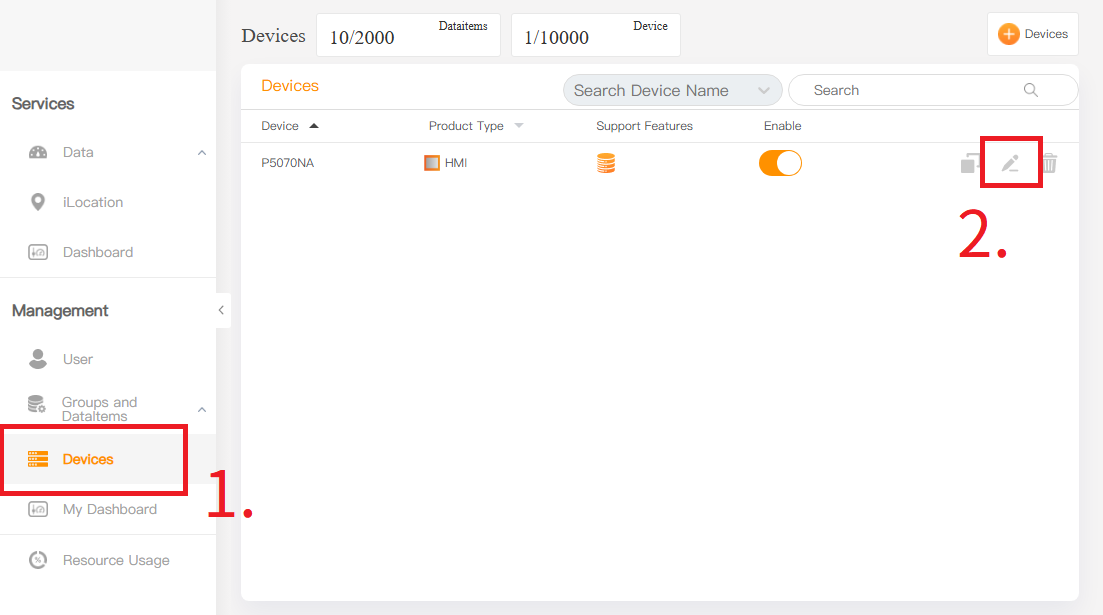
Step 2. Click to enable【Device Notify and Third Party App Information Broadcast】, and then select the users who can receive notifications from this device below.
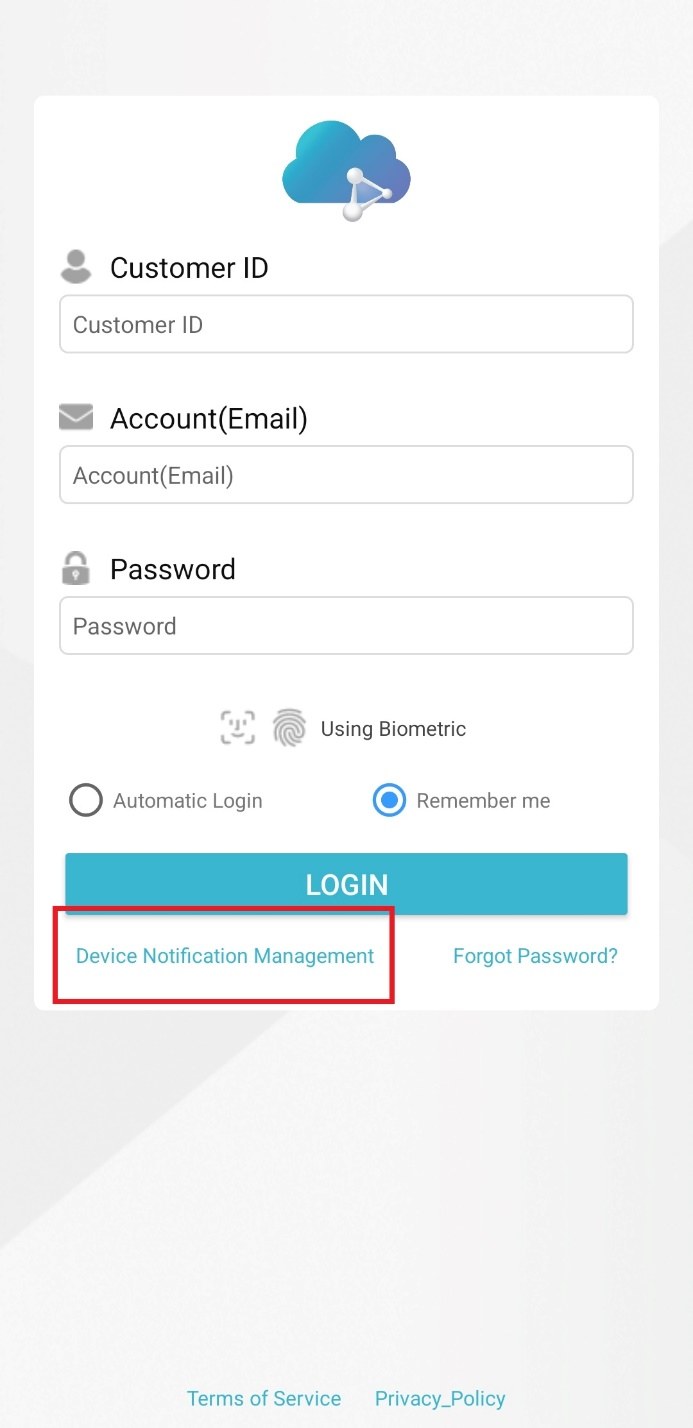
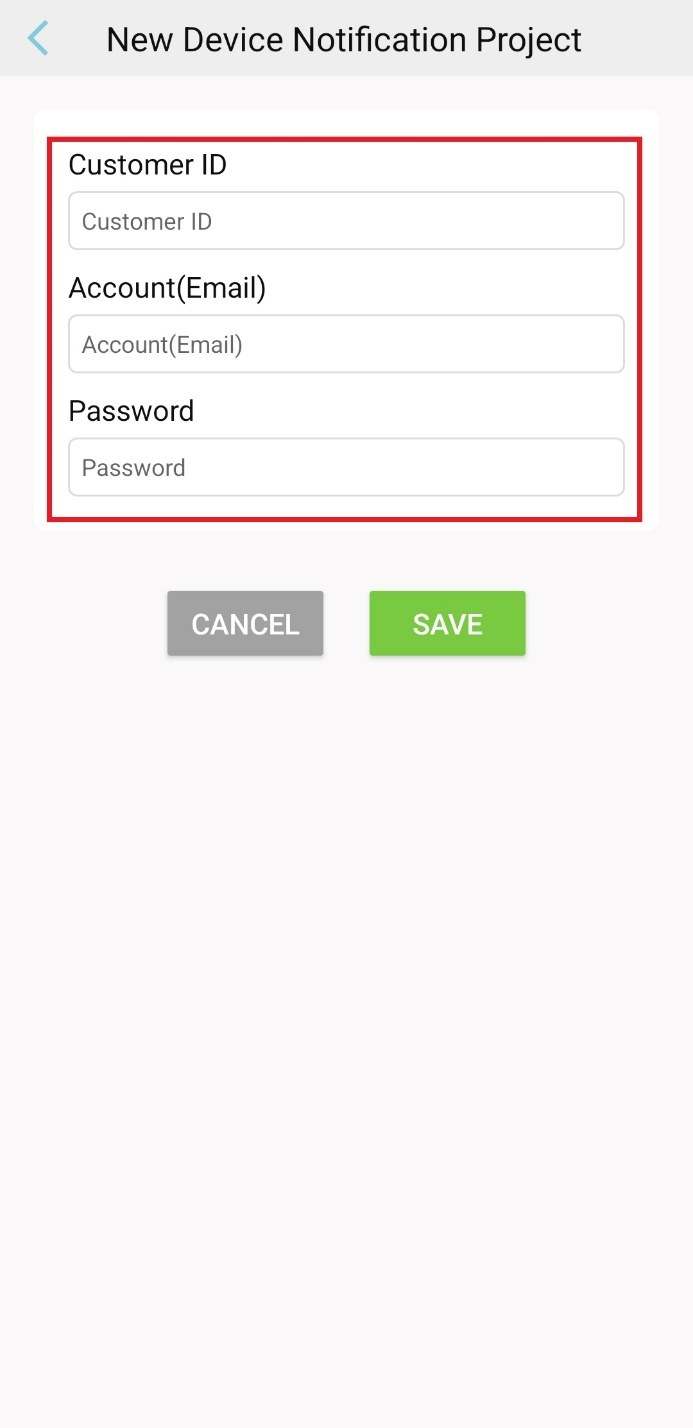
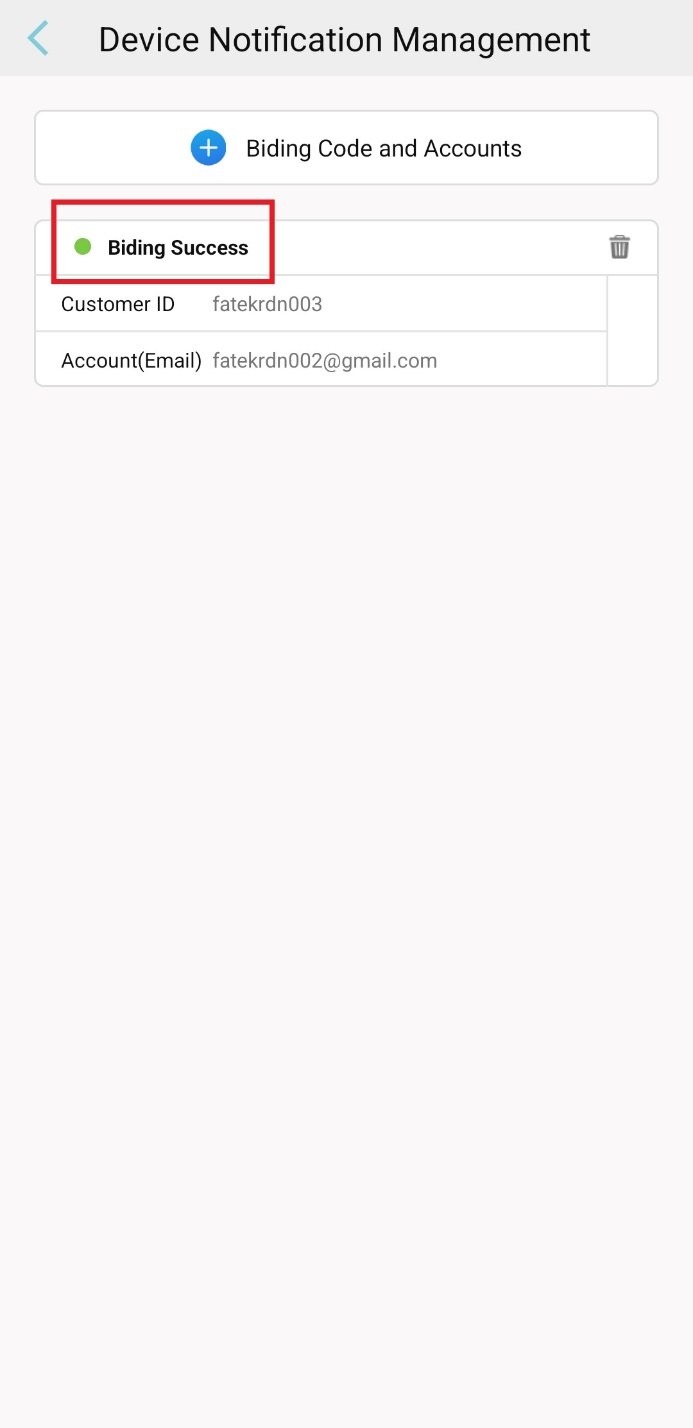
Step 3. Launch the app, tap on「Device Notification Management」on the homepage, switch the page, and add Binding.
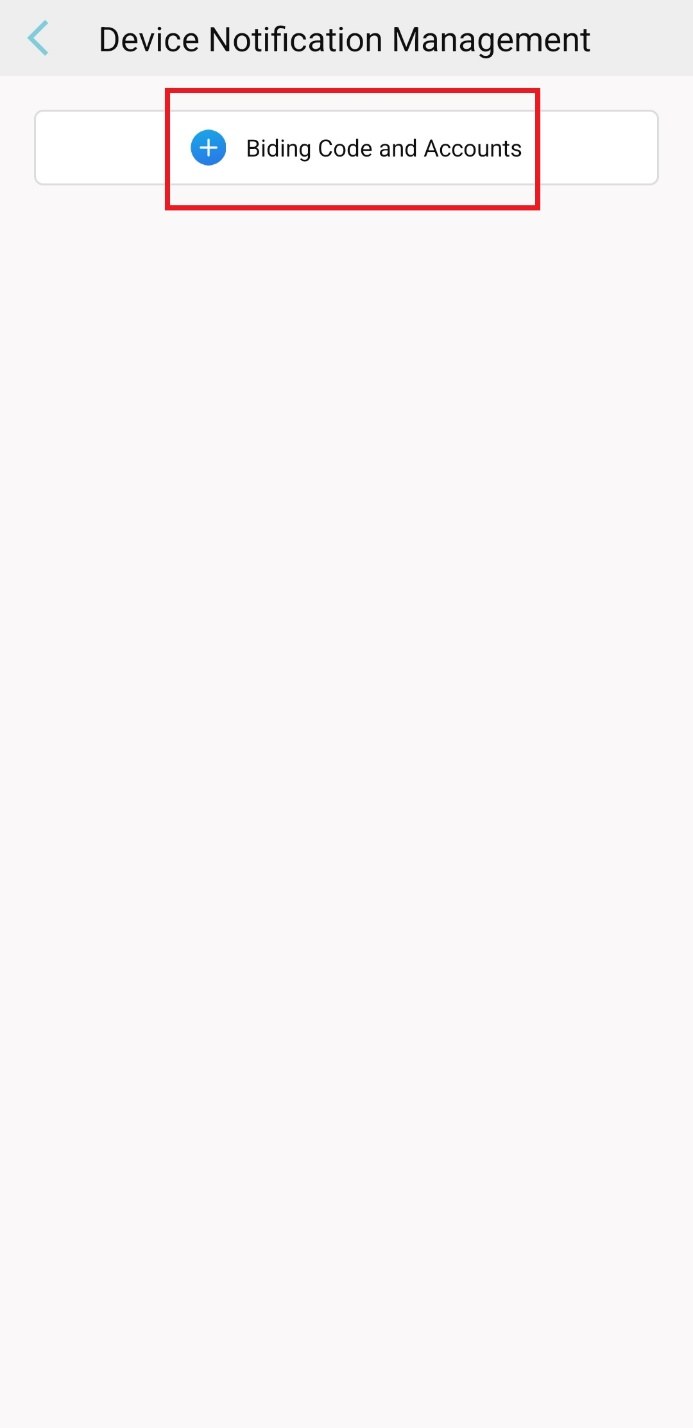
Step 4. Fill in which users’ notifications this phone wants to receive. If the bound「Customer ID」or the「Account」under this ID is blacklisted, notifications from this source will no longer be received.
※ If the app is deleted, the list will be cleared.
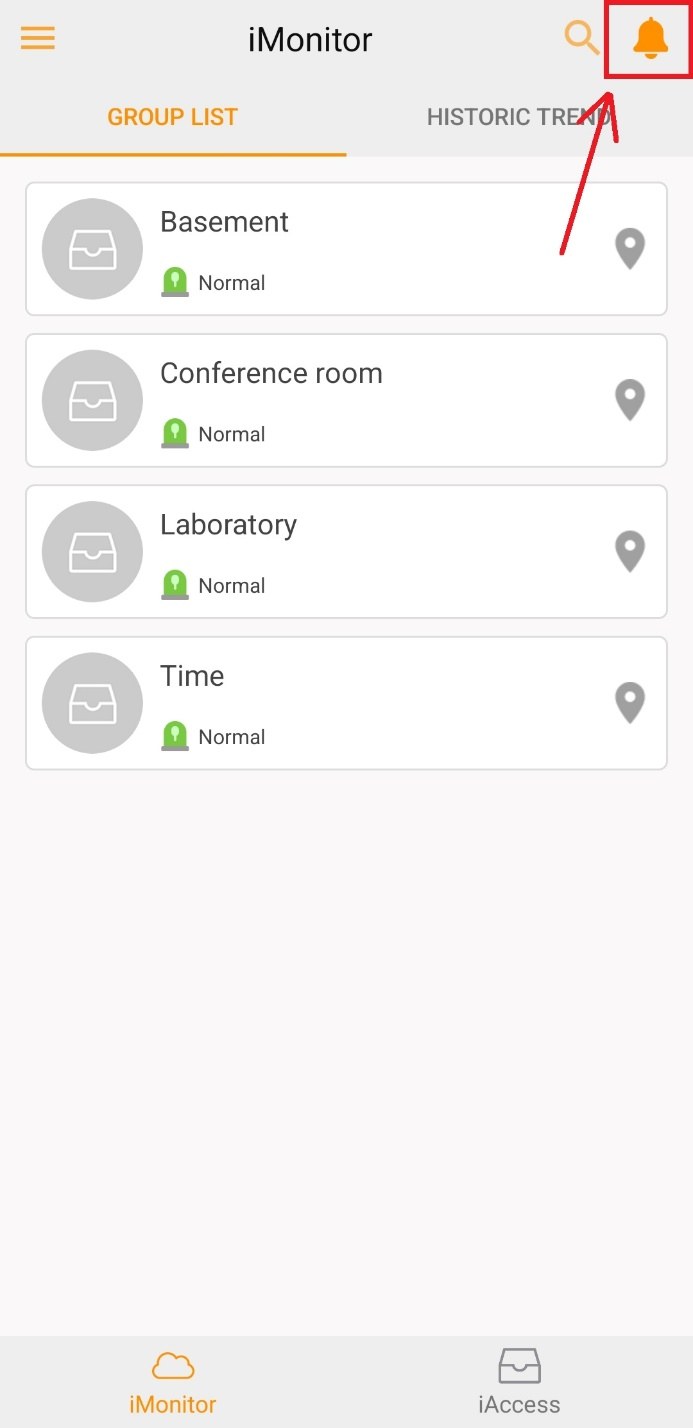
Step 5. To view the notification content , log in and tap the notification icon at the top-right corner of the screen.
New notifications will be displayed at the bottom of the screen. Long press on these notification cards to choose to delete or share; images will be shown as thumbnails in preview, but can be clicked to view the full image.
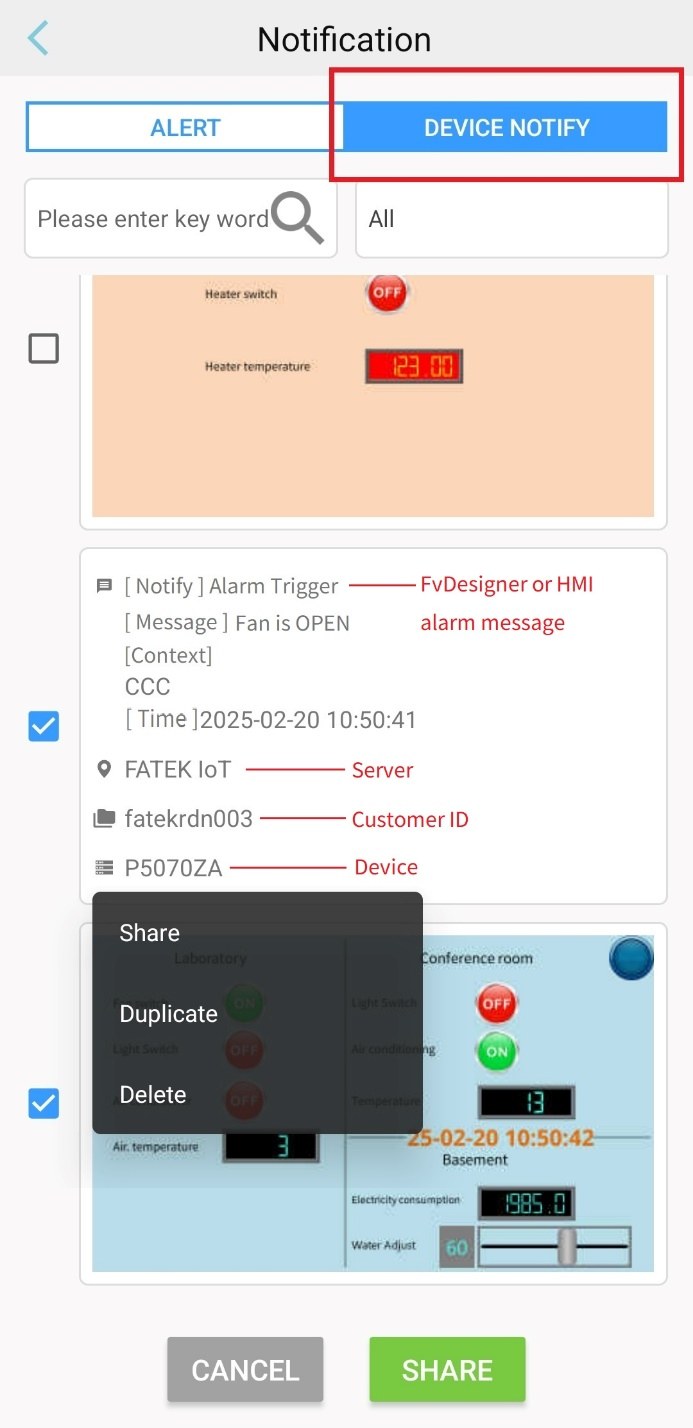
※Note: To ensure enough space in the IoT backend, the system will only retain the latest notifications for「two weeks」.
7.1.2 WeChat
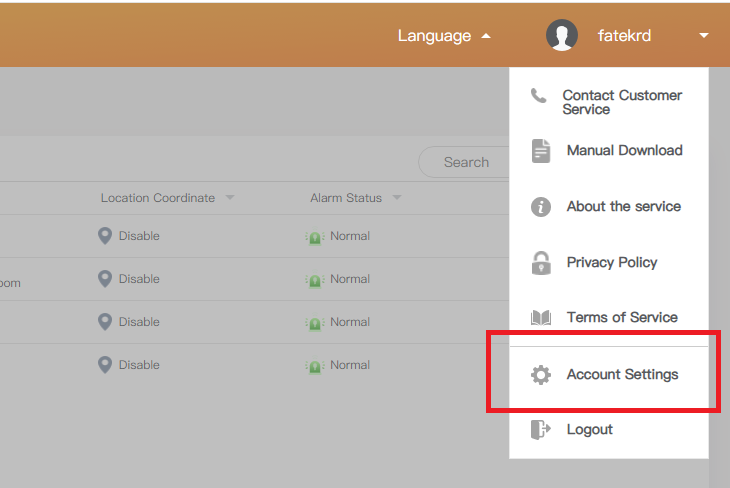
Step 1.
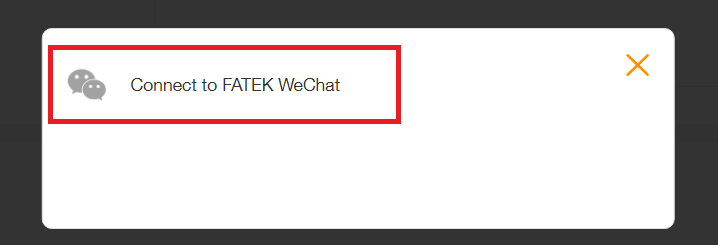
Select WeChat, then press it to display a QR code.
Step 2.
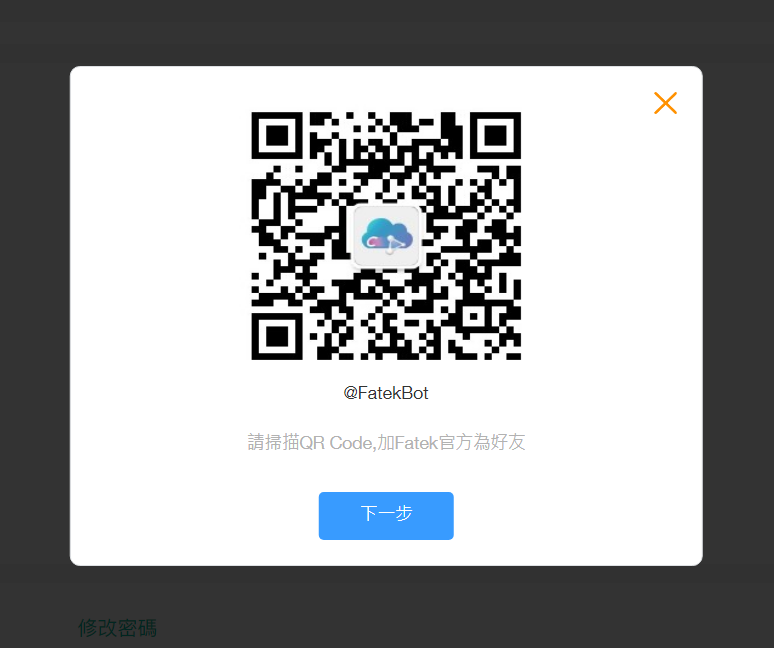
Use the built-in camera in WeChat to scan the QR code. After successful scanning, you will be invited to join the official group. Once joined, click “Next” here to stay on the project identification page.
Step 3.
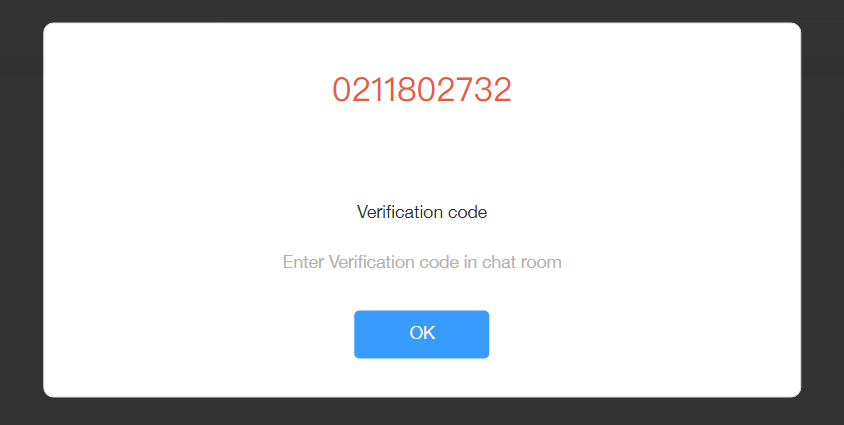
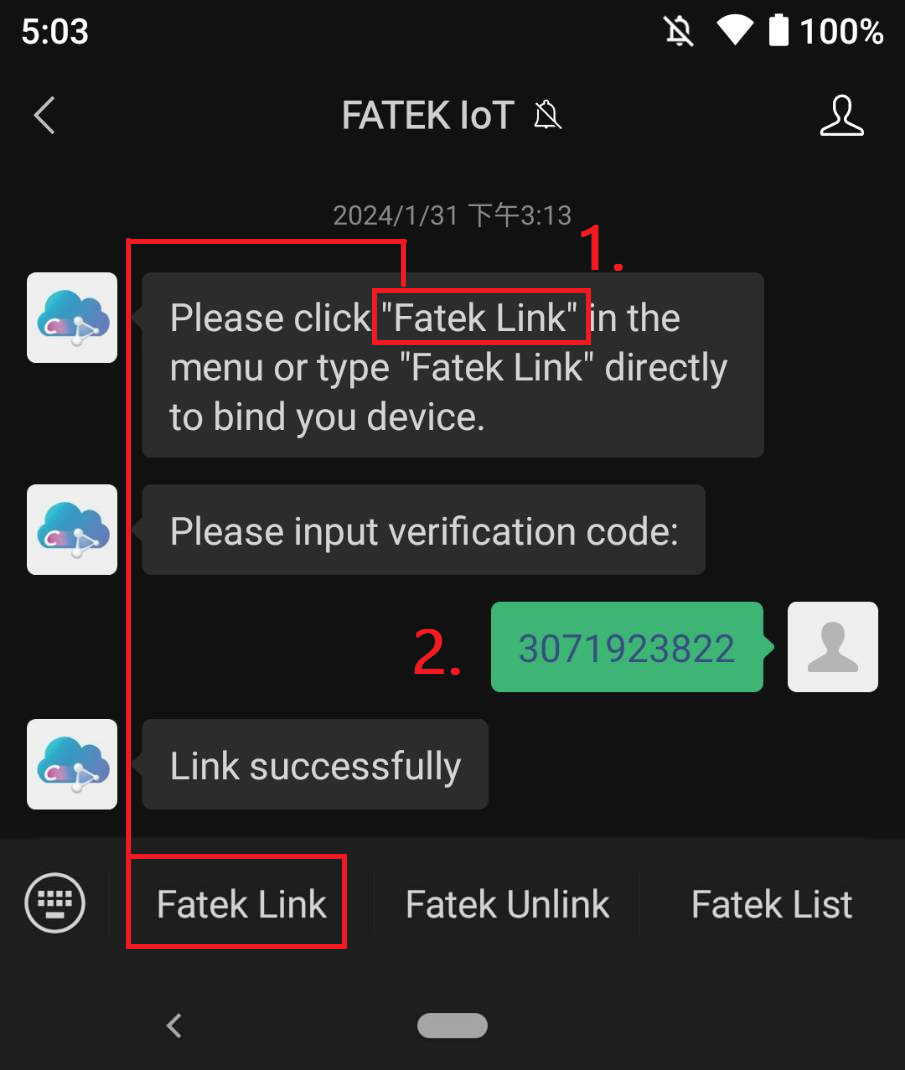
In the WeChat chat room, click or enter keywords as needed. After completion, you will be asked to enter the project identification code. After entering, a message indicating successful connection will appear.
Note:
If you forget the project identification code, you need to return to Step 1 to repeat the process.
7.2 Set up message
7.2.1 iMonitor Dataitesms
In the iMonitor’s Device List, select the Dataitem you want to enable messages for, then check the option to enable “The third party.”
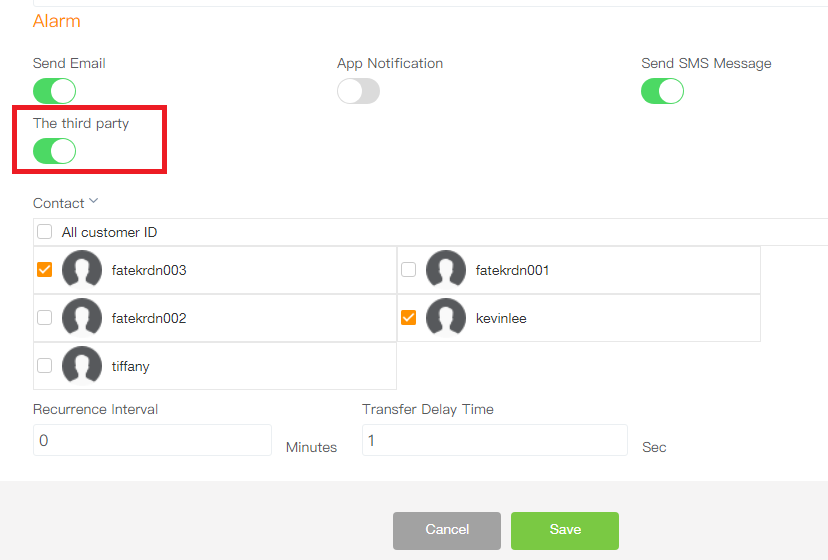
When a Dataitem triggers an alarm, it will be sent to the selected contacts below.
The contacts must also have their own accounts bound with third-party applications.
7.2.2 HMI Alarm
To receive push notifications sent from the HMI, you need to enable【Device Notify and Third Party App Information Broadcast】from the【Device】and select the users who should receive notifications for this device.
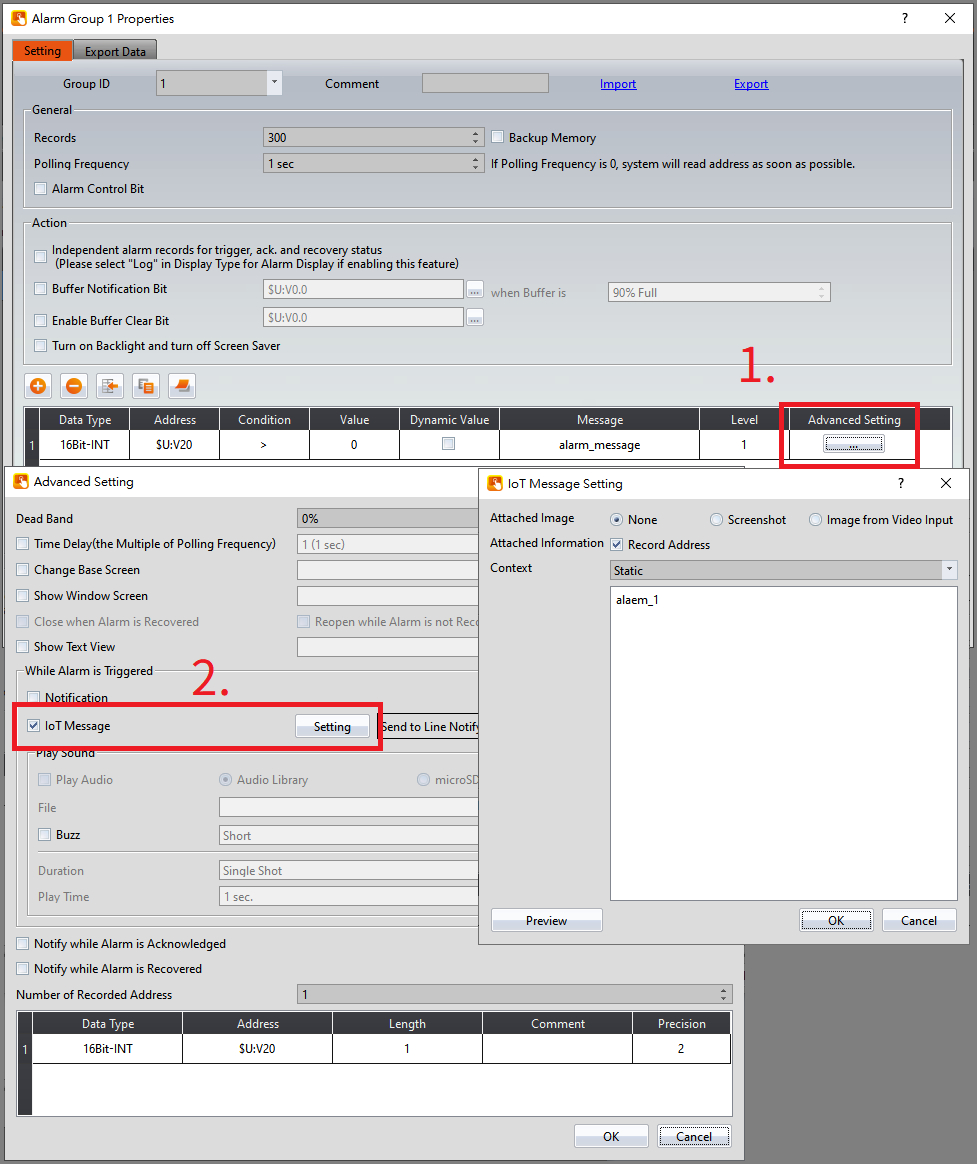
Next, configure the alarms in FvDesigner. Please note that FvDesigner needs to be version v1.6.61 or higher. After entering the【Advanced Setting】for alarms, check the option to enable【IoT Message】. You can set the message content here, and when an alarm occurs, a message will be sent to the third-party application. Alarms with a duration of less than 1 second will not trigger the message.
Tip: press ← → to switch chapters, Ctrl+K to search