The website will only display the purchased features.
You can switch functions through the menu in the top left corner.
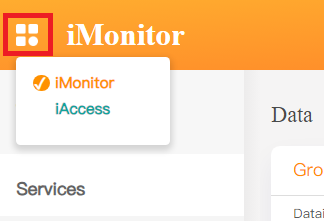
3.1 【iMonitor】
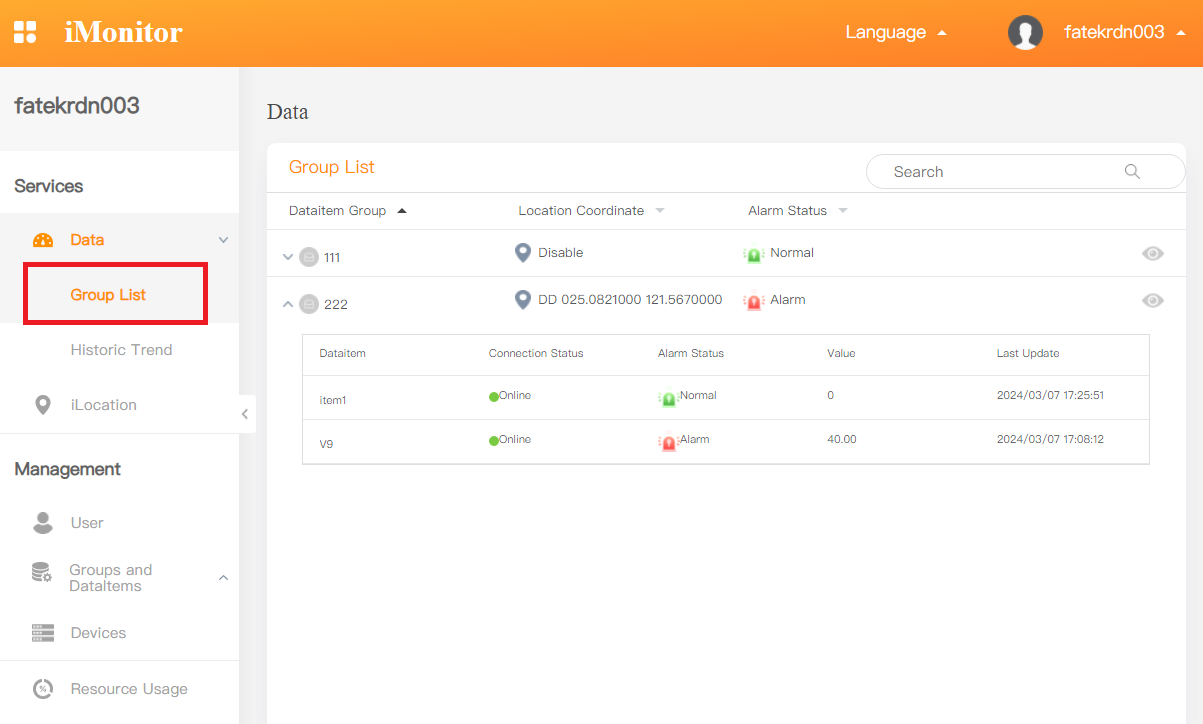
3.1.1 Group List
|
Item |
Describe |
||||||
|
Dataitem Group |
Display the name of the Dataitem group. |
||||||
|
Location Coordinate |
Display the GPS coordinates of the device’s location. |
||||||
|
Alarm Status |
|
||||||
|
Dataitem |
The name of the data item. |
||||||
|
Connection Status |
|
||||||
|
Value |
The return value from the device address. |
||||||
|
Last Update |
Last update time. |
||||||
|
Detail |
Detail information of dataitem, including trend display, value operation setting, historic data and alarm events. |
||||||
|
Search |
Quickly search the list of groups or dataitems. |


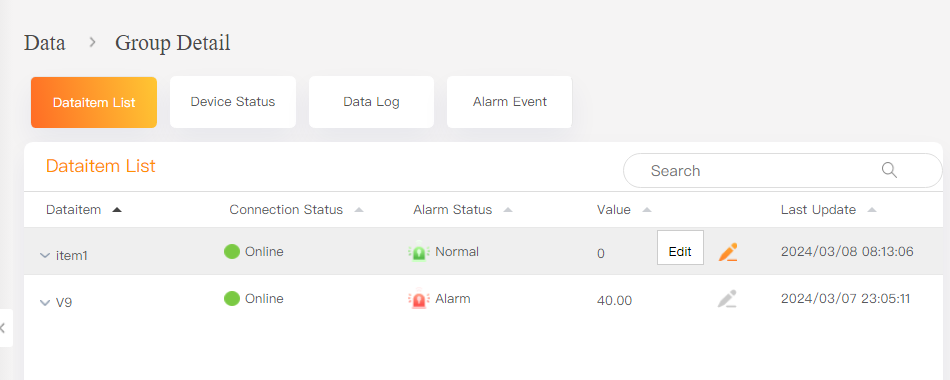
3.1.2 Dataitem List
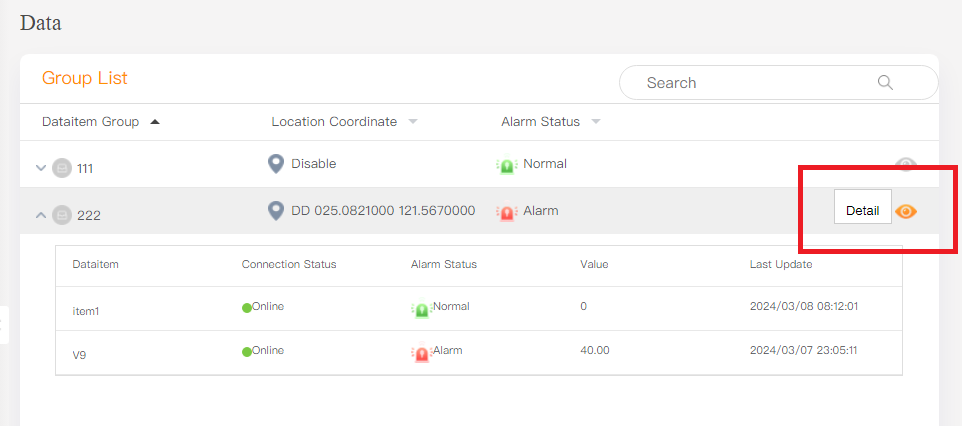
Clicking “Detall” allows you to view the status of data items in detail and edit their values.
3.1.3 Device Status
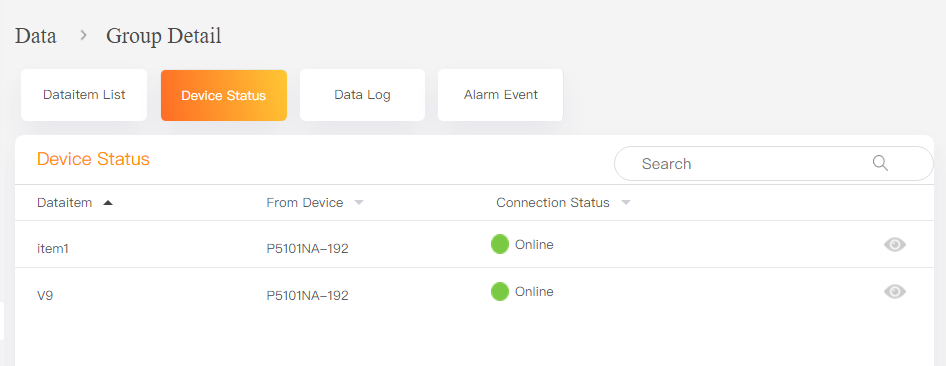
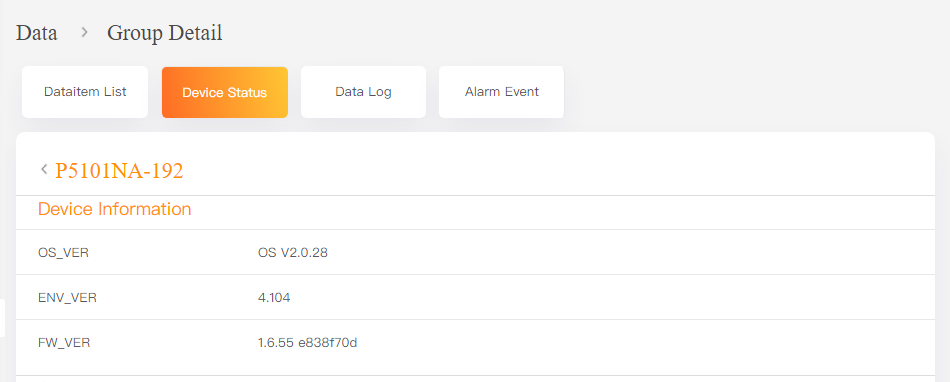
|
Item |
Describe |
|
OS_VER |
OS version of the device system. |
|
ENV_VER |
Environment package version of the device system. |
|
FW_VER |
Firmware version of the device system. |
3.1.4 Data Log
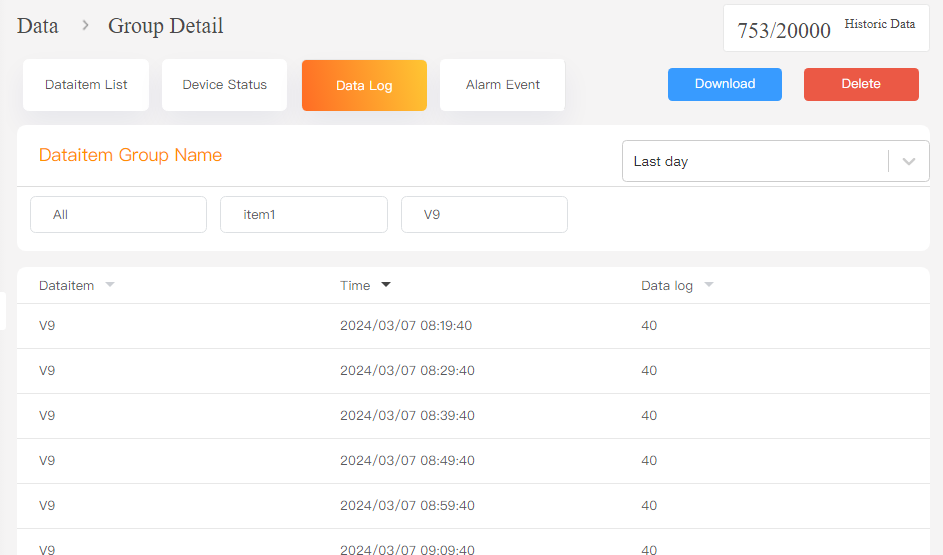
|
Item |
Describe |
|
Dataitem Group Name |
Select the Dataitem Group you want to view and choose the viewing time range. |
|
List |
Display the collected data. |
|
Download |
Select a Dataitem and download the collected data. |
|
Delete |
Select a Dataitem and delete the collected data. |
When the data collection reaches its maximum capacity, it will stop collecting and send an email to the user. Please manually delete the data.
3.1.5 Alarm Event
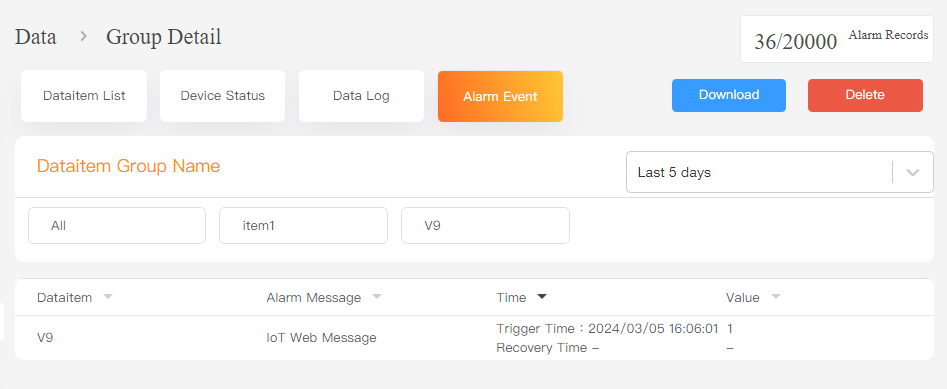
|
Item |
Describe |
|
Dataitem Group Name |
Select the Dataitem Group you want to view and choose the viewing time range. |
|
List |
Display the recorded alarm data. |
|
Download |
Select a Dataitem and download the recorded alarm data. |
|
Delete |
Select a Dataitem and delete the recorded alarm data. |
When the maximum number of Alarm Records, recording will stop, and an email will be sent to the user. Please manually delete the data.
3.1.6 Historic Trend
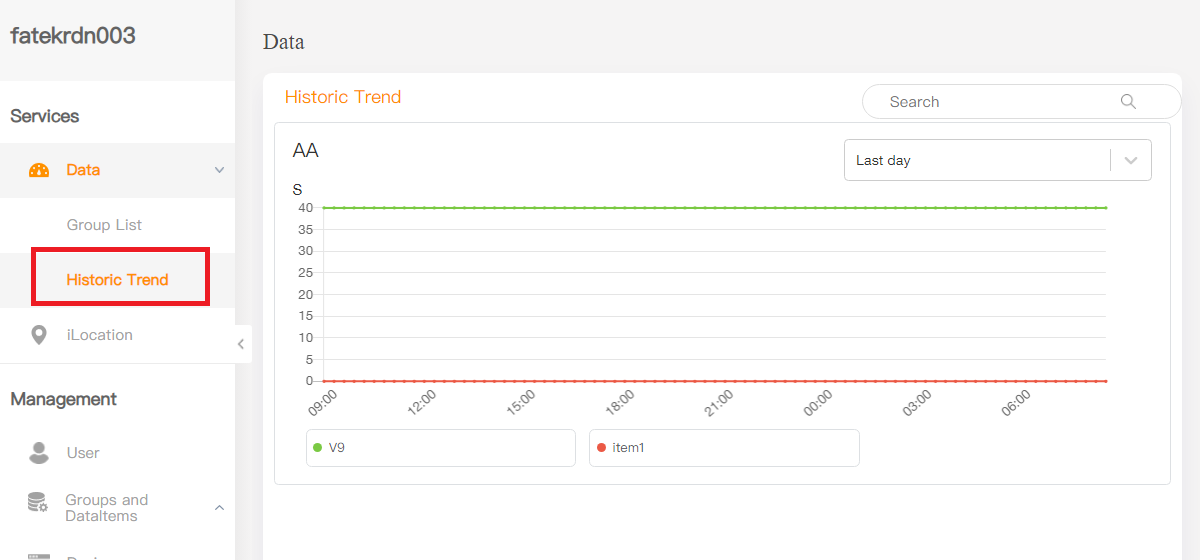
|
Item |
Describe |
|
Select a data item. |
Choose the trend chart of the Dataitem you want to view. |
|
Time filter: |
Set the interval for the query. |
3.2 【iAccess】
3.2.1 Device Group List
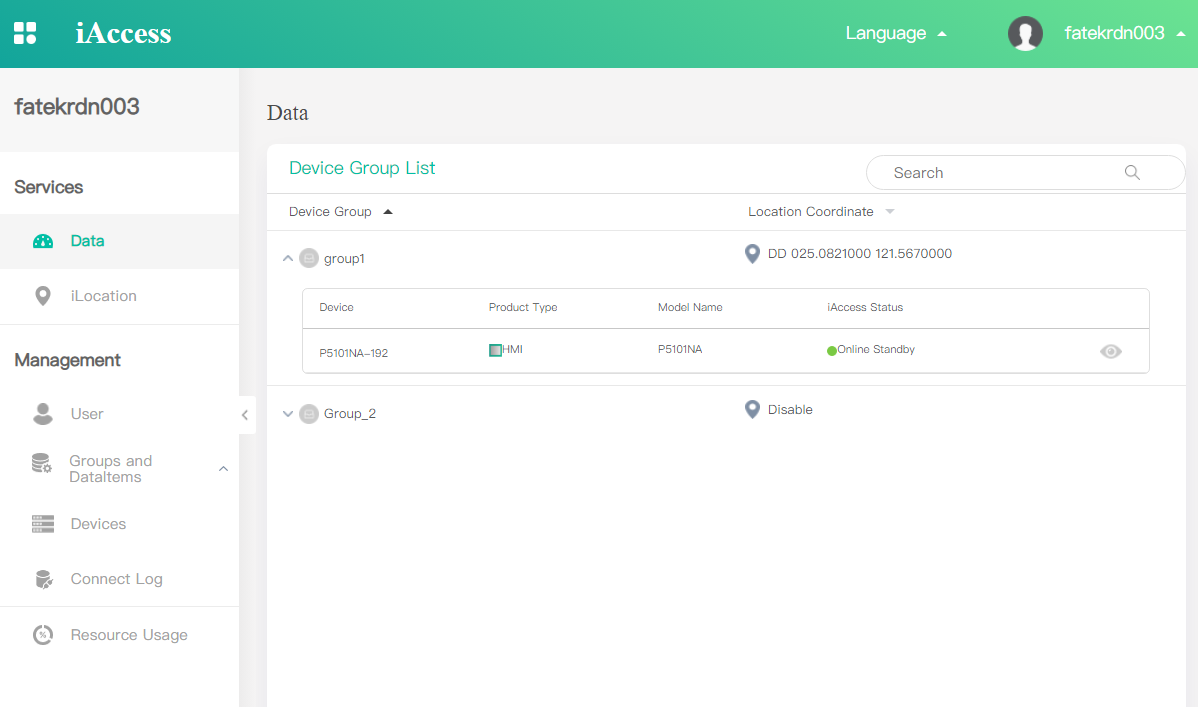
|
Item |
Describe |
||||||||
|
Device Group |
Device Group name. |
||||||||
|
Location Coordinate |
Display the GPS coordinate of the device. |
||||||||
|
Device |
Device name. |
||||||||
|
Product Type |
FATEK IoT supports FATEK HMI currently, other types of devices will be supported in the future. |
||||||||
|
Model Name |
Display the HMI model name, such as P5070N. |
||||||||
|
iAccess Status |
Four kinds of status below:
|
||||||||
|
Search |
Quickly search the list of groups or devices. |
3.2.2 Device Information
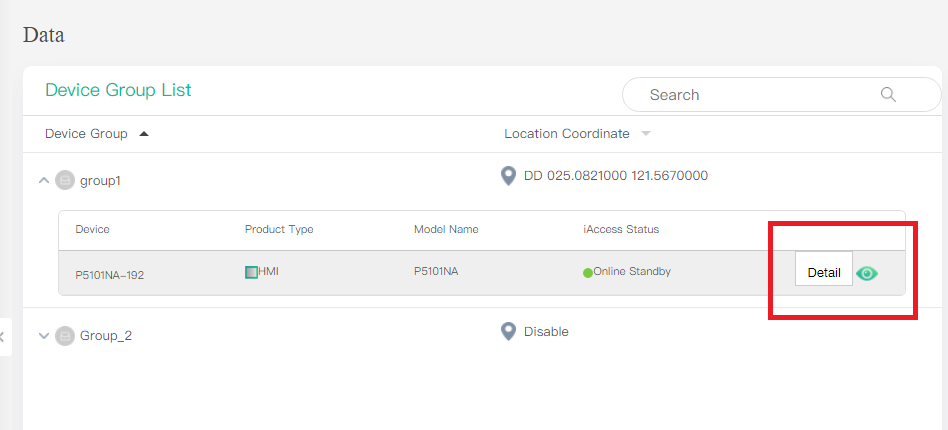
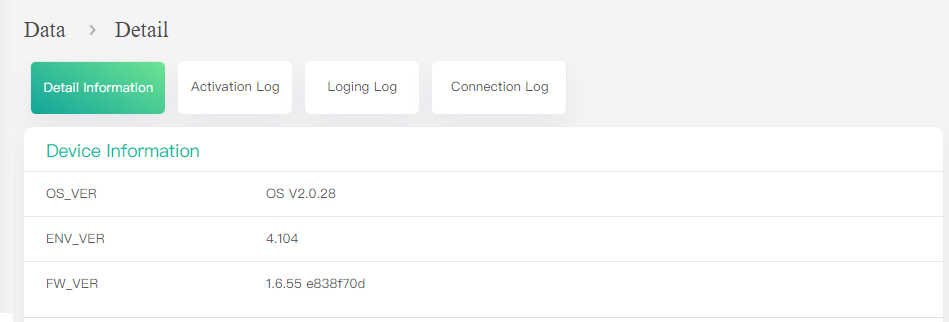
|
Item |
Describe |
|
OS_VER |
OS version of the device system. |
|
ENV_VER |
Environment package version of the device system. |
|
FW_VER |
Firmware version of the device system. |
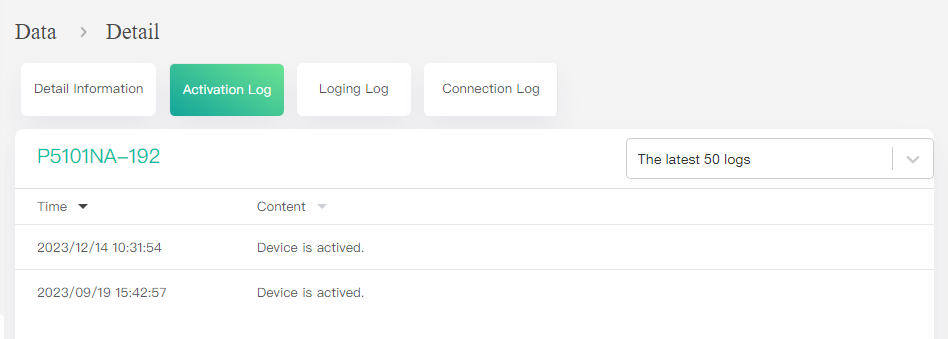
3.2.3 Activation Log
Display the date when this device was activated using LID.
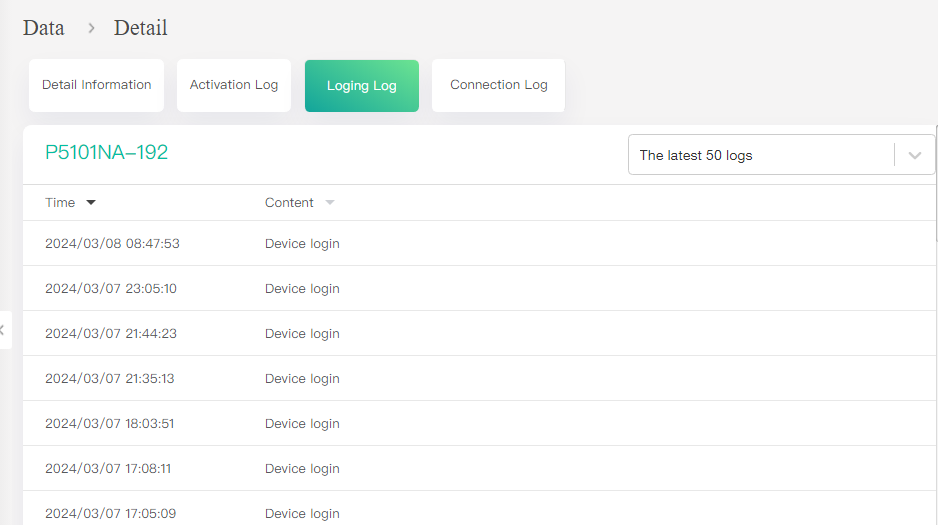
3.2.4 Loging Log
Display the time when the device logged into the server.
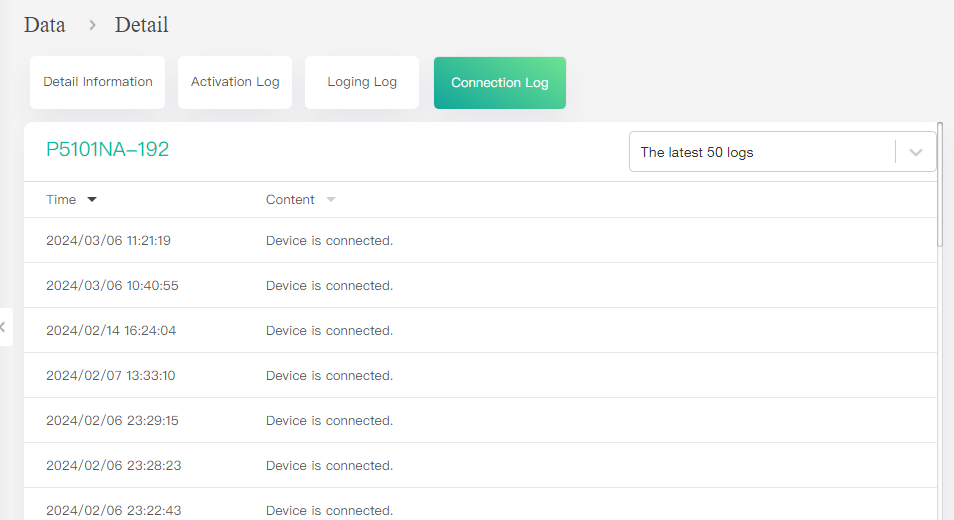
3.2.5 Connection Log
Display the time when a user connected to this device.
3.3 【iLocation】
Display the geographical location of the Group on the map.
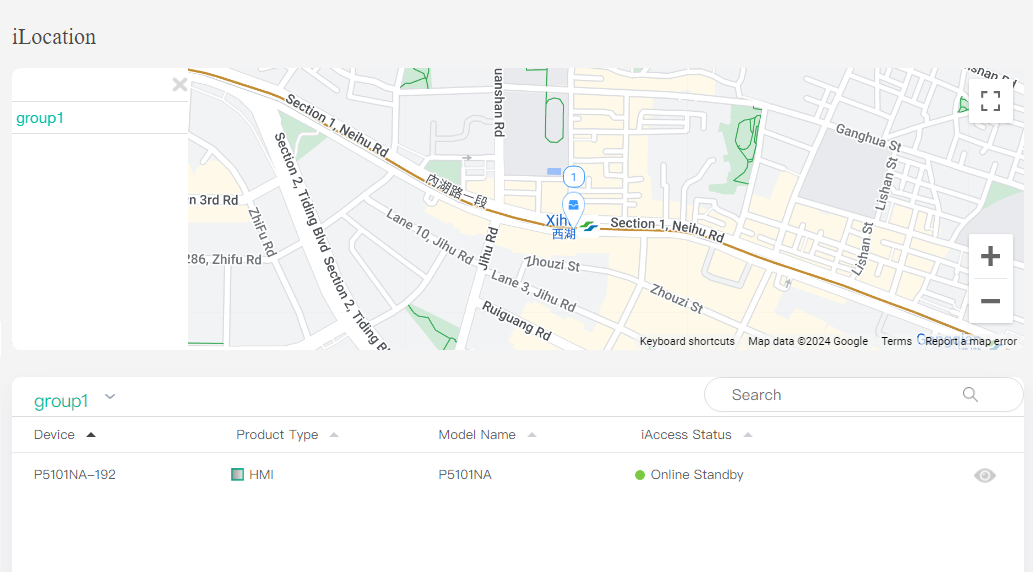
The GPS location of the HMI needs to be set in FvDesigner and can be configured as static
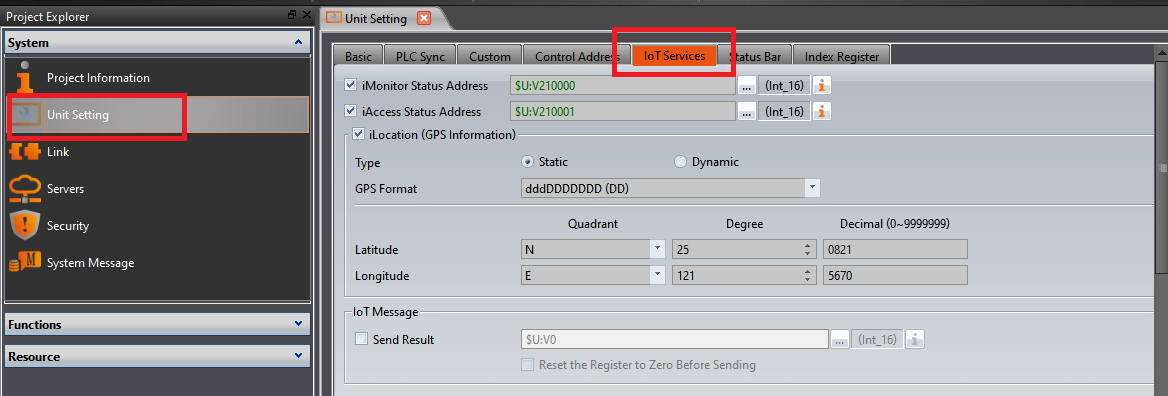
Or dynamic (Total digits: 10 / Decimal points: 7).

Tip: press ← → to switch chapters, Ctrl+K to search