This guide introduces how to add, manage, and convert bookmarks in the UperLogic Ladder editor.
Adding a Bookmark
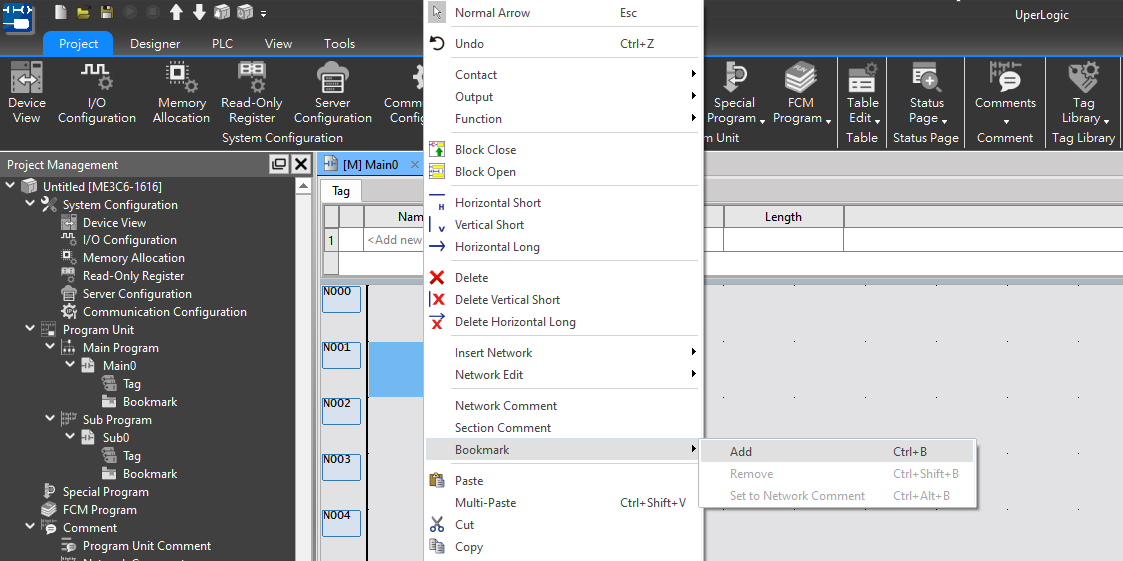
1.Right-click on the target Network where you want to set a bookmark and select Bookmark → Add (or press Ctrl+B).
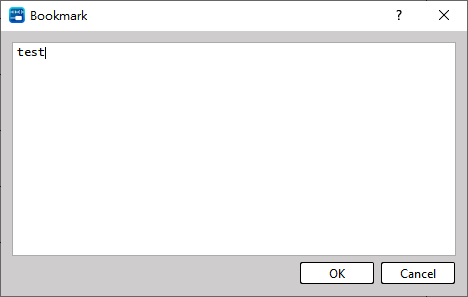
2.Enter the bookmark description in the pop-up window and click OK.
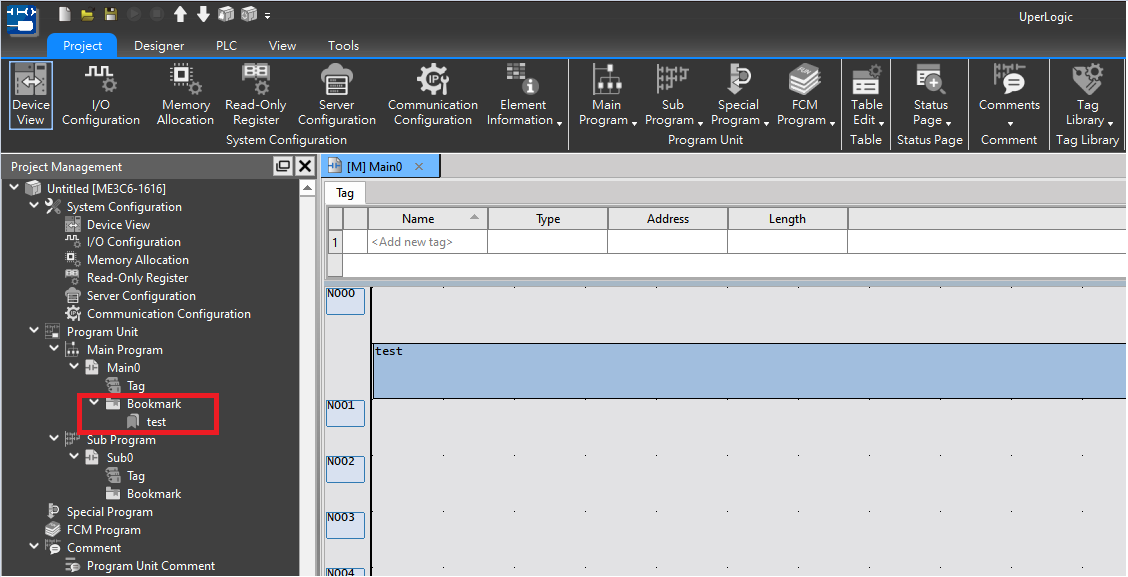
3.Once set, the bookmark will appear in both the Ladder editor and the Project Tree (Tree view) on the left. Double-clicking the bookmark in the Tree view will jump directly to its location in the program.
Removing Bookmarks
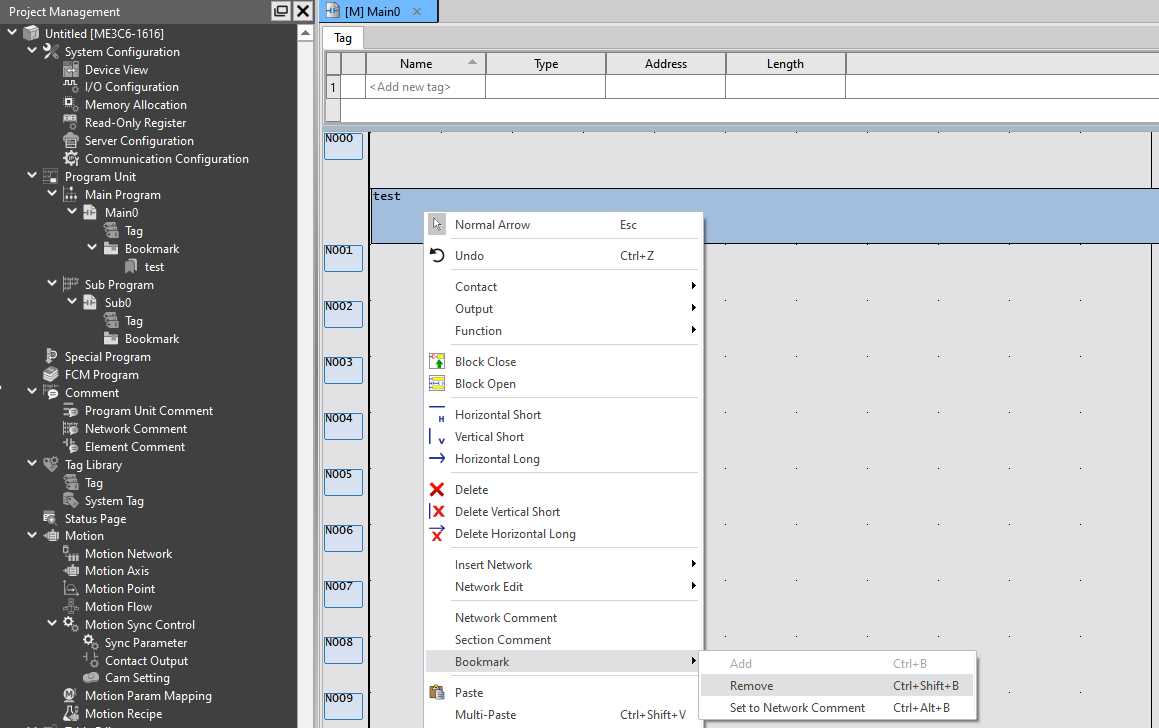
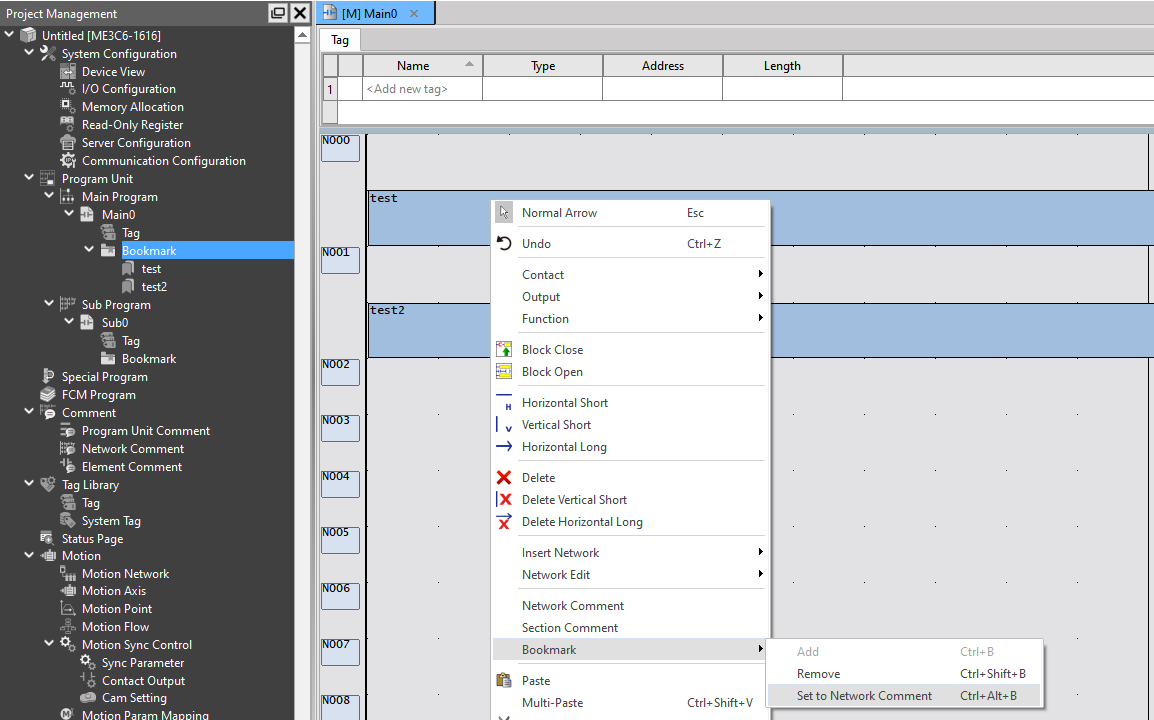
Remove a single bookmark (from Editor): Right-click on the bookmarked Network and select Bookmark → Remove (or press Ctrl+Shift+B).
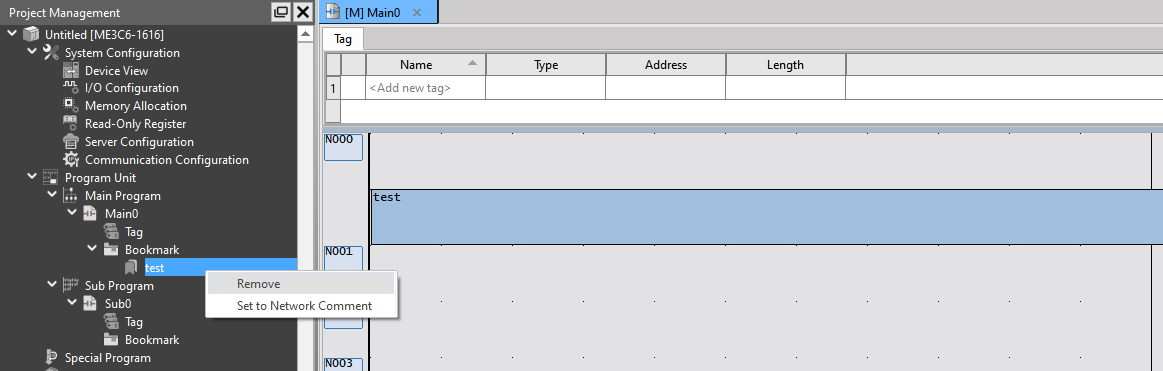
Remove a single bookmark (from Tree View): Right-click on the specific bookmark in the Tree view and select Remove.
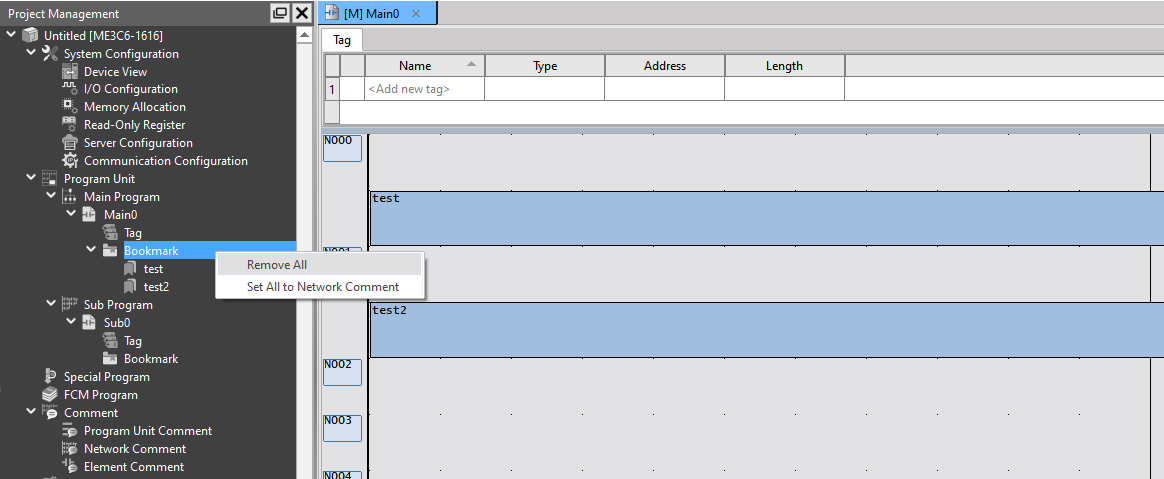
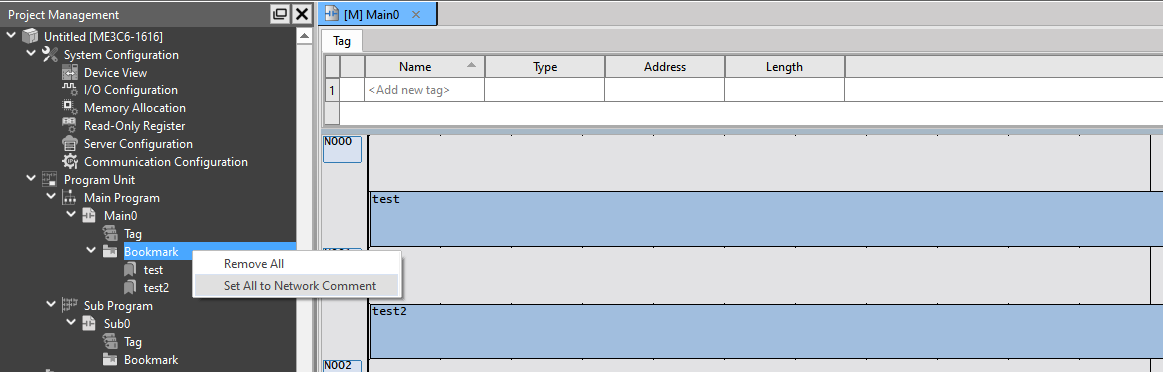
Remove all bookmarks: In the Tree view, right-click on the Bookmark folder under the program and select Remove All.
Converting Bookmarks to Network Comments
Convert a single bookmark (from Editor): Right-click on the bookmarked Network and select Bookmark → Set to Network Comment (or press Ctrl+Alt+B).
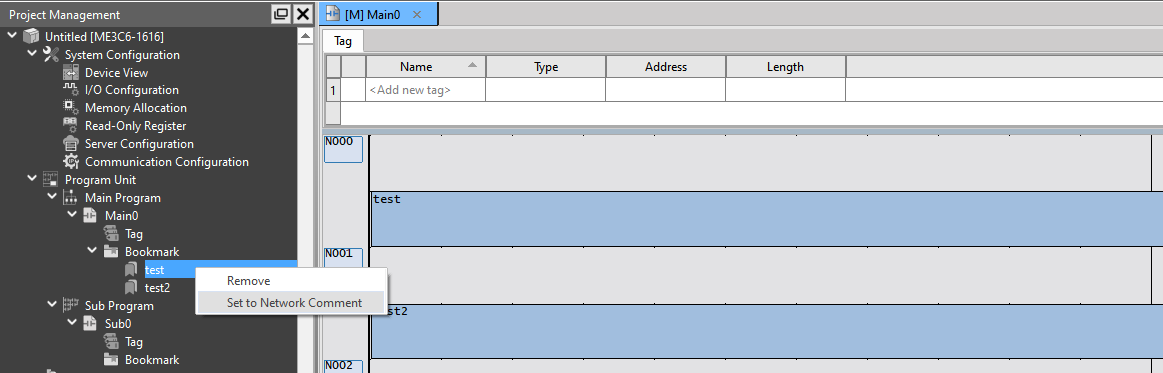
Convert a single bookmark (from Tree View): Right-click on the specific bookmark in the Tree view and select Set to Network Comment.
Convert all bookmarks: In the Tree view, right-click on the Bookmark folder under the program and select Set All to Network Comment.
Tip: press ← → to switch chapters, Ctrl+K to search