Chapter 2 FCM Program
In this chapter, I will introduce how to use FCM programs in the Main program.
2-1 FCM Box
New FCM Program saved in 【Project Management】>【Program Unit】>【FCM Program】.Like Main program, FCM Program can relocate, rename and customize password. FCM program is different with other program, FCM program need to set property. (Please refer to Chapter 3-4 for FCM Property)
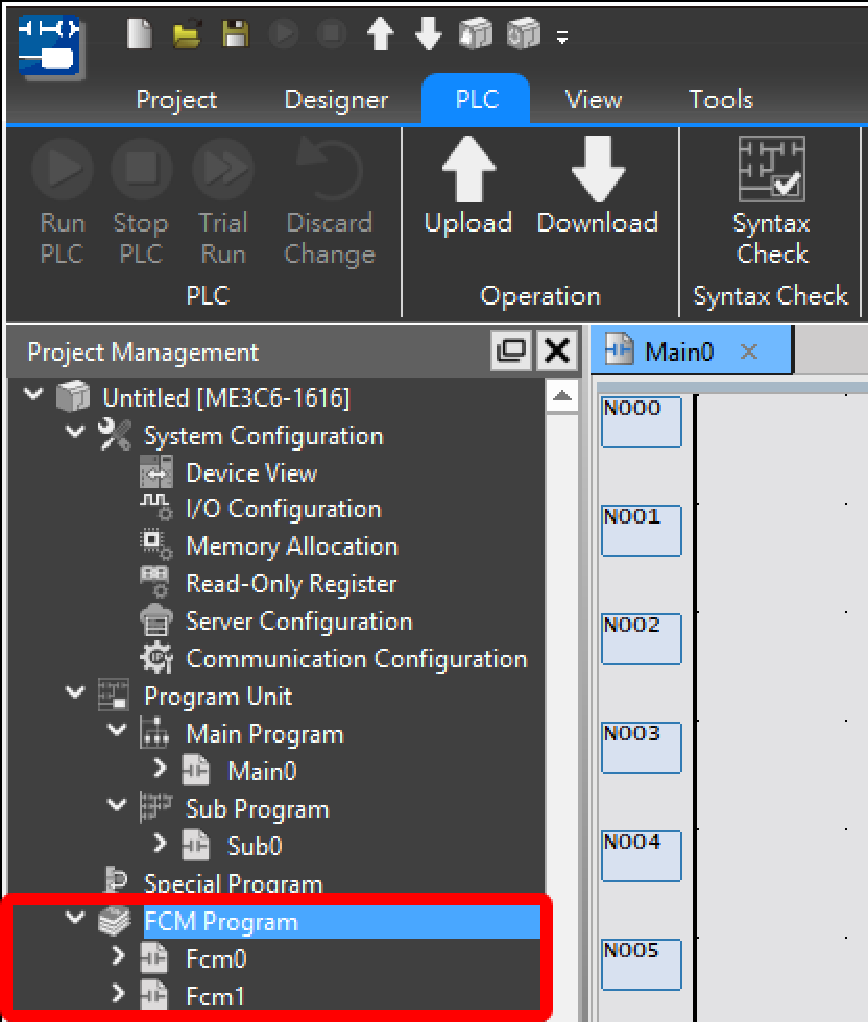
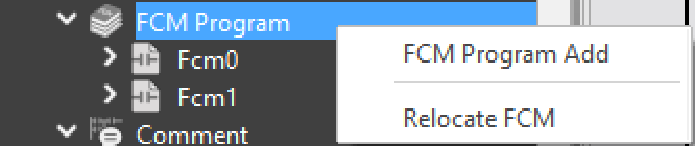
Use the right mouse button to click 【FCM Program】 to 【Add FCM Program】 or 【Relocate FCM】.
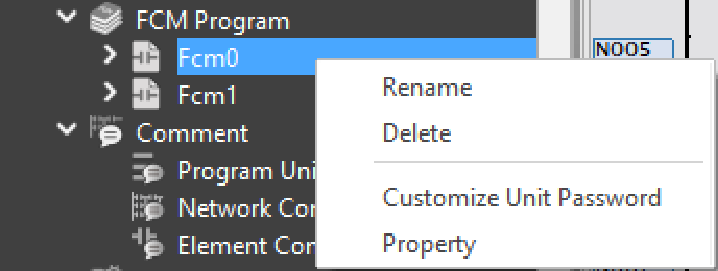
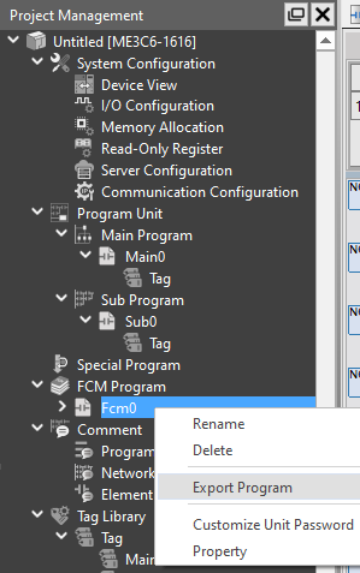
Use the right mouse button to click 【FCM Program Unit】to 【Rename】,【Delete】,【Customize Unit Password】,set【Property】.
2-2 Import / Export FCM Program
Through UperLogic, user can import or export FCM programs and reuse them in different projects.
• Import:
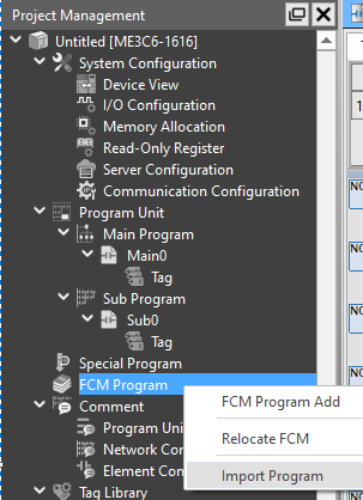
Click the function bar 【Project】 to 【Program Unit】to 【FCM Program】 to 【Import Program】 with the mouse;
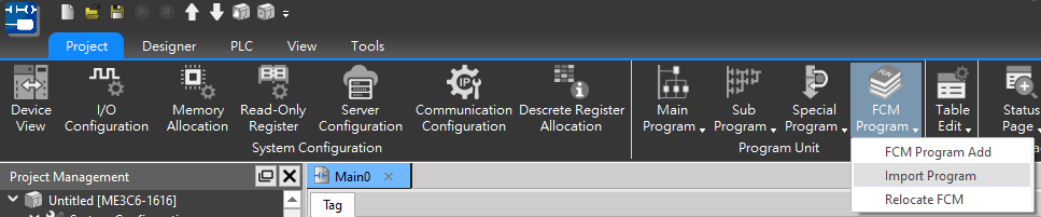
or right click 【FCM Program】in the project management window and select【Import Program】.
• Export:
Right click the program to be exported in project management window and select 【Export Program】.
2-3 Using Function/Function Block Method
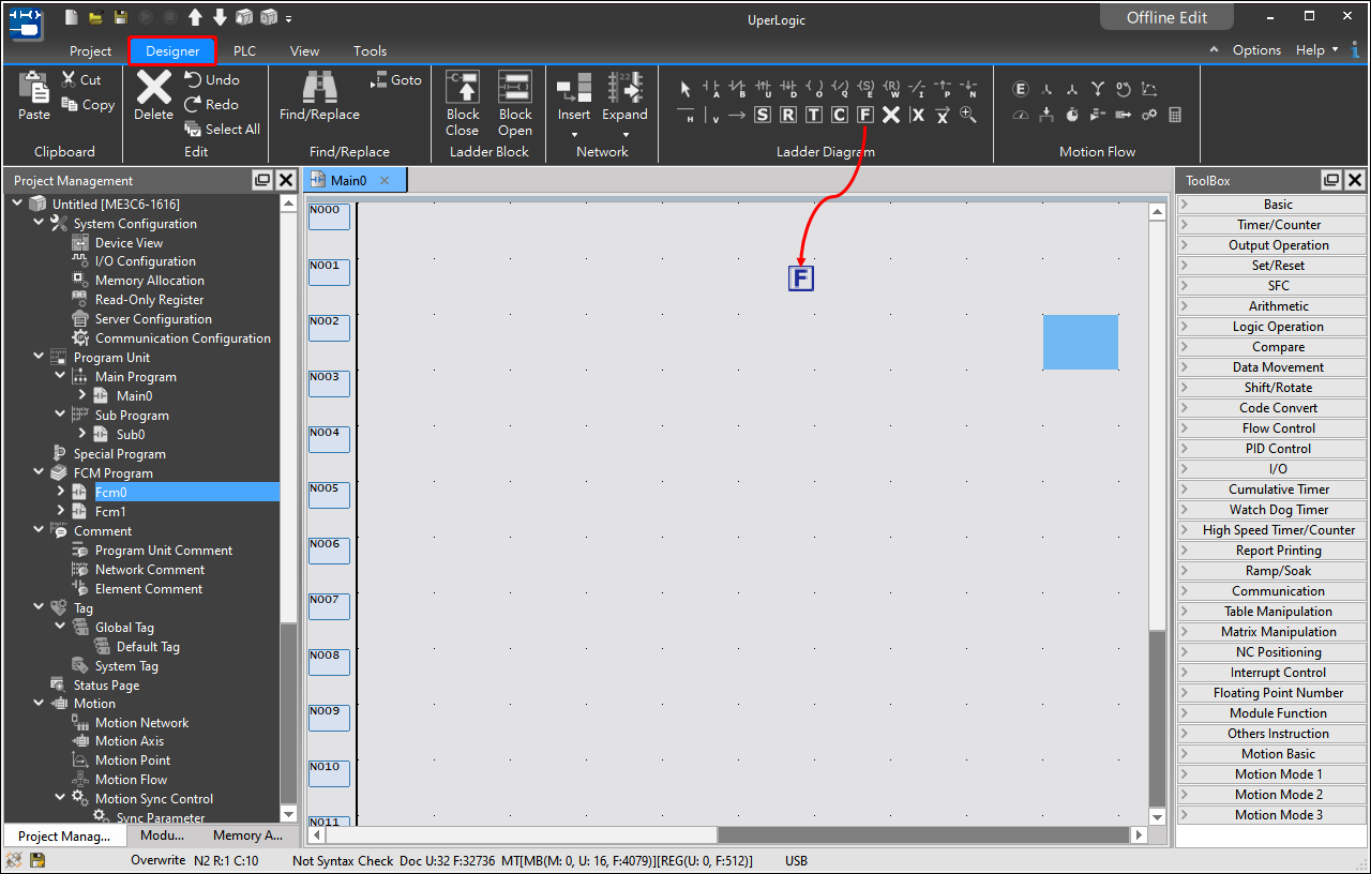
Step 1. Use the【Designer】>【Ladder Diagram】>Button【F】to add FCM program unit into the Main program editing screen, or use the hotkey “F” to call【Function】libraries.
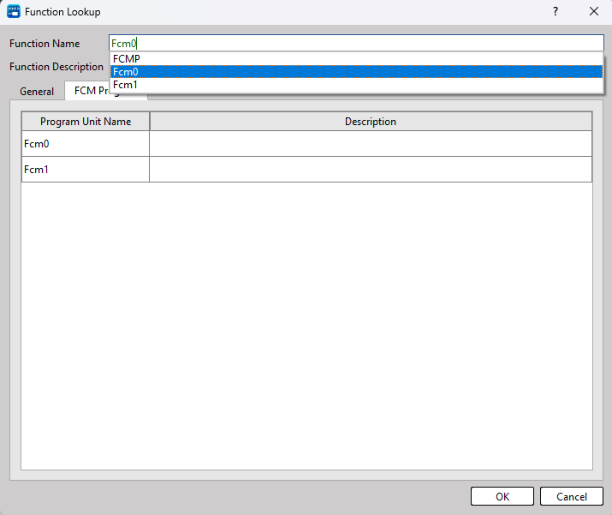
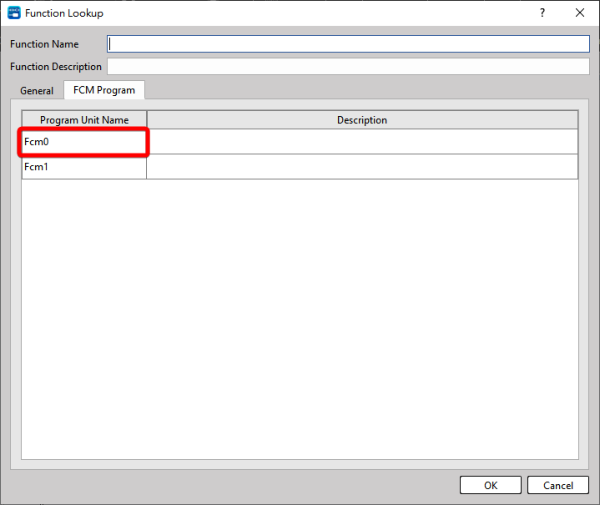
Step 2. pop up【Function Lookup】 screen > Switch to FCM program page > Select the FCM program to add to the Main program (There are 2 FCM programs in the picture below), or directly enter the FCM program name in the Function Name field.
Step 3. After selecting the FCM program, UperLogic pops up the FCM function instruction setting window. Just like the general Function instruction, fill in the register or constant in the parameters.
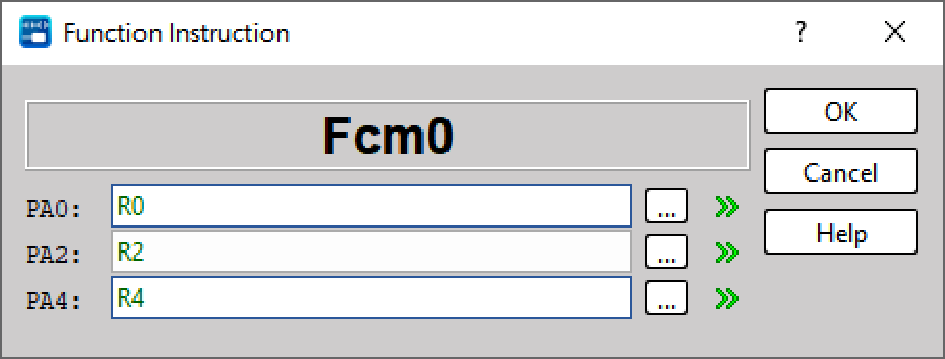
Step 3. The FCM program is same as the general Function instruction, using objects such as A contact and B contact to control input pins and monitor output pins.

Tip: press ← → to switch chapters, Ctrl+K to search