Historic logs are frequently required for the parameters and controls of certain equipment in many applications in order to track phenomenon that users care about. This is the function that the【Operation Log】provides. It can record the HMI operating processes performed by the user into the memory and also save it as a CSV file so that the user can view it afterwards.
10.1 【Basic】
【Operation Log】can be accessed from the【Function】window located in the【Project Explorer】to the left of the FvDesigner as shown below:
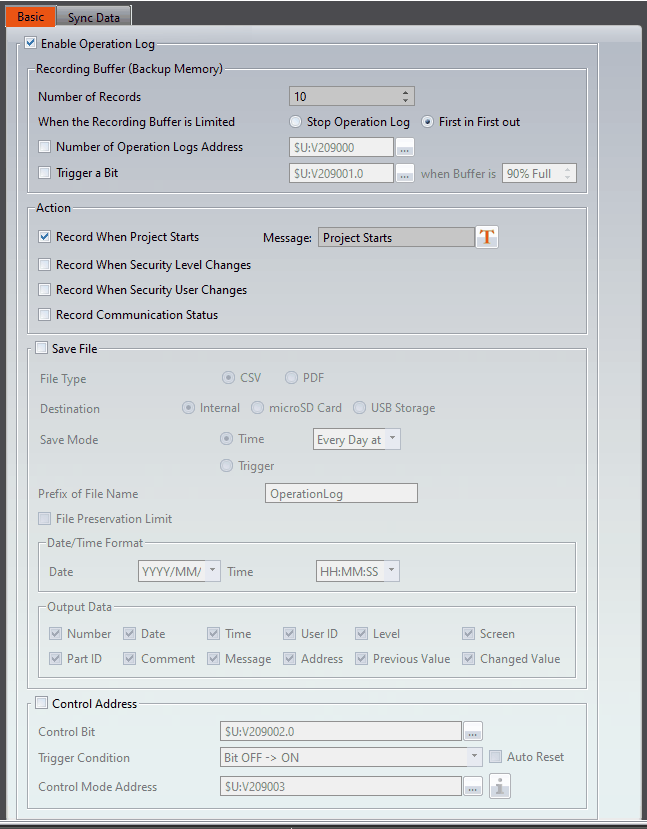
Figure 166 Setting Screen of【Operation Log】
Table 72 Setting Properties of【Operation Log】
|
Property |
Description |
||||||||||
|
【Enable Operation Log】 |
Check to enable the【Operation Log】; this is the master switch of the【Operation Log】. |
||||||||||
|
【Recording Buffer (Backup Memory)】 |
【Number of Records】 Set the number of logs that the recording buffer can record. 【When the Recording Buffer is Limited】 This can be divided into the following two behaviors:
Stop logging immediately; any operations afterwards will no longer be recorded in the recording buffer. It can only start logging again once the recording buffer is cleared.
Delete the oldest log and places the newest log information in the recording buffer. 【Number of Operation Logs Address】 Users can check the number of operation logs through a specific register. 【Trigger a Bit】 When the number of the operation logs reach the maximum limitation it will trigger the bit to notify users. |
||||||||||
|
【Action】 |
【Record When Project Starts】 Check to record data in the recording buffer when the project starts. 【Message】 Set the messages to record when【Record When Project Starts】is selected. 【Record When Project Stops】 Check to record data in the recording buffer when the project ends. 【Message】 Set the messages to record when【Record When Project Stops】is selected. 【Record When Security Level Changes】 Check whether the information is recorded in the recording buffer when the security level changes 【Message】 Set the messages to record when【Record When Security Level Changes】is selected. 【Record When Security User Changes】 Check whether the information is recorded in the recording buffer when the security Name changes 【Message】 Set the messages to record when【Record When Security User Changes】is selected. 【Record Communication Status】 The communication status of the HMI will be recorded. 【Message】 Set the messages to record when【Record Communication Status】is selected. |
||||||||||
|
【Save File】 |
【File Type】 Check to save the operation log recorded in the recording buffer into a CSV file. 【Destination】 Set the save location, including internal, microSD card, USB storage device. 【Save Mode】 This can be divided into the following two modes:
Save into CSV files at fixed times and follow the time selections.
Use a certain triggering bit as the basis for saving files. 【Prefix of File Name】 【Prefix of File Name】 Set a prefix for the file name; The file name will come with_YYYYMMDD_hhmmss, For example, when setting AA, the generated file name is AA_YYYYMMDD_hhmmss.csv. 【File Preservation Limit】 When enabled, it allows the user to set the number of days the exported files are preserved. For example, if set for 7 days, the HMI will check the date and will delete the files on the 7th day. 【Date/Time Format】 Set the date format when exporting file. 【Output Data】 Select the content items you want to export |
||||||||||
|
【Control Address】 |
【Control Bit】 Set the bit address of the control mode. 【Trigger Condition】 Set the triggering conditions of the control mode, there are 【Bit OFF->ON】,【Bit ON->OFF】,【Bit Change】three conditions. When the setting was the first two conditions then the【Auto Reset】can be used. For example: Select【Bit OFF->ON】and select【Auto Reset】, after pressing the button to switch it to ON, and it will automatically return to OFF. 【Control Mode Address】 Perform corresponding actions through parameters.
Note: If you want to use the "Archive" and "Clear the buffer after archiving" functions of the control address, you need to tick the【Save file】function. |
10.2 【Sync Data】
Synchronize the Operation Log from the database. When enabled, the data will be automatically read from the database when the connection is successful.
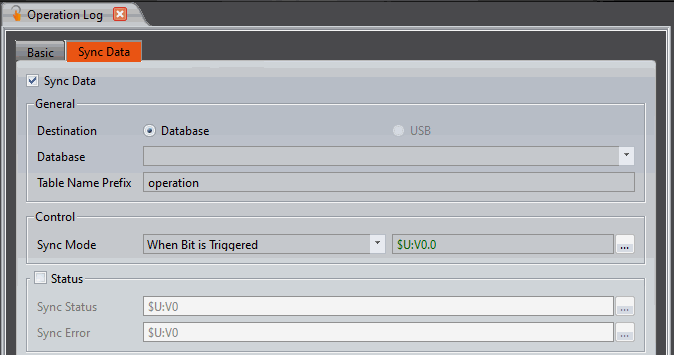
Figure 167【Operation Log】【Sync Data】Setting Page
Table 73【Operation Log】【Sync Data】Property Setting Page
|
Property |
Description |
||||||||||||||||||||||||||||||
|
【Sync Data】 |
Set whether to enable the data sync function. After enabling, the setting items will appear below. |
||||||||||||||||||||||||||||||
|
【General】 |
【Destination】 Set the synchronize destination 【Database】 Set the synchronize database 【Table Name Prefix】 Set the generated table name of the after synchronization.
|
||||||||||||||||||||||||||||||
|
【Control】 |
【Sync Mode】 Set the timing of synchronizing data to the database, including When Buffer is Full, When Bit is Triggered, Daily Synchronization, and Sync Regularly. |
||||||||||||||||||||||||||||||
|
【Status】 |
【Sync Status】 Set the storage address of the status
【Sync Error】 Set error code storage address
|
10.3 【Operation Log】Settings of Objects
The descriptions above are for the function settings of the【Operation Log】, but every object with operating behaviors has their own corresponding settings that must also be set completely in order to use the Operation Log.
The following figure shows the setting screen of objects with operating behaviors; the Operation Log setting of the objects can be found under the【Operation】tab, as shown by the frame in the figure below.
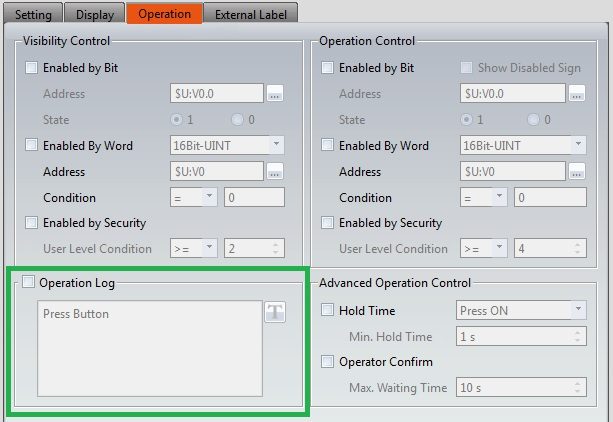
Figure 168 Setting Screen of Objects with Operation Behaviors
Table 74 Object Setting Properties of【Operation Log】
|
Property |
Description |
|
【Operation Log】 |
Select whether to enable the【Operation Log】of the object. It can also edit operation messages where the message can be inputted directly or acquired from the【Text Library】. |
Tip: press ← → to switch chapters, Ctrl+K to search