1-1 Interface Overview
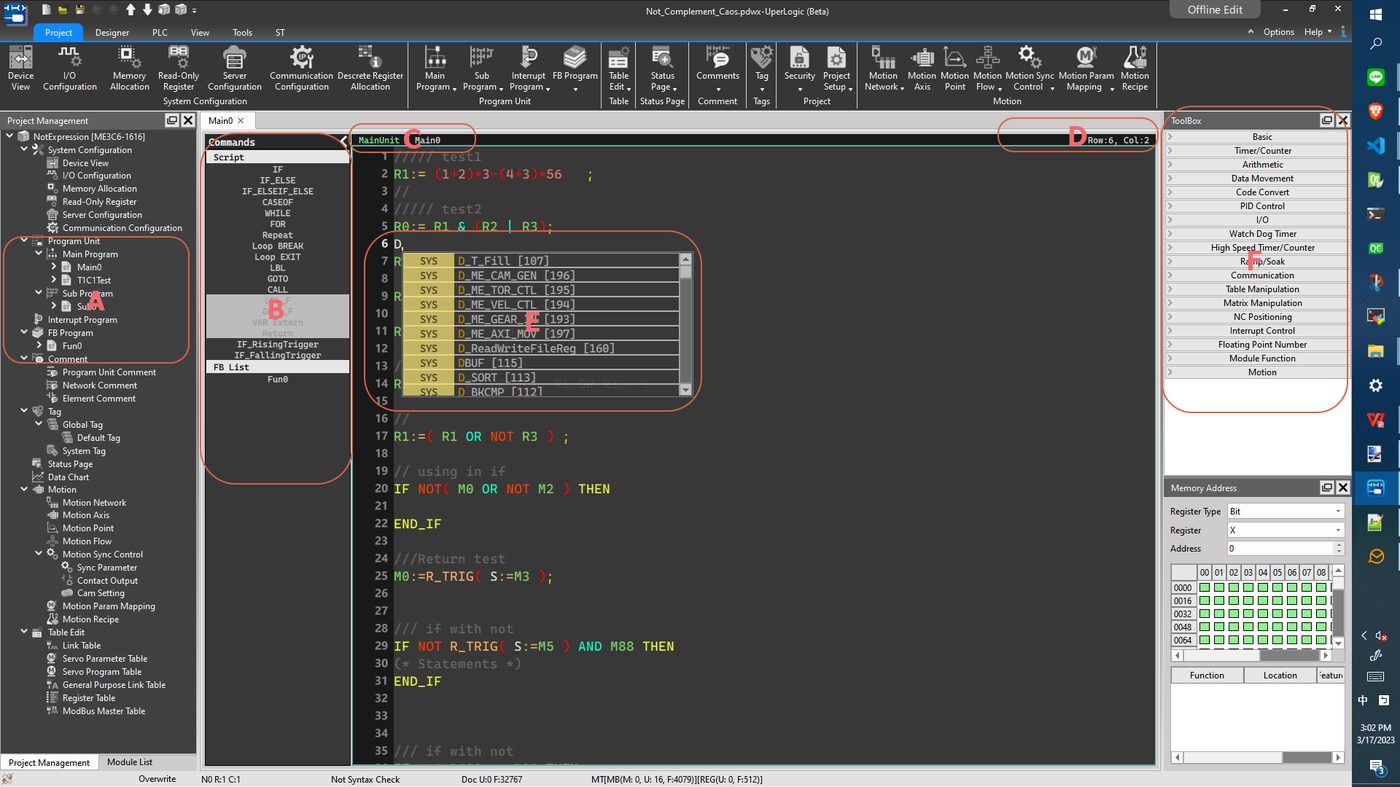
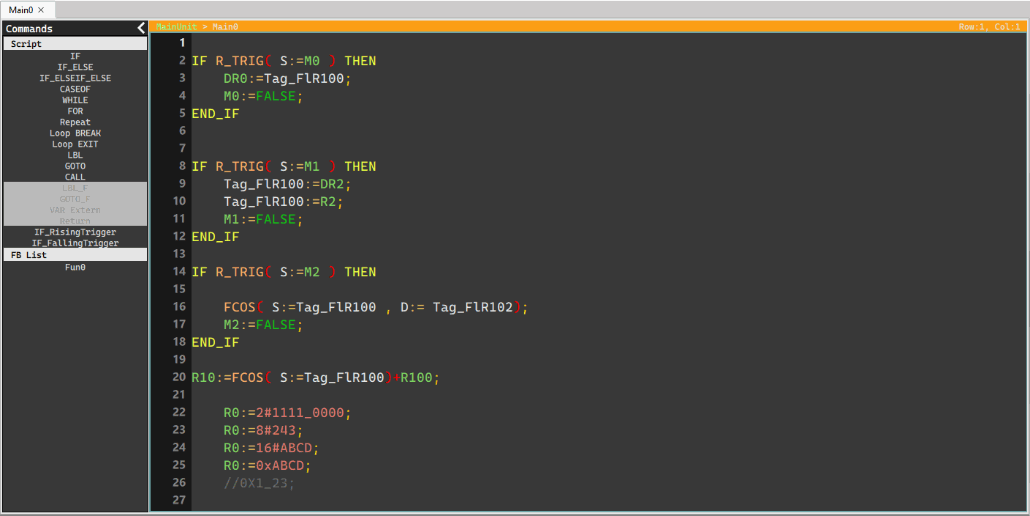
- For all ST programs in the current project, double-click the name with the left mouse button, and a new editing screen will be selected in the middle.
- Display the currently available ST syntax and FCM-related information. Double-click the field and the corresponding template will be inserted into the program.
- If the display is grayed out, it means that the command cannot be used in the current text
- The right border can be dragged to adjust the width, or click the button in the upper right corner to minimize
 or restore
 .
- The current category and name of ST.

- The current row and column information of the cursor.

- Smart pop-up reminder window, which is convenient for users to prompt when typing.
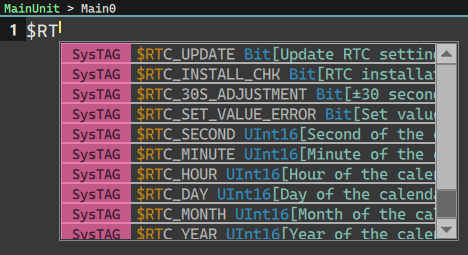
This pop-up window will follow the user’s input (Match than 3 characters or [+number]) and display the automatically detected prompt program fragments in real time, including available labels, variables, calling functions, etc. Matched strings will be displayed in orange in the window (as shown above).
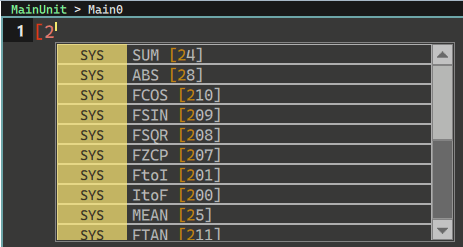
Since not only the name will be searched, but also the annotations behind the search (the display priority is lower), so in addition to directly searching the name of the function, you can also enter the relevant text of the annotation, such as the function ID (as shown below).
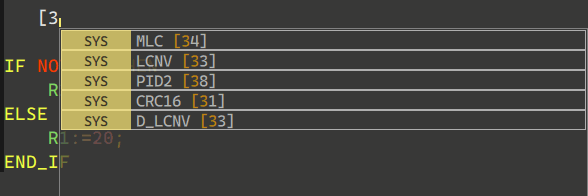
In this way, you can use the mouse to double-click, or use the up and down keys to select the program fragment you want to insert.
- Callable system commands can be double-clicked or dragged into a text editor
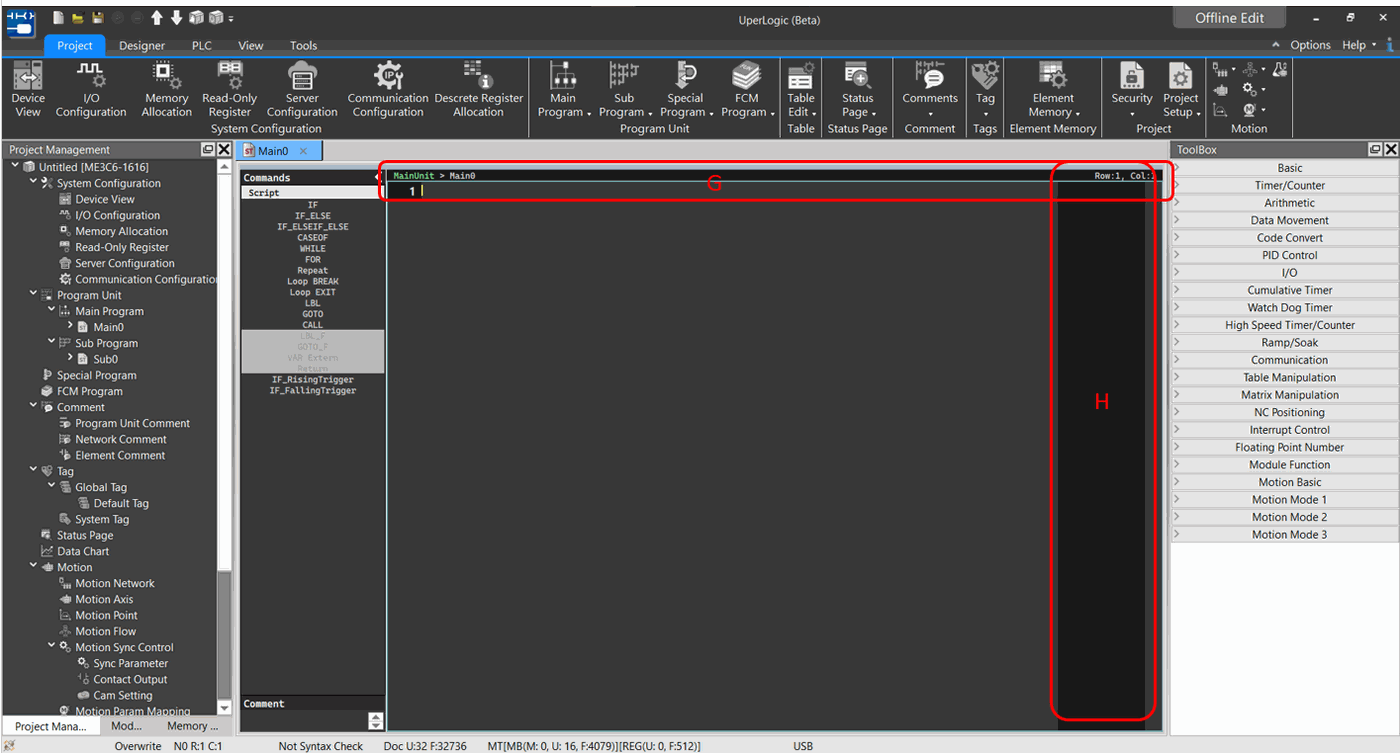
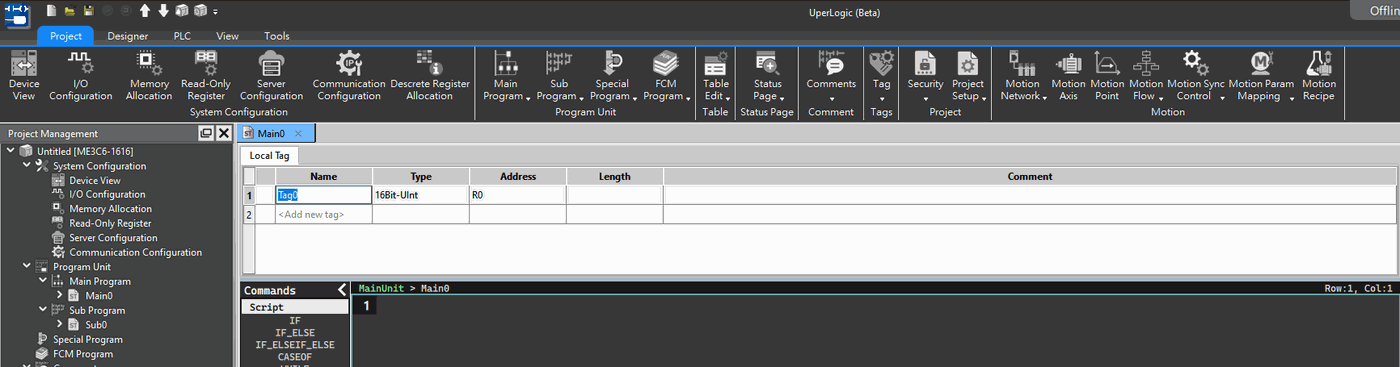
- Drag this area to display the area label. It will be more convenient to modify the program based on the label when writing ST programs.
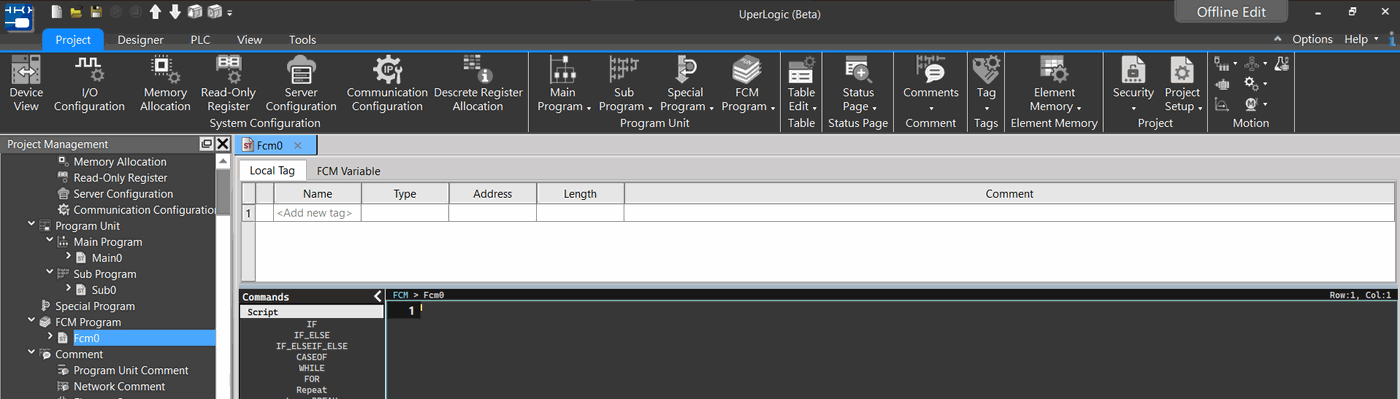
This area supports online editing mode and can be used for program debugging and correction.
- BirdView ScrollBar, convenient for briefly viewing the program overview
1-2 Supportive Keyboard Instructions
|
Key |
Function |
|
Ctrl + C |
Copy |
|
Ctrl + V |
Paste |
|
Ctrl + A |
Select All |
|
Ctrl + X |
Cut |
|
Tab |
Insert Tab |
|
Multiple Select+Tab |
Select multiple lines and add Tab at the same time. |
|
Shift + Tab |
Back Tab simultaneously according to the cursor or the number of selected rows. |
|
Ctrl + F |
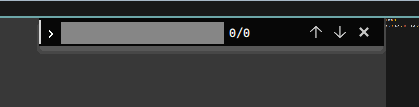
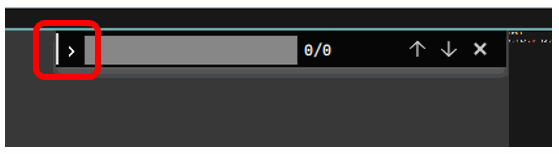
A search window appears at the top right of the screen, and the current text can be searched. |
|
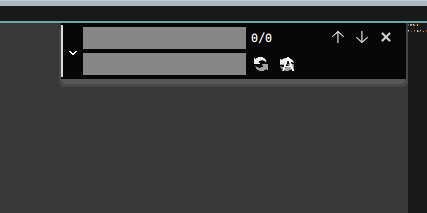
Press the ">" button to use the text replace function
The replacement functions are "single replace" and "all replace" respectively. (can only replace the current program unit)
|
|
|
Ctrl + / |
Comment/Inverse Comment in batches according to the number of lines selected. |
|
Ctrl + ‘+’ |
Enlarge the whole ST fonts |
|
Ctrl + ‘-’ |
Shrink the whole ST fonts |
1-3 Sytem Mode
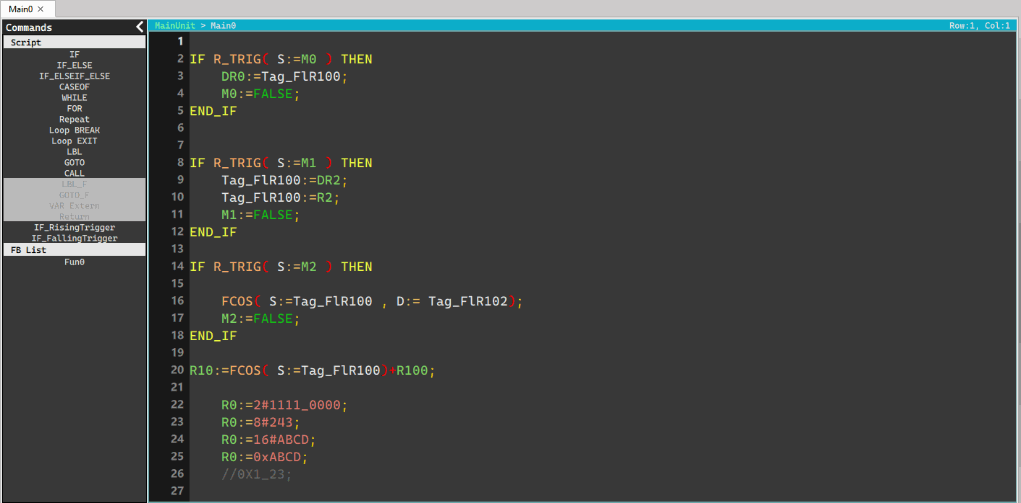
There are currently three modes of the system software:
ST Editor diaplays three status correspondingly.
- Offline Edit(The top of the ST editing window displays a black background)
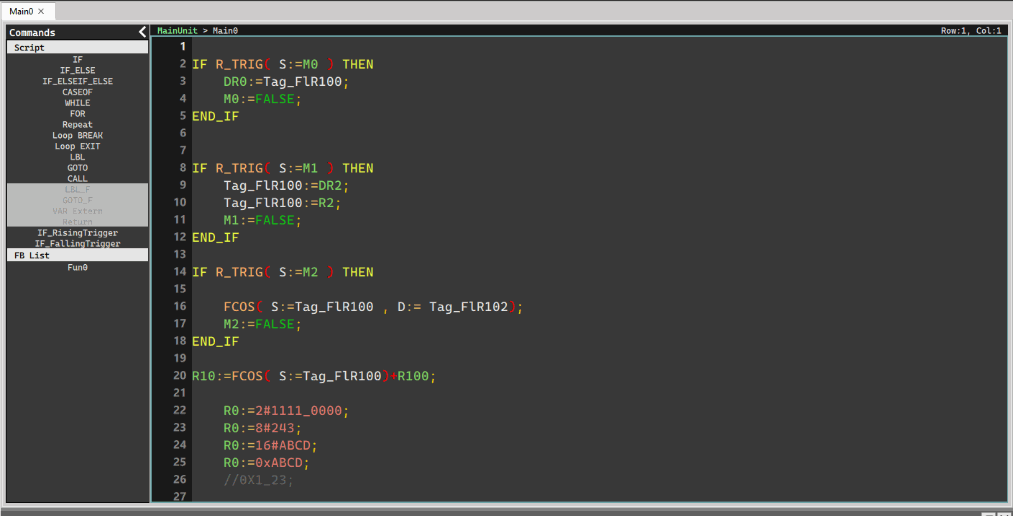
- Online Monitor (Read-Only, not for editing)
(The top of the ST editing window displays a cyan background)
- Online Edit(The top of the ST editing window displays an orange background)
1-4 Syntax Check
ST files must be transferred into programs available for PLC running through syntax check.
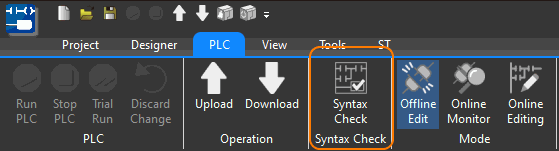
Usually when writing, users can click the button shown below to manually compile to see if it is correct:
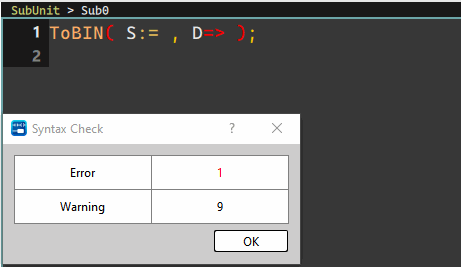
If there is an error or a warning prompt, there will be a pop-up window display:
The detailed content will be displayed in the window as shown in the figure below, double-clicking the field will jump and prompt the wrong line numbers.
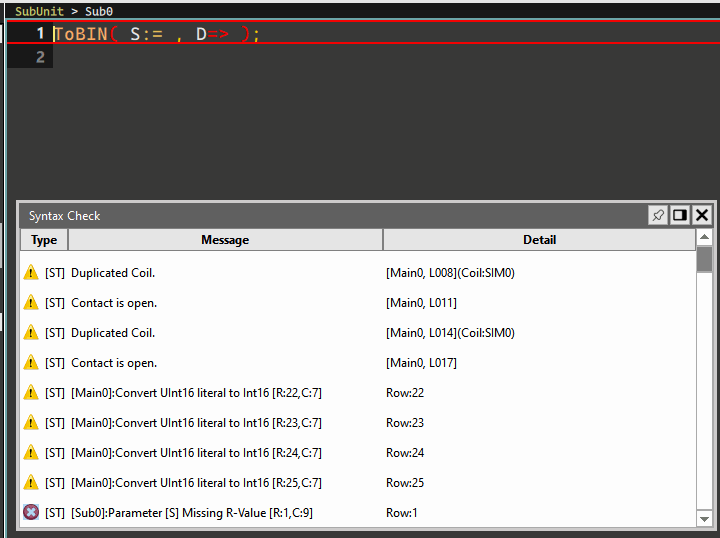
Every time the system downloads, it will automatically run the checking procedure of the current text during the trial run to ensure that the syntax is correct. When there is an error, it will not be able to download or trial run.
1-5 Mouse hover prompt
In order to facilitate debugging and writing programs, the interface supports a prompt window that will appear when the mouse is hovering over variables or function text, giving users tips for writing programs or debugging.
- General functions
The complete call parameters of the function will be displayed, such as:

- Variables
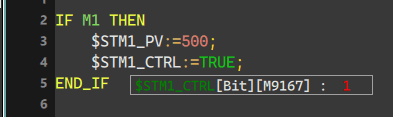
The type and value of the variable will be displayed, such as:
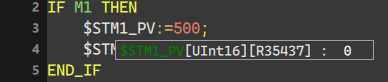
The value displayed later can be modified directly by clicking the value behind it with the mouse. Bool type click On/Off switch.
Numeric type: directly enter the corresponding number to modify.
!Attention!
To get the prompt of the above B. variable function, the program text needs to be compiled successfully to get the correct prompt.
1-6 Add observed variables
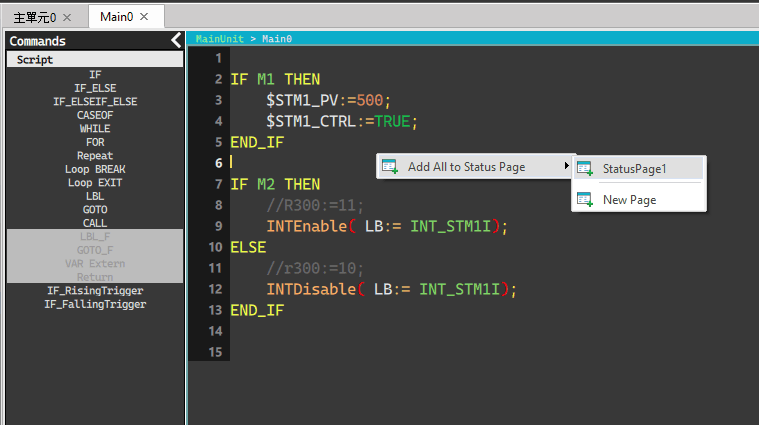
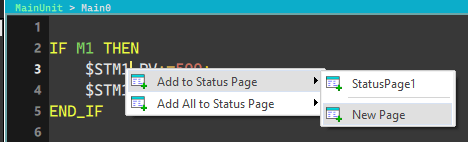
In online editing and online monitoring modes, right-clicking on the text editor will pop up a menu where you can add the variable that the mouse cursor is pointing to, or automatically add all variables of the current text to the status observation page. It is convenient for designers to monitor the current value and debug it.
As shown below:
Right-clicking the mouse in a blank area will pop up the option to automatically add all variables to the monitoring page.
And you can choose which page to join in the sub-menu, or create a new page
Right-click on the variable and the current variable will be added to the monitoring page.
1-7 Quick mouse and keyboard operations
ST text editor provides many common functions to improve the convenience of program editing.
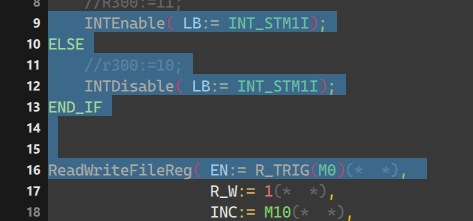
- Select the entire row
Clicking the mouse where the row number is displayed will select the row, and you can continuously select the entire row up or down.
- Add Tab/Remove Tab in Batch
Add Tab at the beginning of a single line:
Move the cursor to the beginning of the line and press the Tab key.
Add Tab to multiple lines in batches:
After selecting the multi-line code and then pressing Tab, all lines will have a Tab at the beginning.
Remove Tab from single/multiple lines:
Use the cursor to select any position in the row, or select multiple rows, and then press Shift + Tab to shrink the entire row to the left.
Back-Tab
- Annotation and anti-annotation
In addition to using the two symbols "(*" and "*)" to make multi-line comments, Ctrl+/ is supported for the game.
The line where the mark is located, or the currently selected line to batch add // comments at the beginning of each line of text.
Added logic:
As long as there is a line in the selected line range that does not have a // symbol at the beginning, all lines will be added with // annotations.
Cancellation logic:
The selected number of lines must have a // symbol at the beginning, and batch removal of annotations will be run.
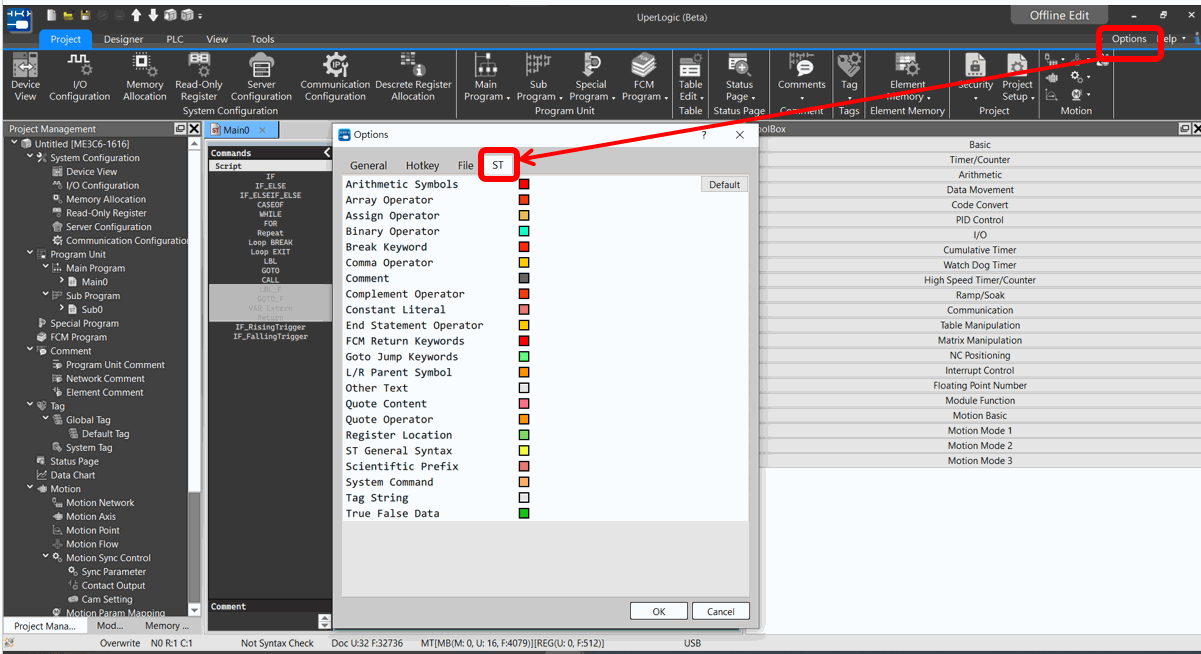
1-8 Structured text color adjustment
The font color of the ST editing environment can be adjusted to suit user habits.
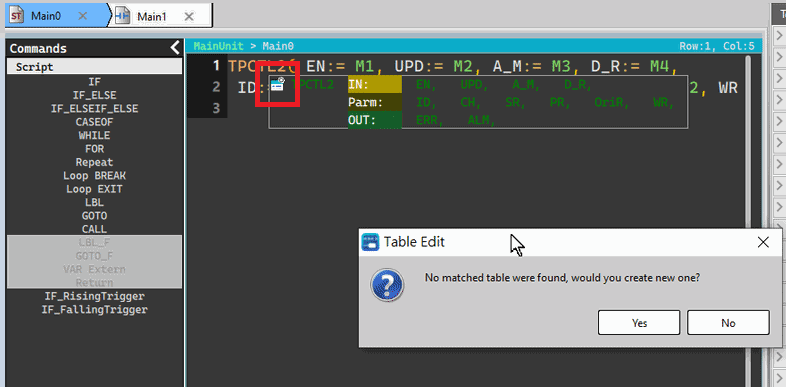
1-9 Quick call/create table
For some commands, click the button in the upper left corner of the pop-up window to call/create the corresponding table.
|
Support List |
Instruction ID |
|
PID2 |
38 |
|
ASCWR |
94 |
|
TPCTL2 |
99 |
|
HSPSO |
140 |
|
MPARA |
141 |
|
MHSPO |
147 |
|
AHSPO |
149 |
|
ModBUS |
150 |
|
CLINK |
151 |
|
NCR |
152 |
|
NSSEND |
154 |
|
NSRCV |
155 |
Tip: press ← → to switch chapters, Ctrl+K to search