The Modbus gateway server feature uses a HMI to serve as a gateway linked to a computer using SCADA software, HMI, or other Modbus devices. Through a Modbus (master) TCP protocol or a serial link to a HMI, along with the HMI link to a PLC, inverter, servo motors, temperature controllers or other equipment, a computer can easily read data from the equipment. To achieve data collection, the user has to fill in the Modbus address mapping table.
Currently three Modbus drivers are supported: Modbus TCP, Modbus RTU, and Modbus ASCII.
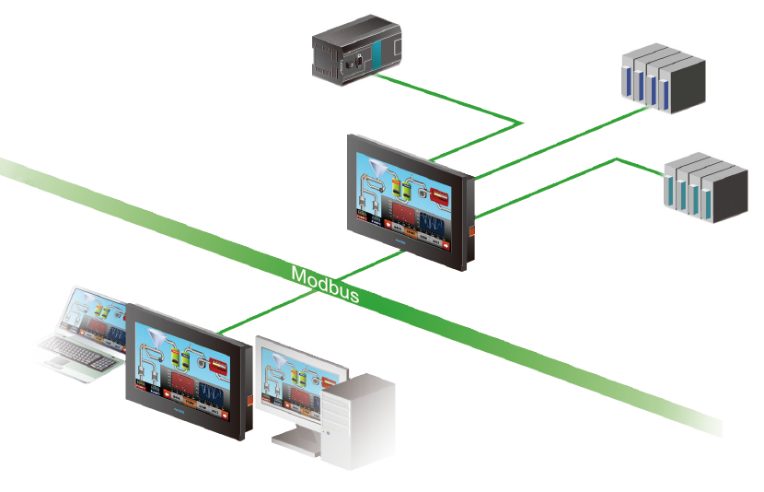
Figure 498 Gateway Server Application Diagram
This section describes settings and applications of Modbus gateway servers.
26.1 Modbus Gateway Server Settings
When the selected driver in the new link property settings is selected as Modbus Slave (ASCII), or Modbus Slave (RTU), under the【Interface Settings】, a new options tab will be present. The options tab contains【Address Mapping Table】settings, as shown in the figure below.
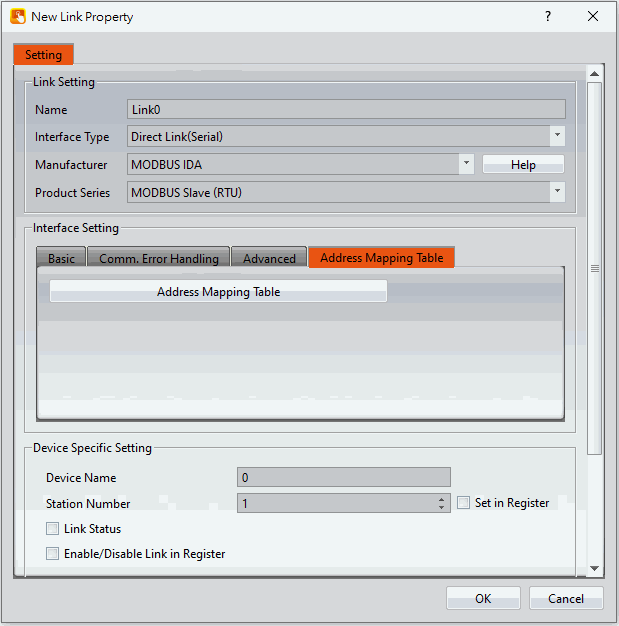
Figure 499【Address Mapping Table】Settings Screen
【Address Mapping Table】settings screen is in the below figure. Each setting is detailed in the table.
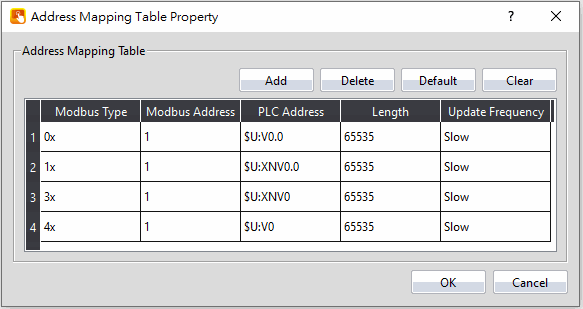
Figure 500【Address Mapping Table】Settings Screen
Table 295【Address Mapping Table】Settings and Related Files and Shortcuts
|
Option |
Description |
|
【Address Mapping Table】 |
【Add】 Create a new row in the【Address Mapping Table】. 【Delete】 Remove the selected row from the【Address Mapping Table】. 【Default】 Returns the【Address Mapping Table】to the preset rows and configurations. 【Clear】 Deletes all entries from the【Address Mapping Table】. 【Modbus Type】 Currently supports four types: 0x, 1x, 3x, and 4x. 0x has read and write permissions for a bit. 1x is a read only bit. 3x is a read only word. 4x has read and write permissions for a word. 【Modbus Address】 Specify the return target address for a PLC or other Modbus devices. 【PLC Address】 Specified source address for PLC or other equipment. 【Length】 Set the length of the data. 【Update Frequency】 Set the transmission frequency speed. There are three settings: fast, normal, and low. |
26.2 Modbus Gateway Server Applications
In the following example, a HMI has a FATEK FBS PLC connected through the COM1 port and a Mistsubishi FX3U PLC connected through the COM3 port as shown in the figure below. On demand data can be uploaded via Ethernet to a computer and collected by SCADA (or modScan) software.
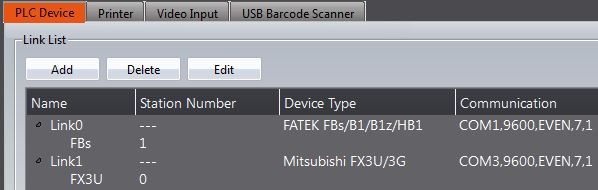
Figure 501 HMI Connection Page
The user wishes to monitor register R100 data and output point Y0 on the FATEK FBs PLC and D200 and Y1 on the Mistubishi FX3U. The FATEK PLC address should be uploaded to Modbus address 4×1 and 0x1 respectively. The Mistubishi FX3U address should be uploaded to Modbus addresses 4×2 and 0x2 respectively. The PC will then recieive the data via Ethernet.
Step 1: New Modbus Slave (TCP) driver.
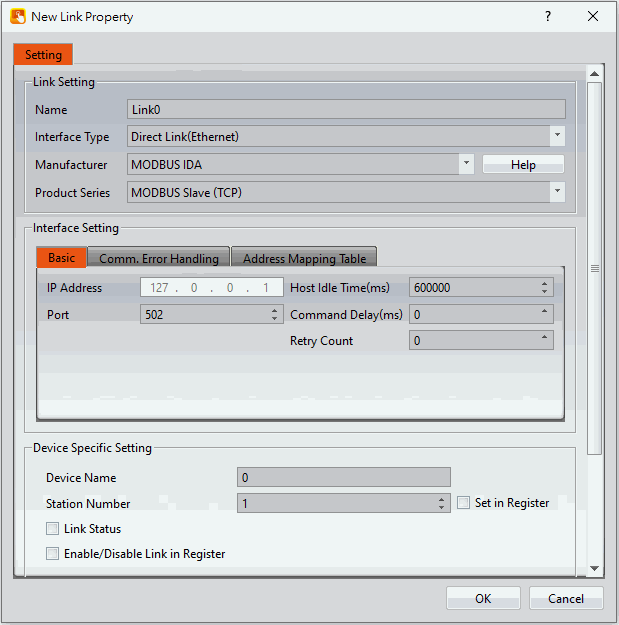
Figure 502 New Modbus Slave (TCP) Driver
Step 2: Click the【Address Mapping Table】settings.
Step 3: Set the【Address Mapping Table】in accordance to Figure 501.
The first row is the FATEK FBS PLC Y0 output. This is transferred to Modbus address 0x1.
The second row is the Mistubishi FX3U PLC Y1 output. This is transferred to Modbus address 0x2.
The third row is the FATEK FBS PLC R100 register. This is transferred to Modbus address 4×1.
The fourth row is the Mistubishi FX3U PLC D200 register. This is transferred to Modbus address 4×2.
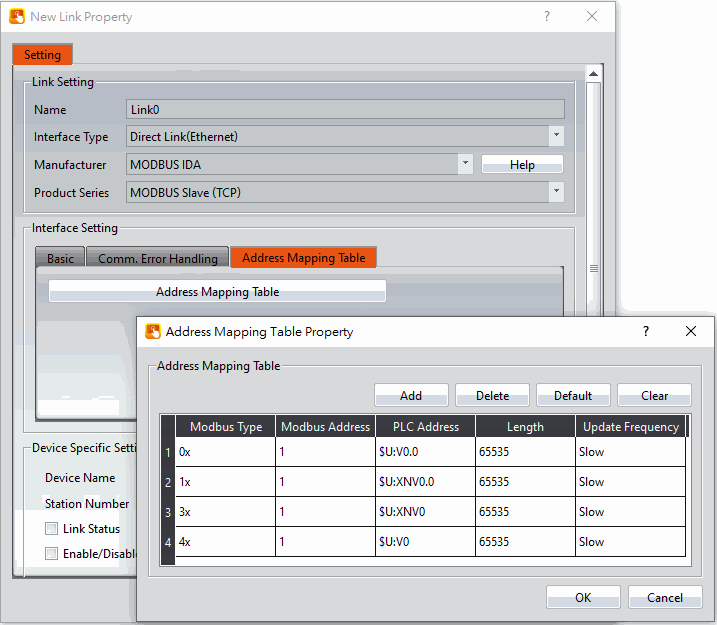
Figure 503【Address Mapping Table】Configuration
Note: If the SCADA software reads an address not defined in the Address Mapping Table, the HMI will return a MODBUS exception error in response to the read attempt by the SCADA software.
Step 4: Download the project to the HMI and connect the FATEK PLC, Mistubishi PLC, and SCADA (or modScan) software.
Step 5: As shown in Figure 351, the FATEK PLC R100 and Y0 addresses as well as the Mistubishi D200 and Y1 address can be viewed. Through the SCADA (or modScan) software, the Modbus address of 4×1, 4×2, 0x1, and 0x2 can be controlled.
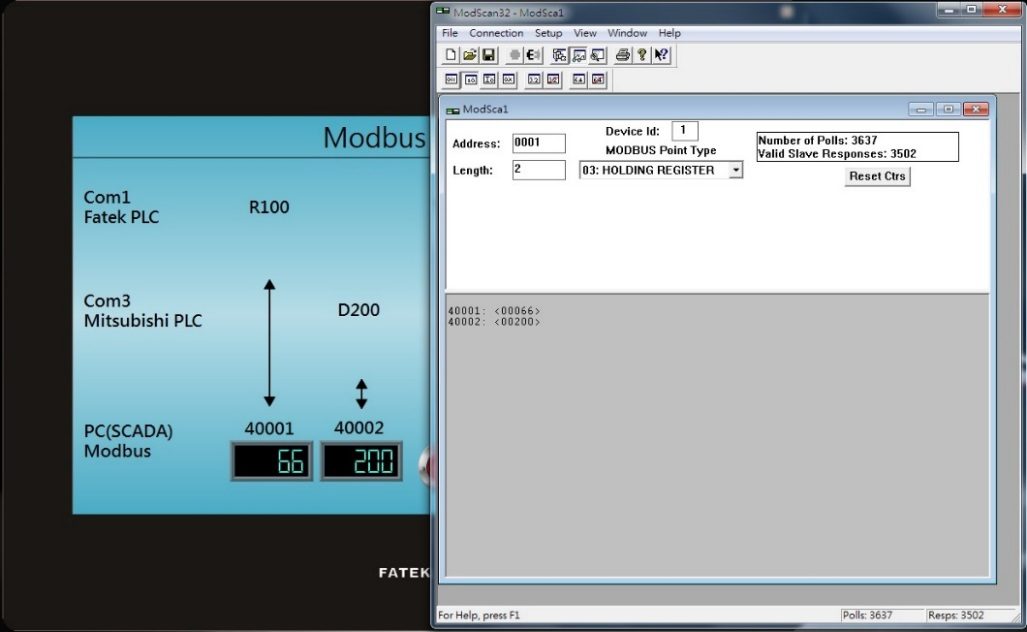
Figure 504 Results of the Gateway Server
Tip: press ← → to switch chapters, Ctrl+K to search