33.1 System Consistency Protection is Enabled
If the screen shows as below while using the HMI:
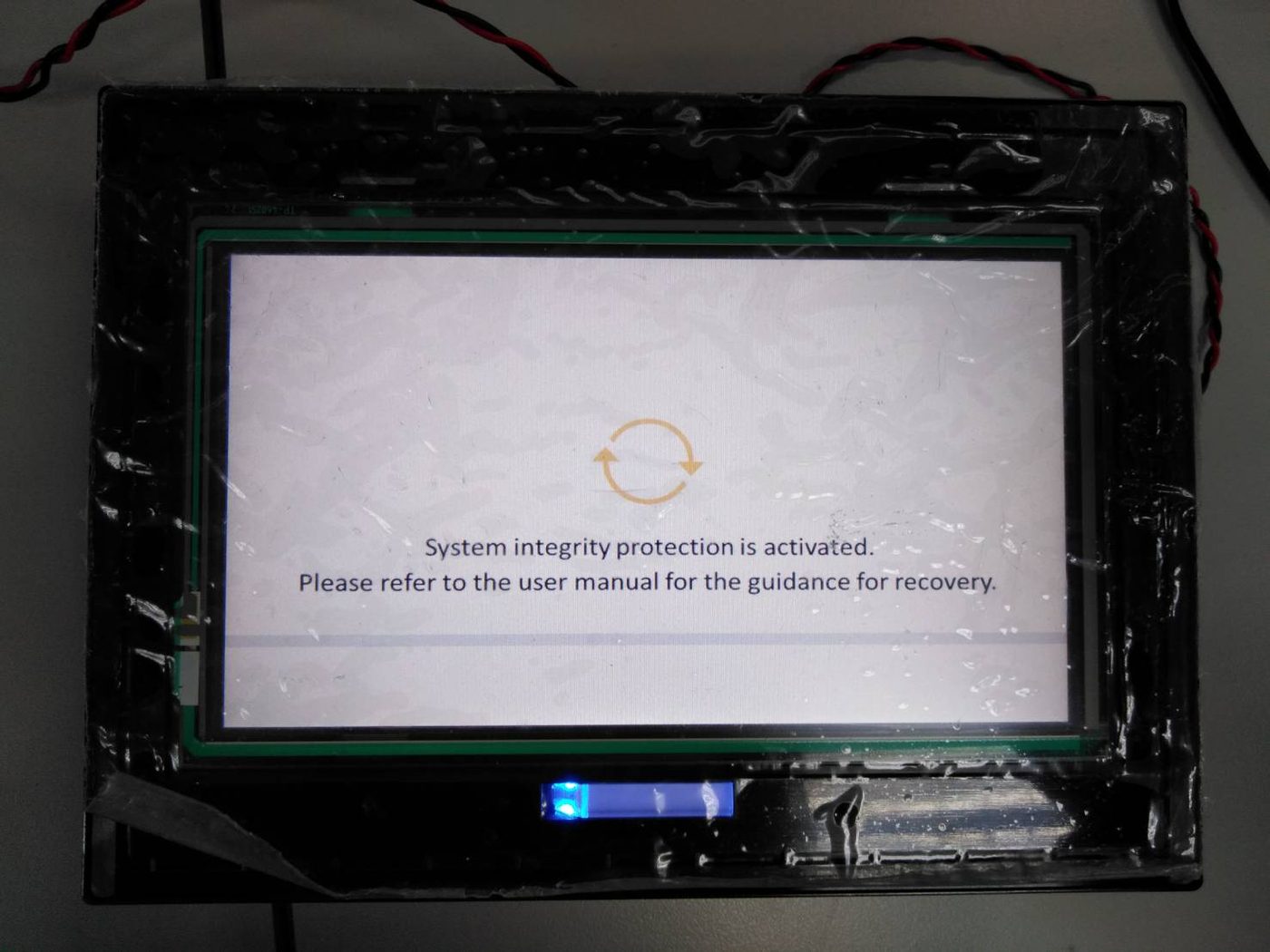
Figure 579 System Integrity Protection
33.1.1 Repairing File by Using Mini-USB Cable
Step 1: Connect PC and HMI by using mini-USB cable
Step 2: Open FvDesigner download function
Step 3: Check the【Firmware】to do update
Step 4: Make sure the HMI has enter to the system setting page then can download 【Running Package】normally.
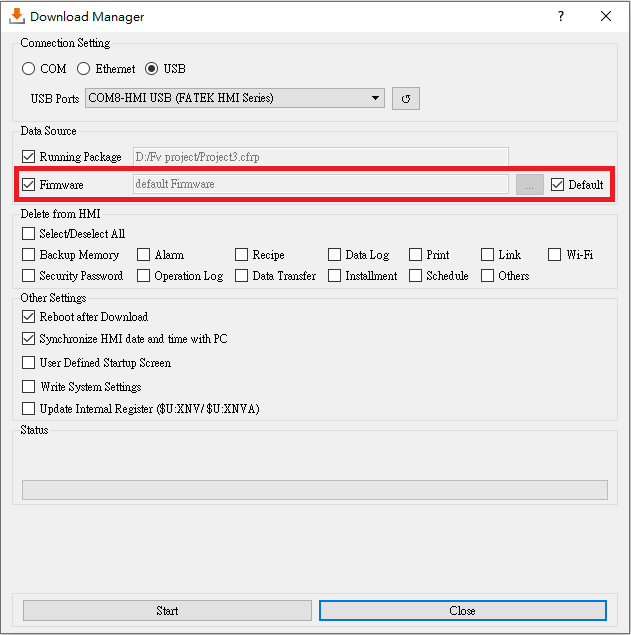
Figure 580 Using mini-USB cable download to repair system integrity protection
33.1.2 Repairing File by Using USB Flash Disk
Step 1: Open FvDesigner and make a USB update file
Step 2: Check the “Include Recovery Settings” option then press “Start”
Step 3: Store the.uferp file into the USB flash disk
Step 4: Plug the USB flash disk into the HMI when the HMI is under recovery mode then it will start repairing automatically after a few seconds.
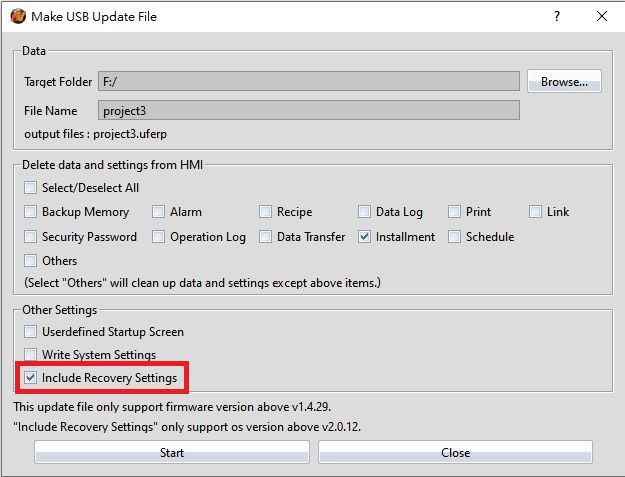
Figure 581 Using USB flash disk to download repair system integrity protection
To repair file by using USB flash disk, need to notice the following points:
- The HMI OS version need to be 2.0.12 or above
- When the HMI and FvDesigner are doing other functions by using the mini-USB cable, then the update will stop.
- If the USB flash disk has no .uferp or more than one .uferp files, then the update will stop.
Tip: press ← → to switch chapters, Ctrl+K to search