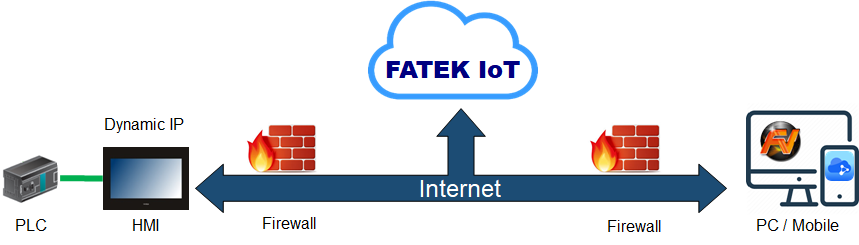
To connect to a remote device via a network, complex setups are often required to obtain HMI or PLC device data. Even if all settings were configured properly, there will be many online restrictions and data security problems, resulting in inefficient and inconvenient use of the system. Meanwhile, also because of the high cost of construction etc., users may finally abandon this function. The FATEK IoT cloud service platform provides a solution to make it easier.
FATEK IoT offers a new solution of HMI and PLC remotely monitoring named “iMonitor”. As long as the devices can connect to the Internet, users can easily get the data on the devices, simultaneously monitor and access multiple devices and receive real-time data, system alarms, data log which are useful for remotely debugging. The communication security also has a professional security encryption mechanism, so that the operation and access to equipment information has effective protection. With these functions above, user does not need to make any network settings.
FATEK IoT also provides iAccess remote maintenance. When the device is in a foreign country far away, maintenance personnel do not need to spend a lot of traffic and travel there and do troubleshooting on site. With iAccess, you can easily connect to the device, download program and debug on line. In addition, iAccess and FATEK HMI Pass Through function are perfectly integrated, users can directly monitor PLC data and update PLC program through iAccess, and can also operate the HMI at the same time without interruption.
1.1 Feature
Traditionally, remote connection to a network device requires understanding the surrounding network environment and settings, which may involve configuring routers or firewalls. There may also be restrictions where a single WAN IP can only be assigned to one device. Moreover, in overly complex network environments, individually configuring each device might become impractical.
FATEK IoT offers two main services: “iMonitor” and “iAccess.” When connected to the internet, users only need to perform simple device configurations to easily monitor device data. Although the two services have slightly different application scenarios, users can plan the cloud service system according to their needs, and both services can be used simultaneously without conflicts. Additionally, the “iLocation” feature is provided, which displays the device’s location on Google Maps.
Select the scenarios and features of the iMonitor:
● There are multiple HMIs and PLCs scattered in different areas and the data on these devices should be monitored at the same time.
● Set alarm conditions to specific register address, if conditions are met then SMS or email can be sent to the user admin for on-site troubleshooting.
● If you want to analyze the time or the data changes, record the data and acquire the system status through the historic trend.
● No need to redownload the HMI project, can configure and modify the register address through browser.
● Adjustable device returning time interval or return when changed, can reduce the use of network bandwidth.
● GPS location information can be set on the device, and the FATEK IoT can be logged in through the browser to view the distribution location of the device.
Select the scenarios and features of the iAccess:
● There is a requirement to change the application of the program, to use remote maintenance or update system functions.
● Monitor specific single device data in real time and support real time trend analysis.
● GPS location information can be set on the device, and the FATEK IoT can be logged in through the browser to view the distribution location of the device.
1.2 Device Hardware Requirements
|
Category |
Product |
Notes |
|
HMI |
P5 Series, P2K Series |
OS 2.0.10 or above/Firmware v1.6.24 or above |
|
FBs Series |
CMWLC, CBES |
1.3 Basic Operating Procedure
1. Obtain the HWID from the HMI or PLC. In the IoT web portal, create the device in the Devices library. Make sure the Device Type and Password are configured correctly, then switch the device status to Enabled.
2. After the device is enabled, add Data Items in the Device List. Ensure that each data item’s data type and address are configured correctly, as these settings determine whether data can be read from and written to the device successfully.
3. After creating the data items, create a Data Item Group in the Data Item Group List. In the configuration page, select the desired data items or devices and create the group. Only after a group has been created will the devices be visible in the mobile app or PC management tools.
4.HMI models support iAccess for remote screen monitoring, while PLC models do not support iAccess. If iAccess is required for an HMI, please contact your distributor to purchase an LID and register it in the HMI.
Recommended configuration sequence: Section 2 → Section 4 → Section 3
Tip: press ← → to switch chapters, Ctrl+K to search