14-1 Software Updating Process
14-1-1 CPU Unit
Notice
- Applicable to all CPU Unit models.
- During the updating process, do not attempt to shut down the power or remove the USB or the network plug.
- Repeat the steps if failure occurs when updating the modules.
- If unexpected update failures cause the CPU Unit to fail to boot, please refer to Section 14-2-1.
Step 1
Set the Dip Switch of the target CPU Unit to the “STOP” position. Connect your computer and computer via USB or network cable, and use the "PLC Status" in the UperLogic software to confirm the current version. The PLC firmware version in the picture: V0.2.90, MC firmware version V0.5.21.
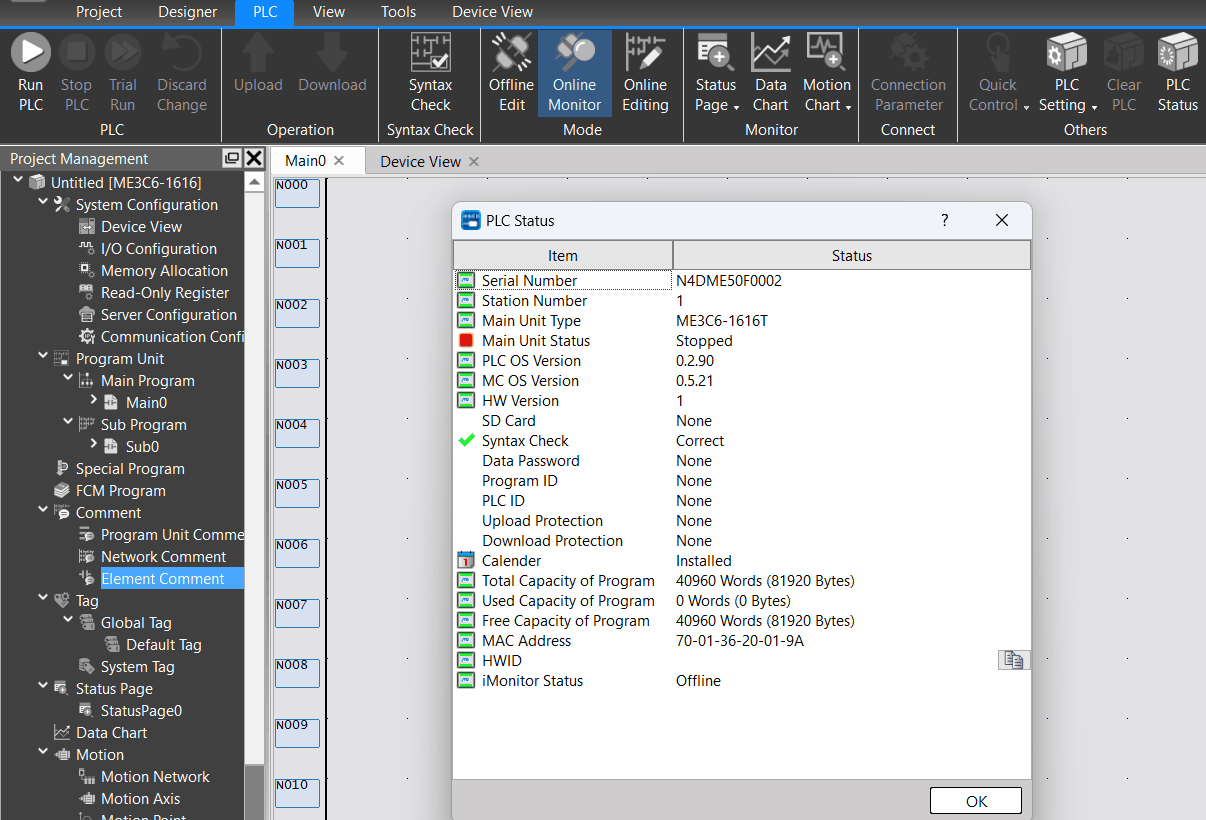
Figure 92 Information of firmware version
Step 2
Select “PLC Setting” and then click the option in the lower side “Firmware Update”.
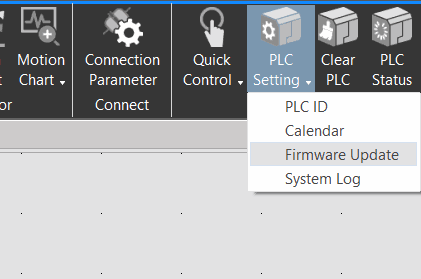
Figure 93 Selection of firmware update
Step 3
In the pop-up window, select the OS file to be updated.
Per the figure, the “m_plc_HW01_enc_v0_3_2_v0_5_22_00000000.os” file is selected.

Figure 94 Review and select PLC firmware file
Step 4
After opening, the system will start the update and the progress bar will be displayed during the update process. After that, a notification will be shown.
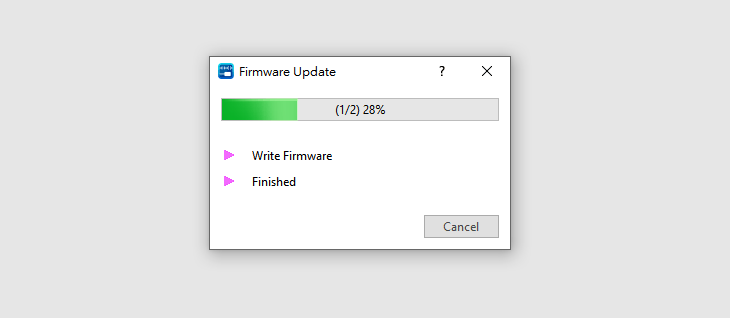
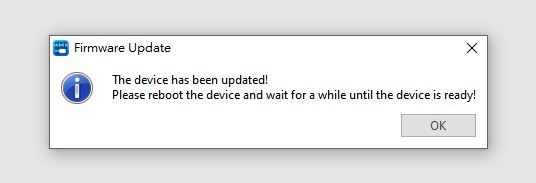
Figure 95 Notification of update progress bar and update success
Step 5
After being updated, it can be used normally without restarting the power and then click “PLC status” to confirm that the version has been updated.
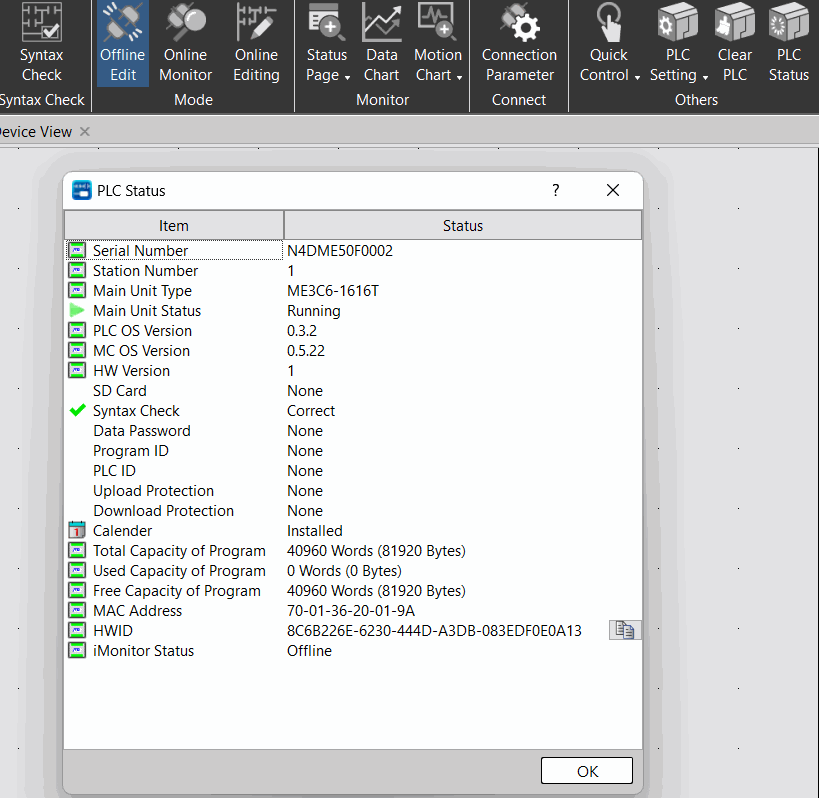
Figure 96 Update success of firmware version
14-1-2 Expansion Module
Notice
- Applicable to all expansion modules.
- During the updating process, do not attempt to shut down the power or remove the USB or the network plug.
- Repeat the steps if failure occurs when updating the modules.
- If unexpected update failures cause the CPU Unit to fail to boot, please refer to Section 14-2-2.
Step 1
Set the Dip Switch of the target CPU Unit to the “STOP” position. Connect your CPU Unit computer and computer via USB or network cable.
Step 2
Select “Upload”

Figure 99 Select “Upload”
Step 3
Select “Expansion Data” and “Motion Program” to upload.
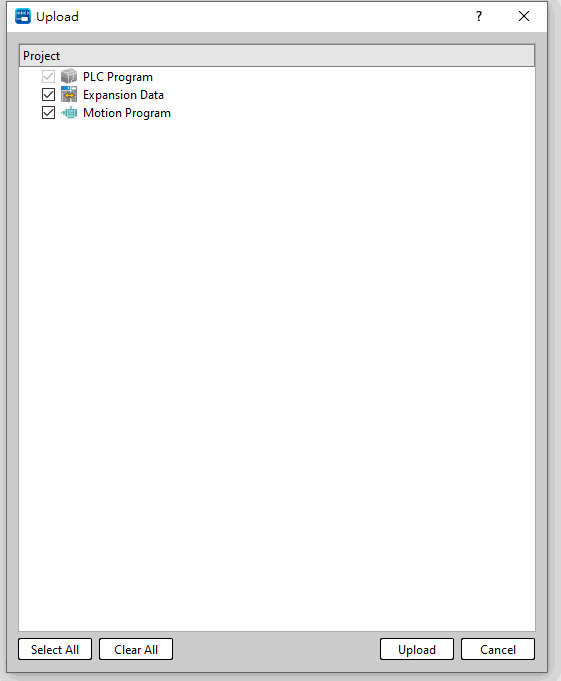
Figure 102 Upload expansion and motion data
Step 4
After selecting “Online Monitor”, please confirm the PLC is under shutdown status in order to update the expansion module firmware.

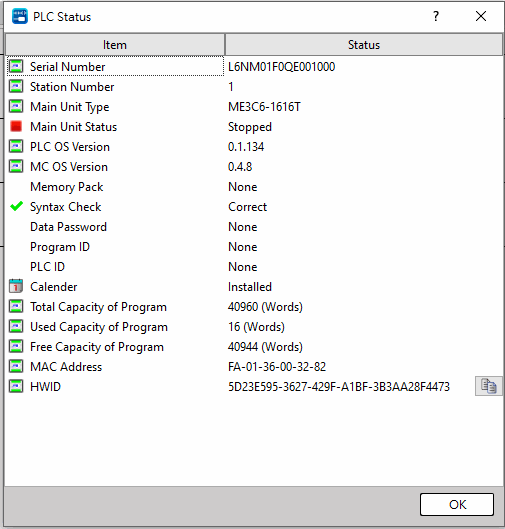
Figure 103 Online monitoring
Step 5
Click “Project”->Equipment picture.
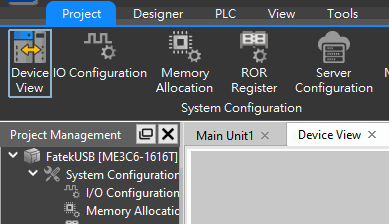
Figure 104 Find the equipment picture in “Project”
Step 6
Select the module to be upgraded. (Here takes M04AD as an example)
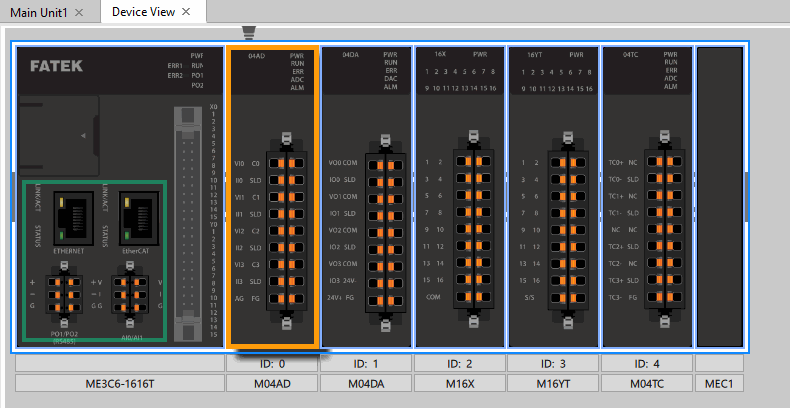
Figure 105 Select the target module
Step 7
In the pop-up window, select the firmware version and then click “Upgrade”.
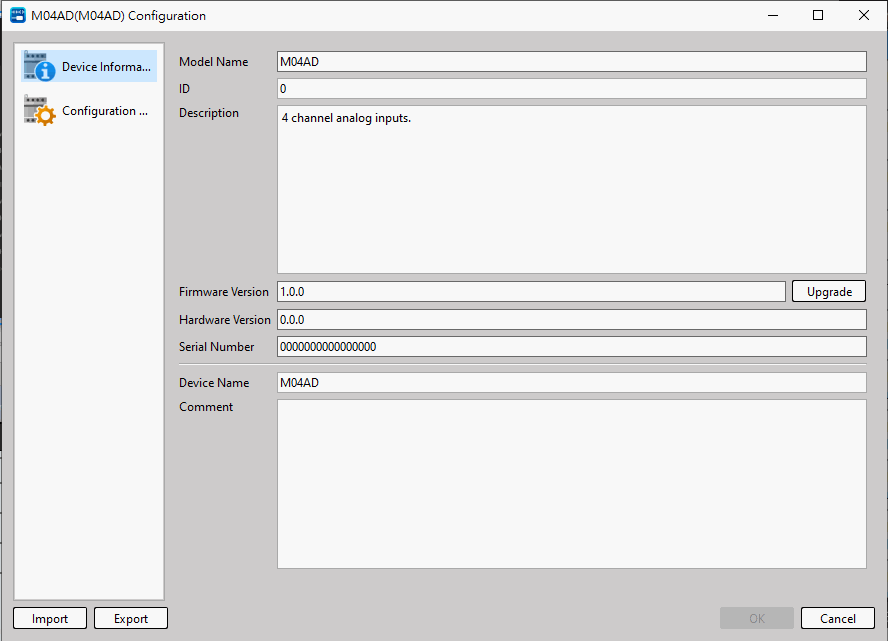
Figure 106 Click the module firmware to be upgraded
Step 8
In the pop-up window, tick the OS module to be updated until all of the modules that will be updated are selected.
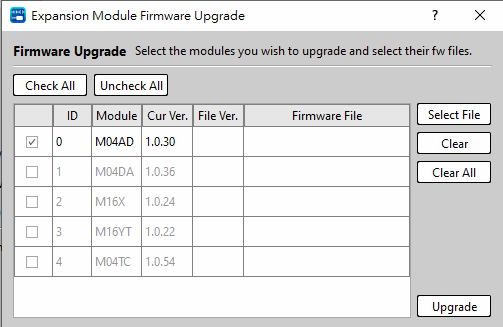
Figure 107 Tick the module to be upgraded
Step 9
Click in the column of all modules to update the OS to select the file
.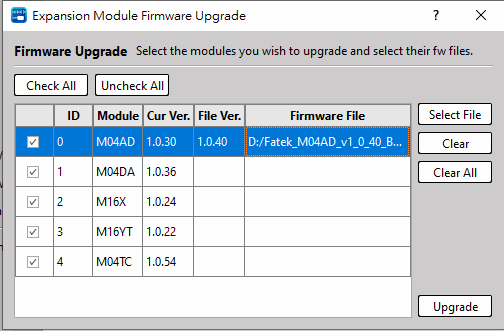
Figure 108 Select firmware file
Step 10
Click “Upgrade”. Do not attempt to shut down the power or remove the USB or the network wire before new window pops up.
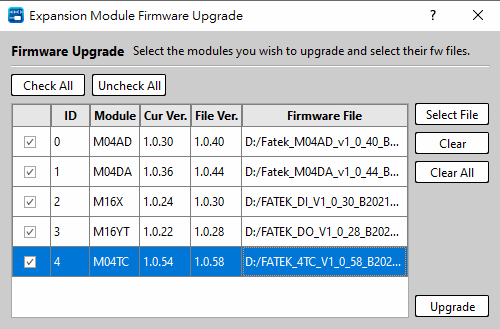
Figure 110 Execution of upgrading
The following window will pop up after completing the up, notifying that the update has been done.
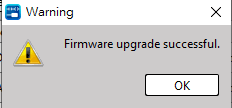
Figure 111 Notifying window after upgrade
14-2 Update Firmware by Memory Card
Notice
– During the updating process, do not attempt to shut down the power .
– Repeat the steps if failure occurs when updating the modules.
- Firmware rescue for expansion module can only be performed on one module at a time.
[CPU Unit]
Firmware Update via Memory Card
Step 1 Select OS Update for PLC and Write the OS file to the memory card using UperLogic.
Step 2 Confirm that the CPU Unit is in STOP mode and power on the CPU Unit.
Step 3 Wait until the RUN/STOP LED flashes normally, then insert the memory card.
Step 4 Check the LED status. When updating, the memory card execution light will flash, and the flashing ends and the normal LED display returns to indicate that the update is complete.
Step 5 Use UperLogic software to connect to the CPU Unit and confirm.
Firmware Rescue via Memory Card
Step 1 Select OS Rescue for PLC and Write the OS file to the memory card using UperLogic.
Step 2 Insert the memory card.
Step 3 Confirm that the CPU Unit is in STOP mode and power on the CPU Unit.
Step 4 Check the LED status. When updating, the memory card execution light will flash, and the flashing ends and the normal LED display returns to indicate that the update is complete.
Step 5 Use UperLogic software to connect to the CPU Unit and confirm.
[Expansion Module]
Firmware Update via Memory Card
Step 1 Select OS Update for Expansion and write the OS file to the memory card using UperLogic.
Step 2 Attach the expansion modules to the CPU Unit as you would like.
Step 3 Confirm that the CPU Unit is in STOP mode and power on the CPU Unit.
Step 4 Wait until the RUN/STOP LED flashes normally, then insert the memory card.
Step 5 Check the LED status. When updating, the memory card execution light will flash, and the flashing ends and the normal LED display returns to indicate that the update is complete.
Step 6 Use UperLogic software to connect to the CPU Unit and confirm the version. All modules of the same type shall be updated successfully.
Firmware Rescue via Memory Card
Step 1 Select OS Rescue for Expansion and write the OS file to the memory card using UperLogic.
Step 2 Attach only one expansion module to rescue at the first position to the CPU Unit
Step 3 Confirm that the CPU Unit is in STOP mode and power on the CPU Unit.
Step 4 Wait until the ERR LED is lit, then insert the memory card.
Step 5 Check the LED status. When updating, the memory card execution light will flash, and the flashing ends and the normal LED display returns to indicate that the update is complete.
Step 6 Use UperLogic software to connect to the CPU Unit and confirm that the module has been rescued successfully.
Tip: press ← → to switch chapters, Ctrl+K to search