Introduction to FATEK FvDesigner
Foreword
The FATEK FvDesigner is a software tool used to design and develop FATEK HMI series product projects. The FvDesigner includes an easy to operate Windows interface, similar to the frequently used Microsoft Office Ribbon interface. It supports rich figure objects to design various Windows interfaces and applications, as well as multiple types of user defined databases, making the project easy to organize, manage and share. It includes recipe functions, data log, alarm processing and user operation logs, making HMI function planning more complete.
System Requirements
Supported Operating Systems: Windows 8 (32&64 bit)
Windows 10 (32&64 bit)
Windows 11 (32&64 bit)
1.1 System Installation
The installation instructions will appear once the installing package is executed; please follow and confirm the installation steps.
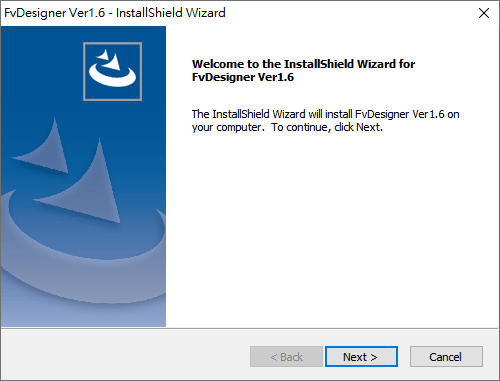
Figure 1 Installation Welcoming Screen
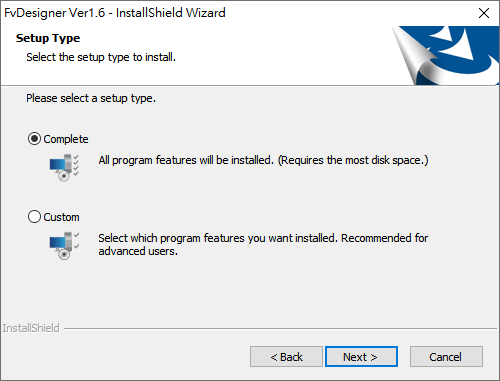
Figure 2 User Information
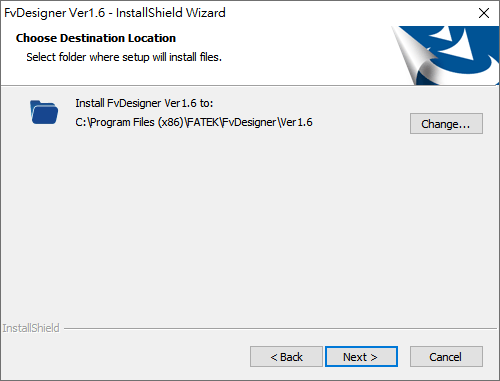
Figure 3 Select Software Installation Path
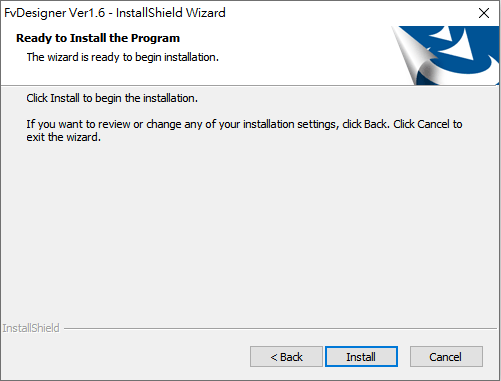
Figure 4 Confirmation Before Installation
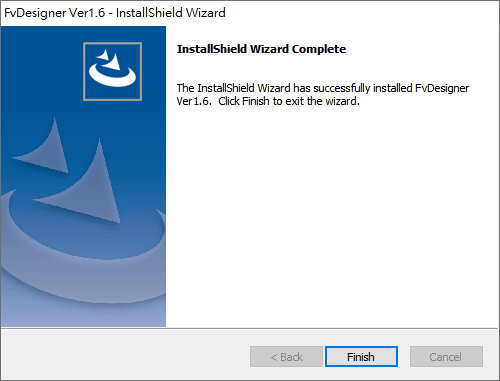
Figure 5 Installation Complete
Note:
If you choose a complete installation, the system will automatically install it in the default folder path C:\Program Files (x86)\FATEK\FvDesigner\Ver1.6.
1.2 Startup Screen
After the installation is complete, you will see FatekUtilityManager and FvDesigner two exe files on the desktop:
Fatek Utility Manager is a portal software. If users want to transfer file with HMI without opening FvDesigner. At this time, they can use this portal software to directly open the file transfer interface.
FvDesigner is the software tool for our FATEK HMI series product project.
Table 1 Startup Screen Functions
|
Function |
Description |
|
|
Fatek Utility Manage icon, double click to start up software. |
|
【Recent Access】 |
If a function is executed in the menu, it will be recorded in the recent use and can be quickly open. |
|
|
Switch the software interface to other languages including English, Traditional Chinese, Simplified Chinese, and Türkçe. |


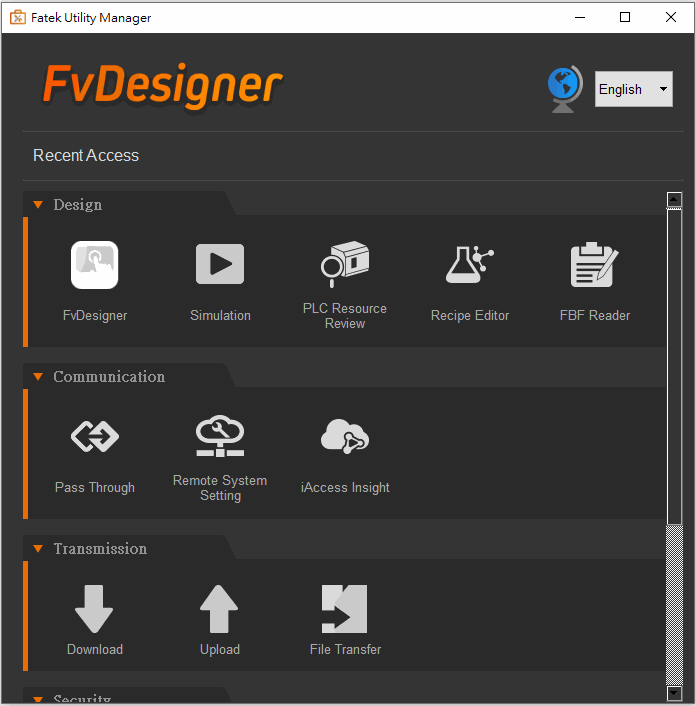
Figure 6 Startup Screen
1.3 Create New Project
After clicking the FvDesigner icon, the main interface of the software will open. You can choose to open an old file or create a new project.
When the screen is on the homepage, move the mouse to the right side of the newly added, the recently selected models will be displayed, and the project can be quickly created.
Table 2 Create New Project Steps
|
Function |
Description |
|
|
The FvDesigner icon, double click to start up the software. |
|
【Home】 |
Software start up home page, can choose old files or create a new project. |
|
【New】 |
Create a new project. |
|
【Recent Products】 |
Display the models that the project has been created recently. |
|
【Browse】 |
When clicking this option, it will pop up a window to let users choose the project to open. |
|
【Exit】 |
Close FvDesigner. |
|
|
Switch the software interface to other languages including English, Traditional Chinese, Simplified Chinese, and Türkçe. |


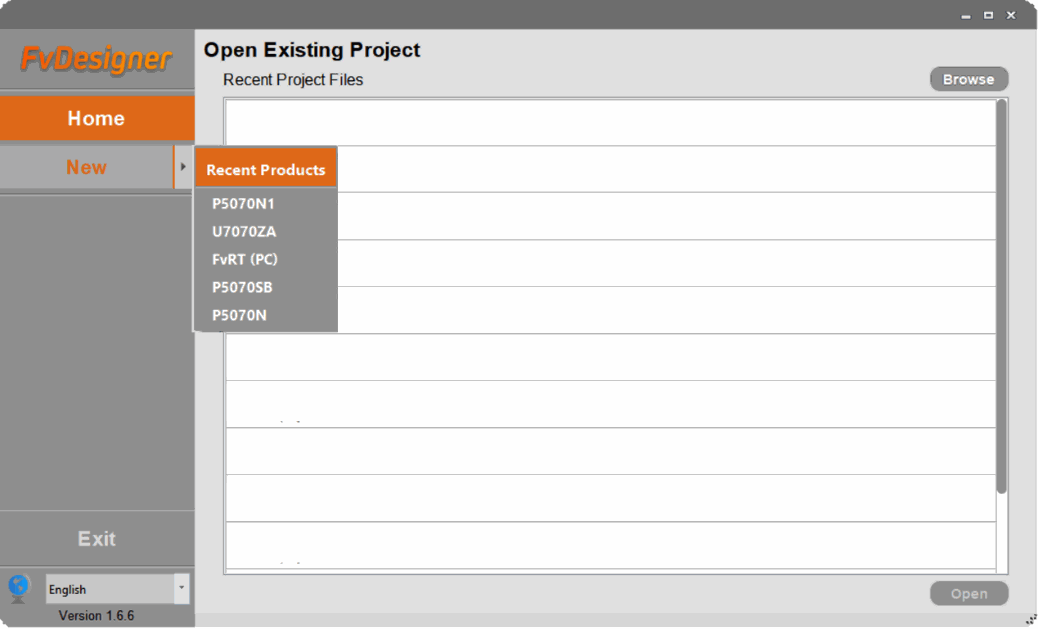
Figure 7 Create New Project: Select Product Type
To create a new project, click “New” -> “Finish”, then the project will seccessfully be created.
Table 3 Create New Project
|
Function |
Description |
|
【HMI】 |
Select the HMI model of the project. |
|
【Controllers】 |
Select the controllers to connect and also set up the parameters. |
|
【HMI Information】 |
After selecting the model, then will display the current model information on the right side. |
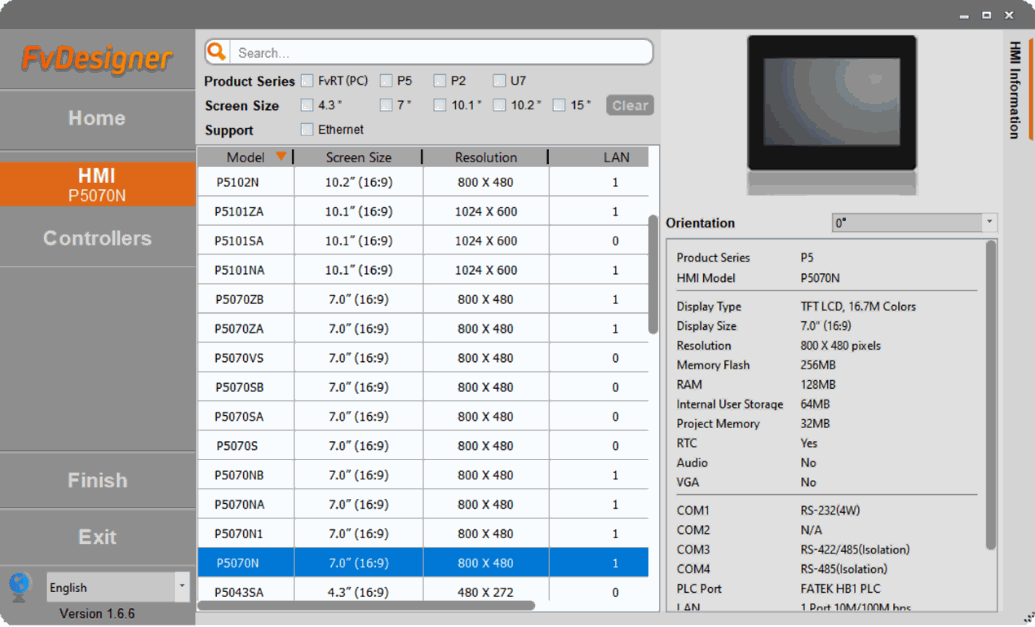
Figure 8 Create New Project: Select Controller
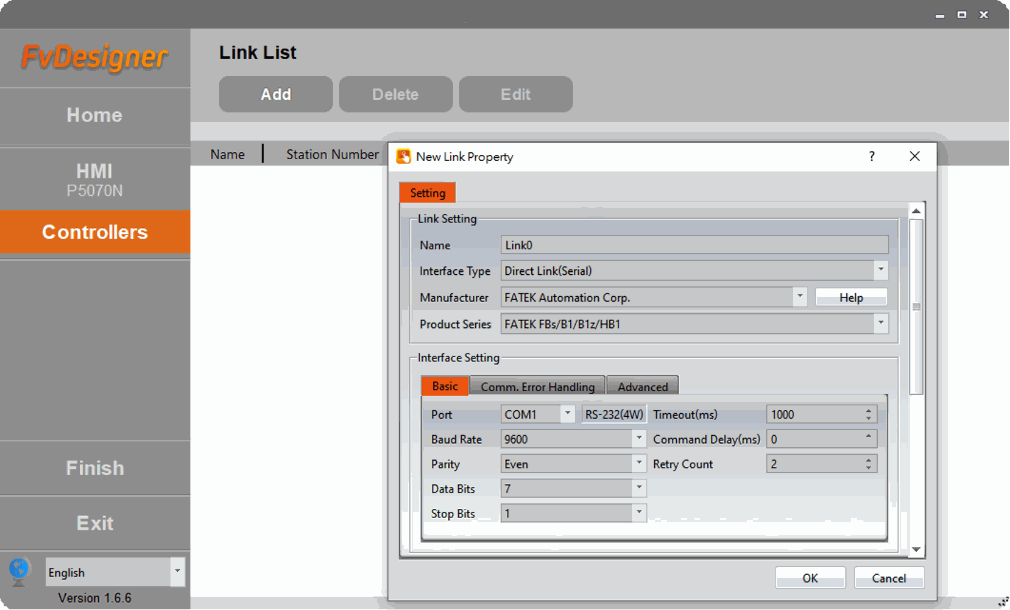
Figure 9 Create New Project: Link Properties Setting
Note: The Choose Controller tab is optional. The user can select only the HMI model and proceed to editing the project.
Tip: press ← → to switch chapters, Ctrl+K to search