【System Message】is located in【Project Explorer】under the【System】tab. 【System Messages】appear in a pop-up dialogue on the HMI whenever abnormal behavior is encountered. The message the user is prompted with includes the category of the message: 【GENERAL_MESSAGE_TYPE】, 【COMMUICATION_TYPE】,【SECURITY_MESSAGE_TYPE】, 【FILE_MANAGER_TYPE】,【STANDER_BUTTON_TYPE】,【DATA_LOG_TYPE】, 【ALARM_TYPE】,【RECIPE_TYPE】,【PRINTER_TYPE】,【OPERLOG_TYPE】, 【STATUS_BAR_TYPE】,【DEVICE_TYPE】,【SCHEDULE_TYPE】,【SMTP_TYPE】,【Link Setting Type】, and【UNKNOW】. The user is allowed to customize the【System Messages】in order to satisfy the project needs. Click【System Message】to access the following settings:
6.1 【System Message】Settings
【System Message】is located in the project manager under the system tab. The settings page is as follows:
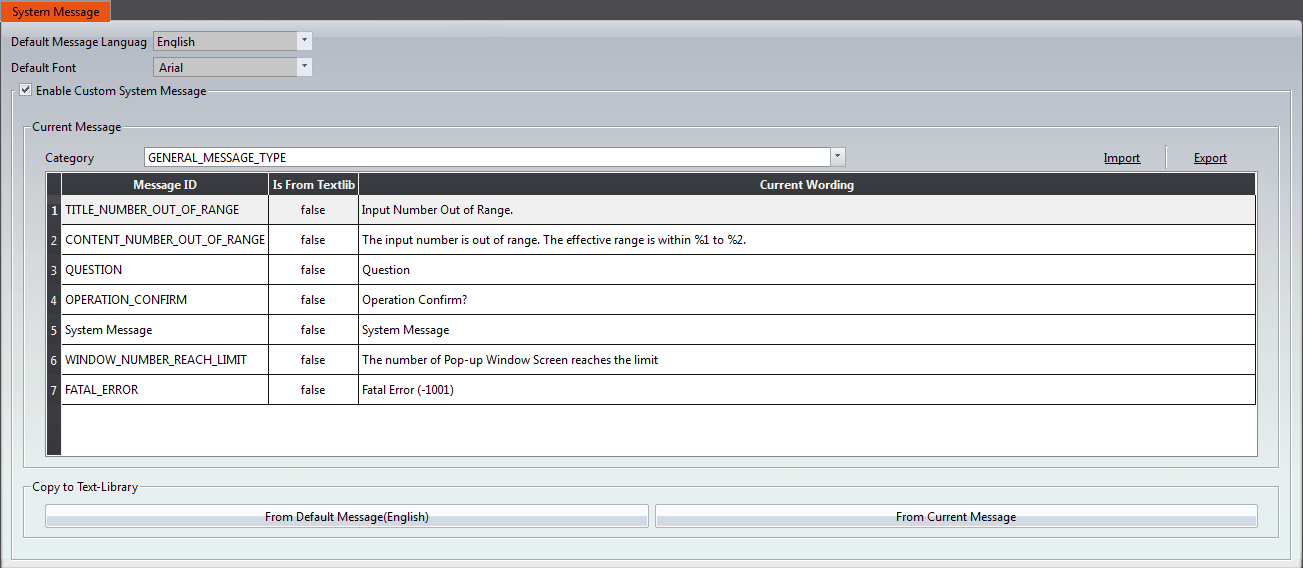
Figure 110【System Message】Settings Screen
Table 50【System Message】Settings
|
Property |
Description |
|
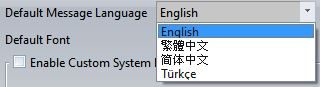
【Default Message Language】 |
The HMI has a built in set of system messages. This option allows for the selection of the language the systems are displayed in. There are currently 4 languages options: English, Traditional Chinese, Simplified Chinese, and Türkçe.
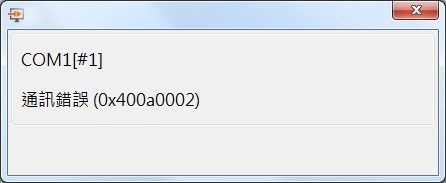
Example: The【Default Message Language】is set to Traditional Chinese. The system message dialog will appear as follows:
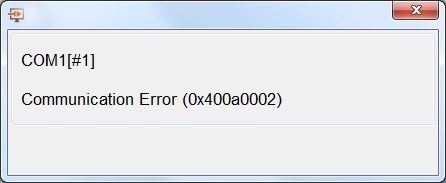
Example: The【Default Message Language】is set to English. The system message dialog will appear as follows:
|
|
【Preset Font】 |
You can set the font of the system message. |
|
【Enable Custom System Message】 |
Check this option to enable the system messages to be edited. The designer can set the system messages in a way that aligns closer to the project needs. |
|
【Current Message】 |
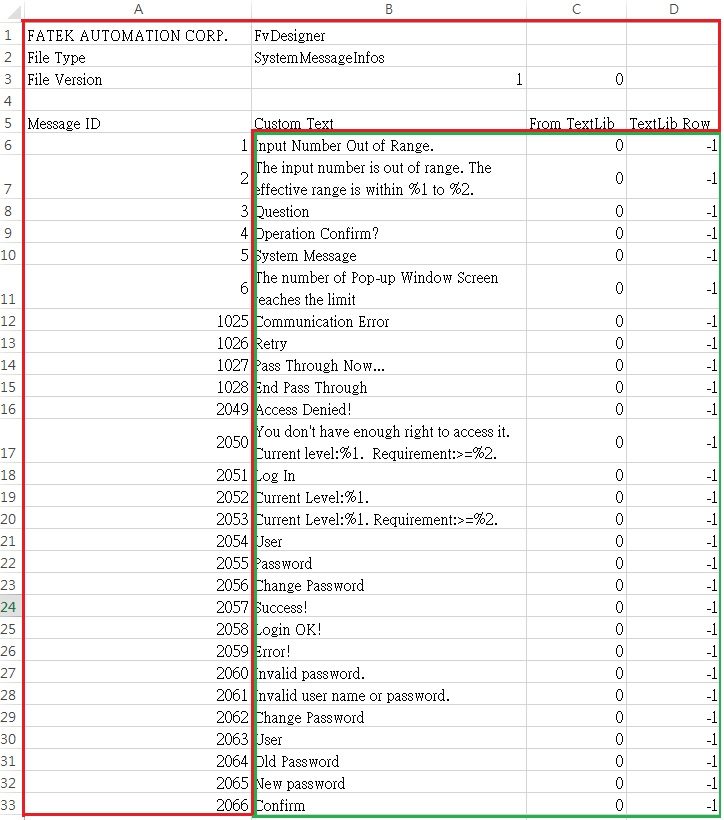
Displays current system【Message ID】and【Current Wording】of the messages in the current【Default Message Language】. If the【Default Message Language】is changed, the【Current Wording】of the messages will reflect the change. 【Category】 System messages are divided into the following categories:【GENERAL_MESSAGE_TYPE】,【COMMUICATION_TYPE】, 【SECURITY_MESSAGE_TYPE】,【FILE_MANAGER_TYPE】, 【STANDER_BUTTON_TYPE】,【DATA_LOG_TYPE】, 【ALARM_TYPE】,【RECIPE_TYPE】,【PRINTER_TYPE】, 【OPERLOG_TYPE】,【STATUS_BAR_TYPE】, 【DEVICE_TYPE】, 【SCHEDULE_TYPE】,【SMTP_TYPE】and【Link Setting Type】. 【Import】 Select a CSV or Excel file to import. The custom system messages contained in the imported file will replace the current custom system messages. 【Export】 The contents of the 【Current Messages】can be exported into a CSV or Excel file. The exported file is as shown below. The red box is for system use only and the user cannot make changes there. The green box contains the custom messages and is fully editable.
The fields for the exported file are as follows. 【Message ID】 System Message ID, cannot be edited. 【Custom Text】 Contains the text that the message will show. Can be edited. 【From TextLib】 This value is 1 when the exported message’s source is the text library. The value is 0 when the the message was entered directly. 【TextLib Row】 This value is -1 when the exported message’s source is not from the text library. If the source was the text library, this number corresponds to the text’s position in the text library. The fields for the【Current Message】table are as follows: 【Message ID】 Description for each system message. Cannot be edited. 【From Textlib】 True when the current message for the【Message ID】is from the text library. False when the current message is not from the text library (user entered text directly). 【Current Wording】 The text to be displayed when the system message appears. Click on the text to edit its contents. |
|
【Copy to Text Library】 |
Copy messages to the system’s text library. If the project requires multiple languages, this feature facilitates editing the messages. 【From Default Message (English)】 Copy the default system message text to the【Text Library】. The text is copied to positions 60000~60455 in the【Text Library】. The user can select which【Text Library】group to copy the message to, allowing the messages to be copied into a language group.
After the text has been copied, the messages can be edited from the【Text Library】and the changes will be reflected in the 【System Messages】. 【From Current Message】 Copies the current custom system message text to the【Text Library】. The text is copied to positions 60000~60455 in the【Text Library】. The user can select which【Text Library】group to copy the message to, allowing the messages to be copied into a language group.
After the text has been copied, the messages can be edited from the【Text Library】and the changes will be reflected in the 【System Messages】. |
6.2 【System Message】Applications
The following describes some applications of the【System Message】feature.
6.2.1 Single Language Project and Using the System Messages
When building a project in a single language such as English, the system messages should be consistent with the project language. Within the【System Message】settings, set the【Default Message Language】to English as shown in the following figure:
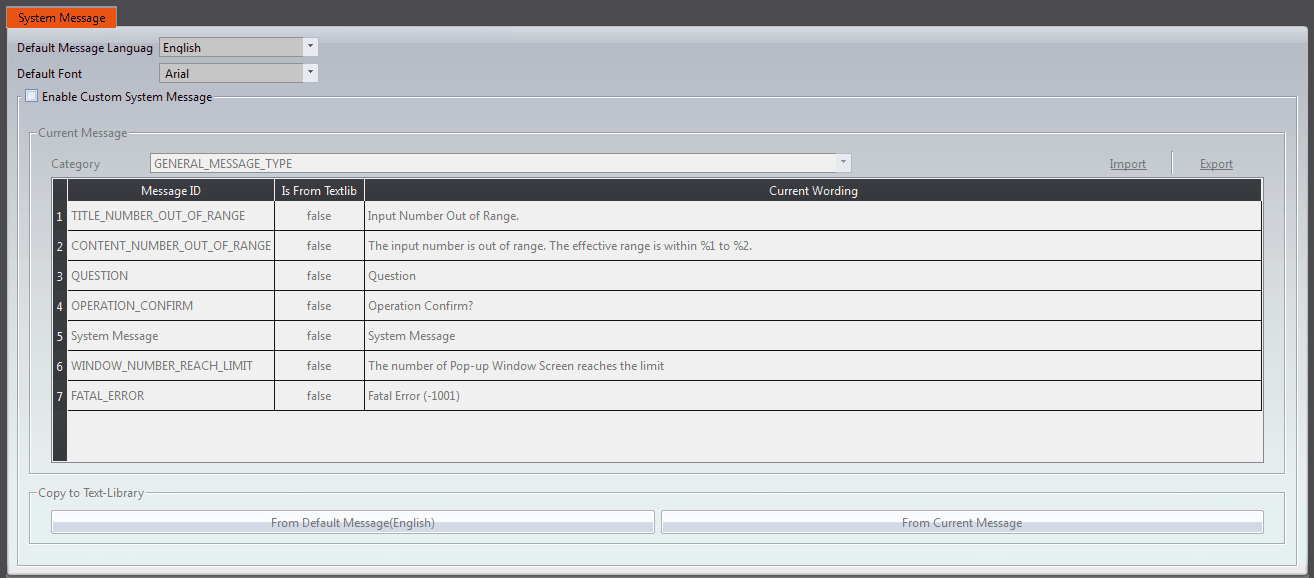
Figure 111 System Messages for Project Using a Single Language
As shown in the dialogue window below, the system message language is English.
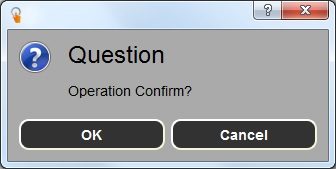
Figure 112 Confirmation Window
6.2.2 Single Language Project and Using Custom System Messages
When building a project in a single language such as English, the system messages should be consistent with the projet languge. In addition, the wording of messages may have to be customized in order to meet the project needs. The following steps can be taken customize the system messages.
- Open the【System Message】window and select a language in the【Default Message Language】dropdown.
- Check the【Enable Custom System Message】box.
- Select type as【GENERAL_MESSAGE_TYPE】
- Click the OPERATION_CONFIRM to edit and enter the custom message.
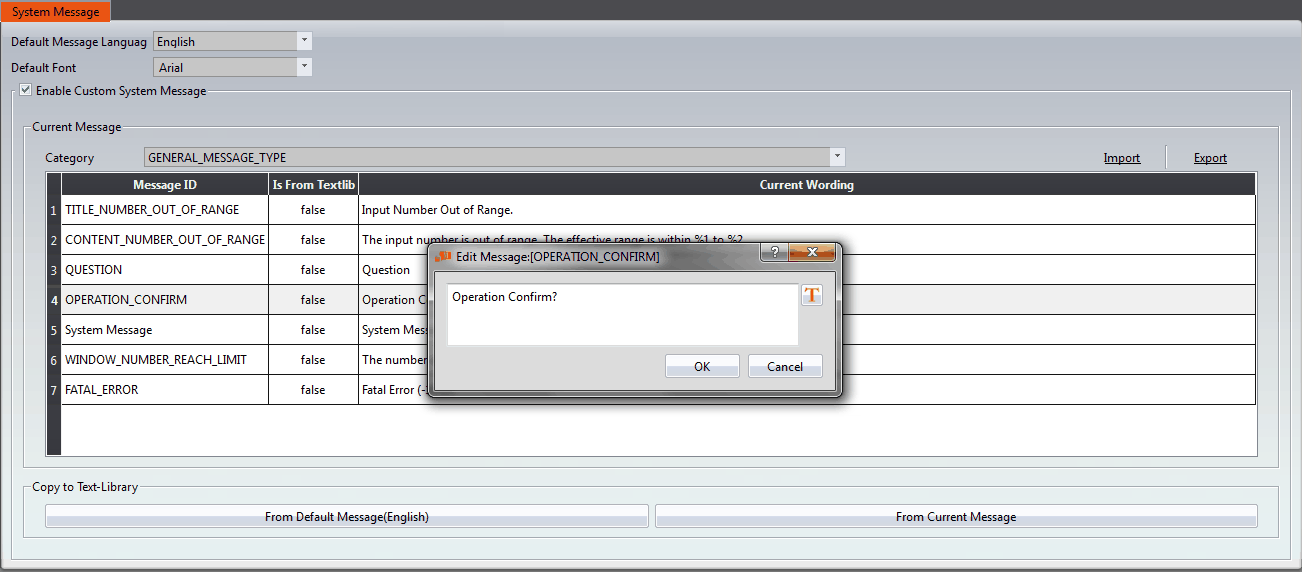
Figure 113 Customizing the System Message
The results of the customization can be seen in the confirmation window.
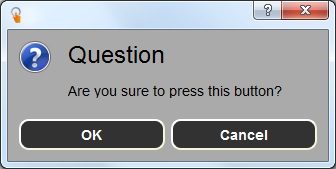
Figure 114 Modified Confirmation Window
6.2.3 Single Language Project and Using Only Custom System Messages
When building a project in a language that is currently not available in the system messages such as German (only English, Traditional Chinese, and Simplified Chinese is offered), the system messages should also be displayed in German. Therefore, all system messages have to be modified. The following steps can be taken to do so.
- Open the【System Message】window and select English in the【Default Message Language】dropdown.
- Check the【Enable Custom System Message】box.
- Press【Export】to export all the messages as CSV file, and change the【Custom Text】filed’s system message to German in the CSV file.
- Press【Import】to import the CSV file that just modified.
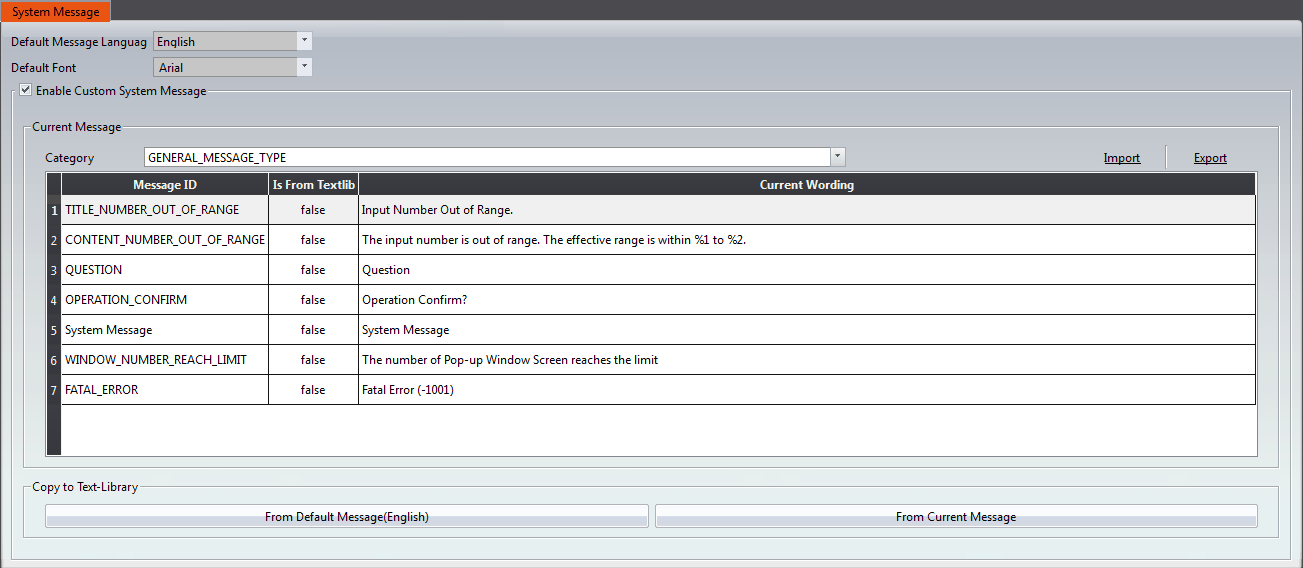
Figure 115 The【Default Message Language】is set to English
The results of the modification is shown in the figure below.
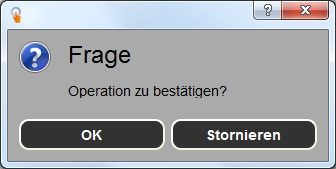
Figure 116 Modified Confirmation Window
6.2.4 Multiple Language Project and Using the Default System Messages
The project being built contains multiple languages in the text library. In this example, language 0 is Traditional Chinese , language 1 is Simplified Chinese, and language 2 is English. For each language, the system message language should be consistent. The following steps can be taken to do so.
- Open the【System Message】window and select English in the【Default Message Language】dropdown, and check the【Enable Custom System Message】box.
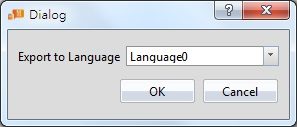
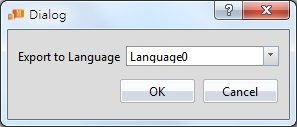
- Under【Copy to Text-Library】, click【From Default Language(繁體中文)】. Under the dropdown in the dialogue window, select【Language0】(language 0 is Traditional Chinese).
- Repeat the first two steps for Simplified Chinese. Select【Language1】in step 2.
- Repeat the first two steps for English. Select【Language2】in step 2.
- 【Default Message Language】select as English and check the【From Default Language(English)】box.
- Under【Copy to Text-Library】, click【From Default Language(English)】. Under the dropdown in the dialogue window, select【Language2】
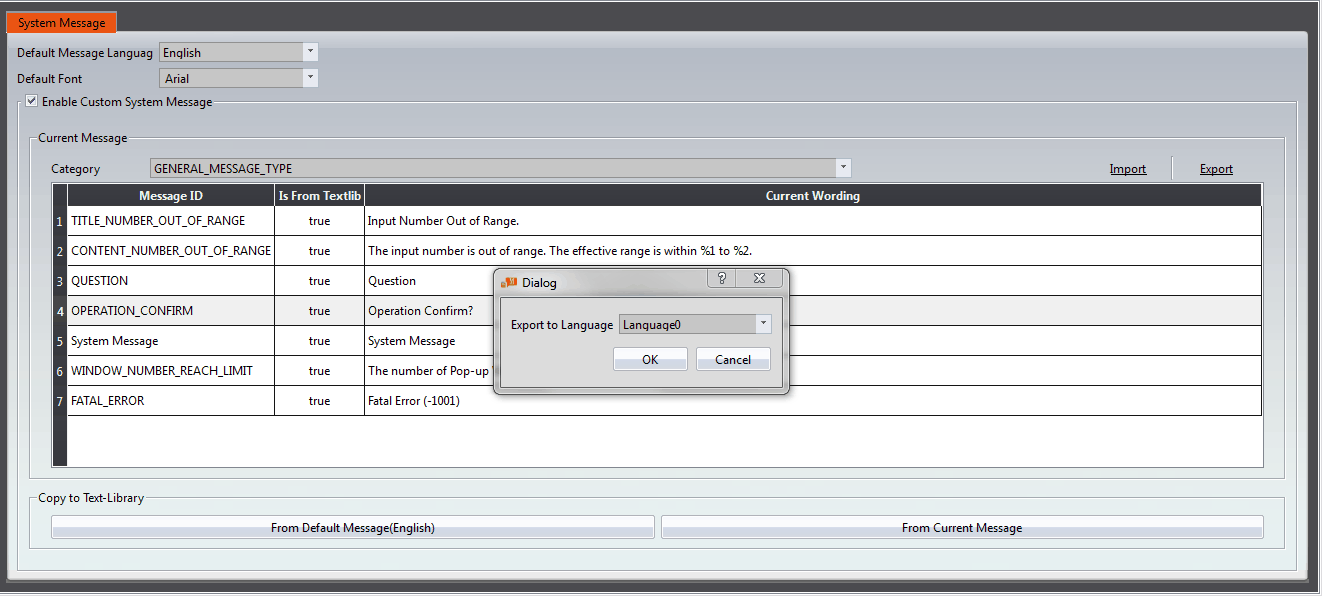
Figure 117 Exporting into Language0
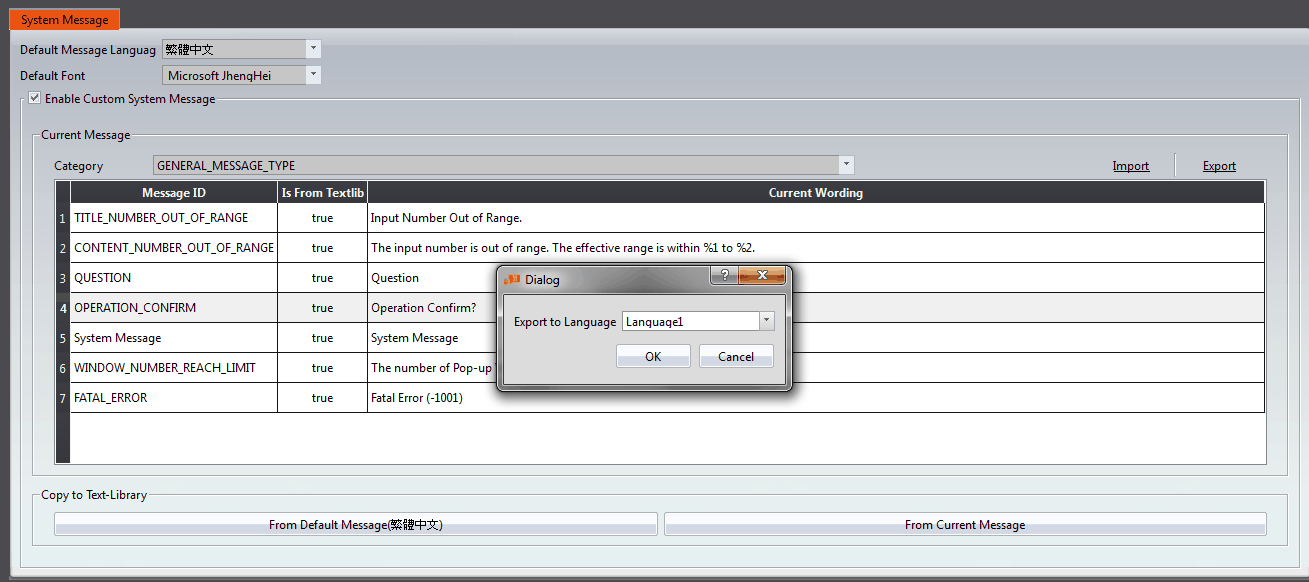
Figure 118 Exporting into Language1
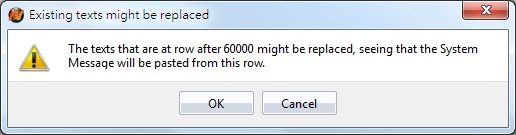
Figure 119 Export Confirmation Window
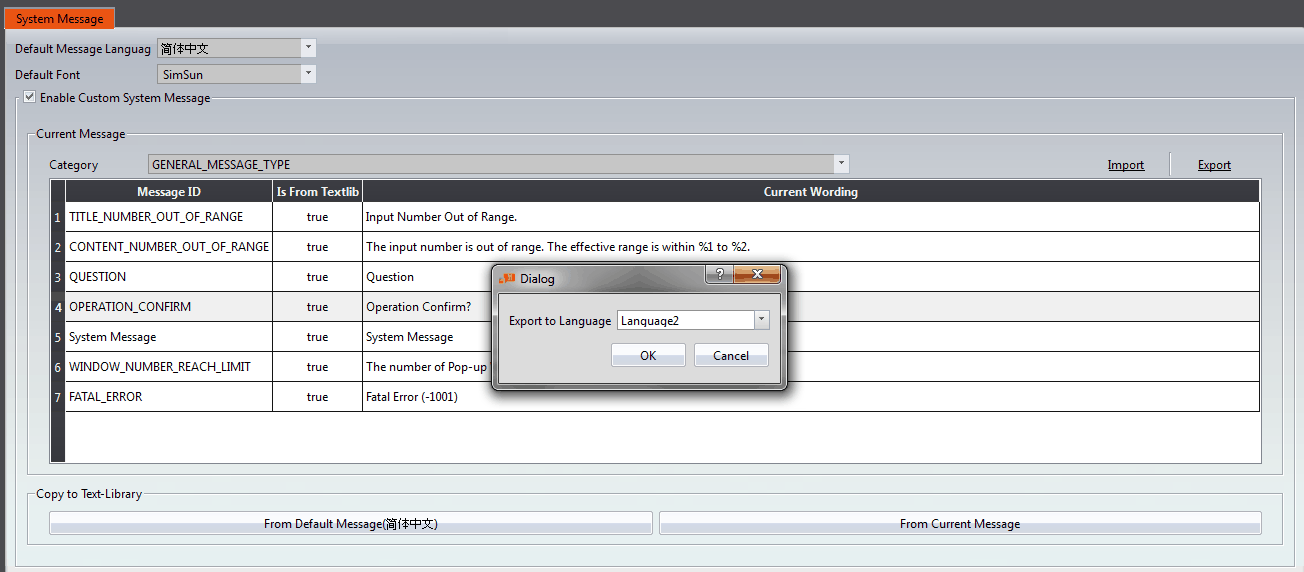
Figure 120 Exporting into Language2
Within the project, when using Traditional Chinese as the active language, the system messages will also be displayed in Traditional Chinese. The result is the same for Simplified Chinese and English. See Chapter 18.4 -【Text Library】for more details.
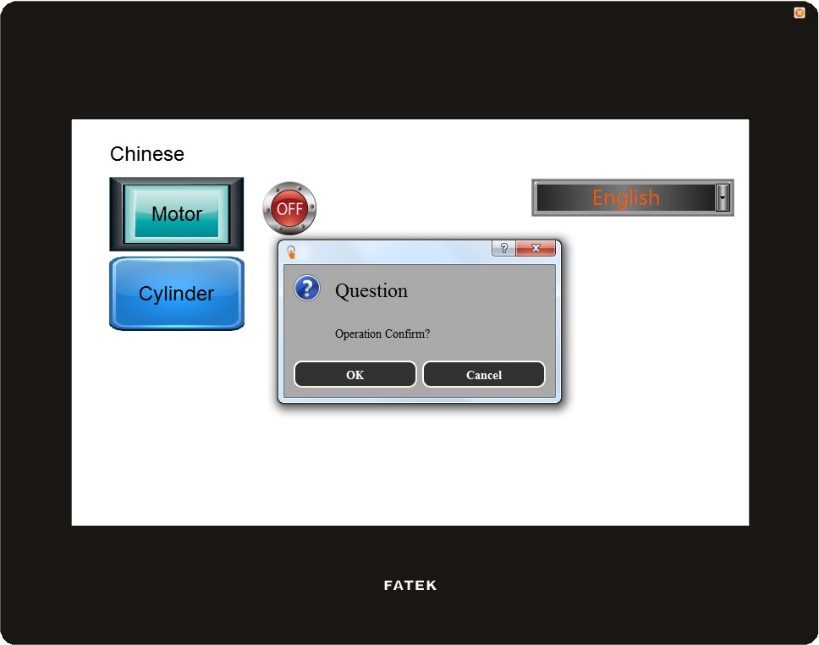
Figure 121 Confirmation Windows for Each Language
Tip: press ← → to switch chapters, Ctrl+K to search