When designers use FvDesigner to program HMI project, they often use some functions, such as【Compile】、【Download】and【Simulation】etc.. In order to operate FvDesigner easily, it provides a variety of【HotKey】for each function.
This chapter will explain the combination of【HotKey】and usage.
25.1 Project and File
The following table describes the【HotKey】definition for operating Project and File. When the mouse hovers over the icon of Ribbon menu, the tooltip of HotKey will also display on the screen.
Table 293【HotKeys】related to Project and File
|
HotKey/ Keyboard shortcut |
Description |
Target |
|
F5 |
Launch【Simulation】application. |
Project |
|
F6 |
Launch【Download Manager】for download process. |
Project |
|
Ctrl + Shift + C |
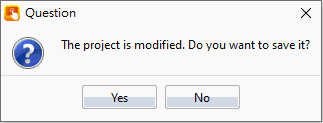
Compile the project. If the project does not be saved, the question dialog window will display as the following picture.
|
Project |
|
Ctrl + Shift + D |
Display【Decompile】dialog window for decompiling project file. |
Project |
|
F12 |
Display【Save As】dialog window for saving file. |
File |
|
Ctrl + Q |
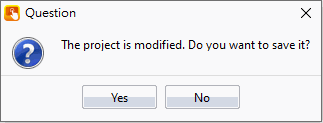
Exit the FvDesigner application. If the project does not save, the question dialog window will display as the following picture.
|
File |
25.2 Screen List
The following table describes the【HotKey】definitions for operating【Screen List】.
These【HotKey】only work on【Screen List】.
Table 294【HotKeys】related to【Screen List】
|
HotKey/ Keyboard shortcut |
Description |
Target |
|
Ctrl + C |
Copy screen to clipboard. |
Screen List |
|
Ctrl + V |
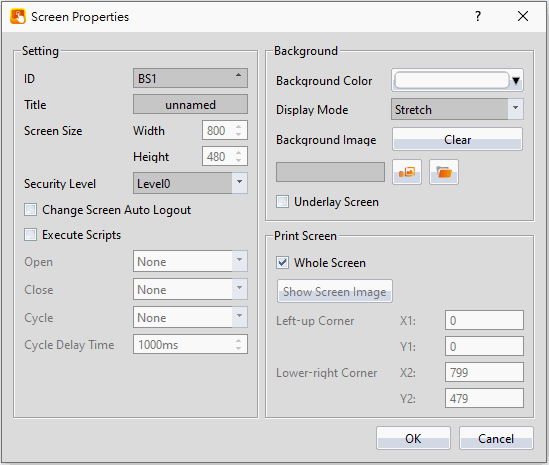
Paste the copied screen on【Screen List】. The【Screen Properties】dialog window will display after pressing this hotkey for designers to define the screen properties.
|
Screen List |
|
Delete |
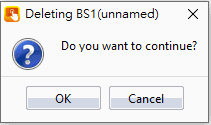
Delete the selected screen. The confirmation dialog window will display after pressing this hotkey.
|
Screen List |
|
Ctrl + Shift + B |
Add a new【Base Screen】, the【Screen Properties】dialog window will display after pressing this hotkey. |
Screen List |
|
Ctrl + Shift + W |
Add a new【Window Screen】, the【Screen Properties】dialog window will display after pressing this hotkey. |
Screen List |
|
Ctrl + Shift + K |
Add a new【Keypad Screen】, the【Screen Properties】dialog window will display after pressing this hotkey. |
Screen List |
|
↑ |
Pressing the UP key can move the【Current Selection Box UP. It will not display the screen on the【Work Space】of FvDesigner. |
Screen List |
|
↓ |
Pressing the Down key can move the【Current Selection Box】Down. It will not display the screen on the【Work Space】of FvDesigner. |
Screen List |
|
Enter |
Press【Enter】on the【Screen List】, and the screen selected by【Current selection box】will be displayed in the work space. After moving through the keyboard up/down keys, the screen can be displayed in the work space through this hot key. |
Screen List |
Tip: press ← → to switch chapters, Ctrl+K to search