30. Search/Replace
The【Search/Replace】function is to provide designers with more efficient and time-saving tools for planning projects. For example, when the designer is planning a project, it is uncertain whether those PLC addresses or internal addresses of the HMI are used , or on which items or functions to use, can search through the entire project, screen or function to search for the desired address, avoid using the same address and affect the function of the operation; Or in a project that has already been planned, it is hoped that the address of the modified part will have multiple consecutive addresses. At this time, you can also use this auxiliary function to modify batches at once, instead of spending a huge amount of time and effort, opening items one by one to make changes, etc.
30.1 The Use of Search/Replace
This section explains how to use the【Search/Replace】feature and how to set the window.【Search/Replace】function can click on the  icon in the status bar on any screen, or press the【Ctrl+F】key on the keyboard to open【Search/Replace】function dialog window

Figure 572 status bar
The options for opening the【Search/Replace】function dialog window are shown in the following figure. The meaning of each option is as follows:
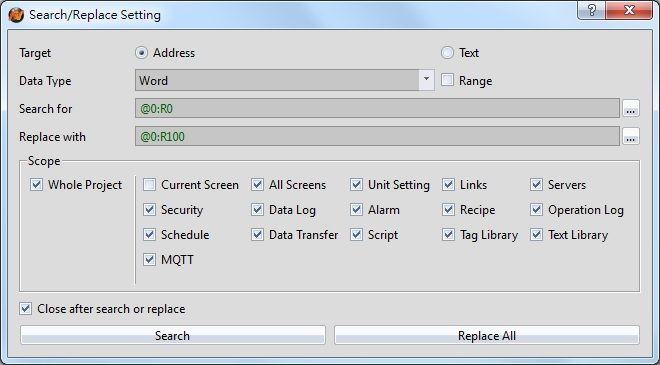
Figure 573【Search/Replace】function window
Table 318【Search/Replace】function properties setting
|
Properties |
Descriptions |
|
【Target】 |
To search for or replace the address or text used in the project. 【Address】 Choose to search or replace the address used in the project. 【Text】 Choose to search or replace text used in a project. |
|
【Data Type】 |
The address to be searched for or replaced in the project is【Bit】or【Word】, etc. When the target is selected as【Address】this option will be displayed. |
|
【Range】 |
Select the range of addresses to search for or replace in the project. When the target is selected as【Address】this option will be displayed. |
|
【Case Sensitive】 |
Select whether to search for or replace the text in the project is case-sensitive. When the target is selected as【Text】this option will be displayed. |
|
【Whole Words Only】 |
Select if you want to search or replace the text in the project if all text is the same. When the target is selected as【Text】this option will be displayed. |
|
【Search for】 |
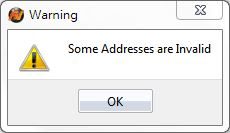
Fill in the address or text to be searched. When【Range】is checked, you can set the start address and end address. If there is an error in the search address or text, the following figure shows the designer.
|
|
【Replace with】 |
Fill in the address or text to be replaced. When【Range】is checked, you can set the start address and end address. |
|
【Scope】 |
You can check the range you want to search for or replace, including【Whole Project】,【Current Screen】,【All Screens】,【Unit Setting】,【Links】,【Servers】,【Security】,【Data Log】,【Alarm】,【Recipe】,【Operation Log】,【Schedule】,【Data Transfer】,【Script】,【Tag Library】and【Text Library】, etc. When the target is selected as【Text】, the【Script】option will not provide selection. |
|
【Close after search or replace】 |
Close the window after search or replace. |
|
【Search】 |
Press to execute searching the address or text used in the project. |
|
【Replace All】 |
Press to execute replacement address or text used in the project. |
30.2 The Result of Search/Replace
Search results using the【Search/Replace】function will be displayed in the Search/Replace results window, as shown in the following Figure 572.
The options for the【Search/Replace】results window are shown in Figure 572 below, where the options are as follows:
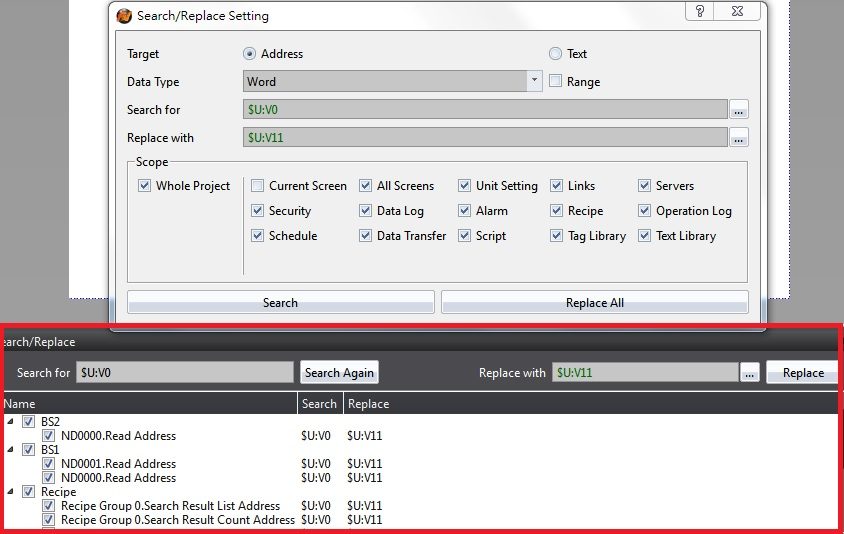
Figure 574【Search/Replace】result function window
Table 319【Search/Replace】function properties setting
|
Properties |
Description |
|
【Search for】 |
This field only provides an address for execute search function cannot be entered. 【Search Again】 Search again for the address or text used in the project. |
|
【Replace with】 |
This field can be entered to replace the address or text in the project. 【Replace】 Replace the address or text in the project with the set address or text. |
|
【Search Result】 |
Display the searched address and text, you can use the check box to select the item you want to replace. Double-click the left mouse button on the searched object to display the screen where the object is located in the window area. At the same time, the object properties will be displayed for the designer to edit. The content will contain the following fields. 【Name】 Display the name of the searched object and the screen where the object is located. 【Search】 The searched address. 【Replace】 The replaced address. |
In addition, on the【View】tab of the FvDesigner ribbon, click【Search/Replace】to also enable or disable the【Search/Replace】result window.
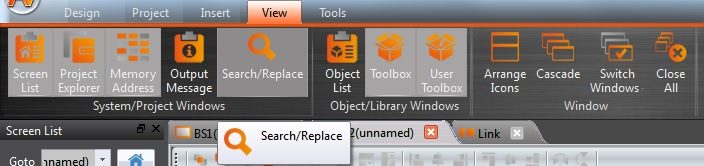
Figure 575【Search/Replace】option in【View】
Tip: press ← → to switch chapters, Ctrl+K to search